
Open the plans
- Phone: Account›View plans. When the workspace has no paid plan, the button says Choose a plan.
- Laptop: Plan & billing›Compare plans.
- Banners: Explore plans in the free trial banner, and Choose a plan in a company workspace without a plan or after a plan has ended.
The Plans sheet opens: A plan for every introduction.
1. Set billing and currency
At the top, Monthly | Annually sets how Solo and Business are billed. A Team Pass is always one payment. See Monthly or yearly billing.
Below it you may see € EUR | $ USD. It shows while a workspace you could buy for has never paid. Once a workspace has paid, it keeps that currency. See Currency, VAT and sales tax.
2. Choose a plan
Tap Choose Solo, Choose Team Pass or Choose Business.
- Solo always goes to your personal space.
- Team Pass and Business go to the company workspace you are in. From your personal space, Swops asks you to Choose a company workspace: pick one you own, or tap Create a company workspace, give it a name, and the plans open again for the new workspace. If you own no company workspace yet, the New company workspace sheet opens straight away.
In a company workspace, only the owner can buy. A member sees Ask the workspace owner: “Only the owner of Corvia Sensors can choose its plan. Your contacts and access stay as they are.” See Owners and members: who can do what.
3. Review your purchase
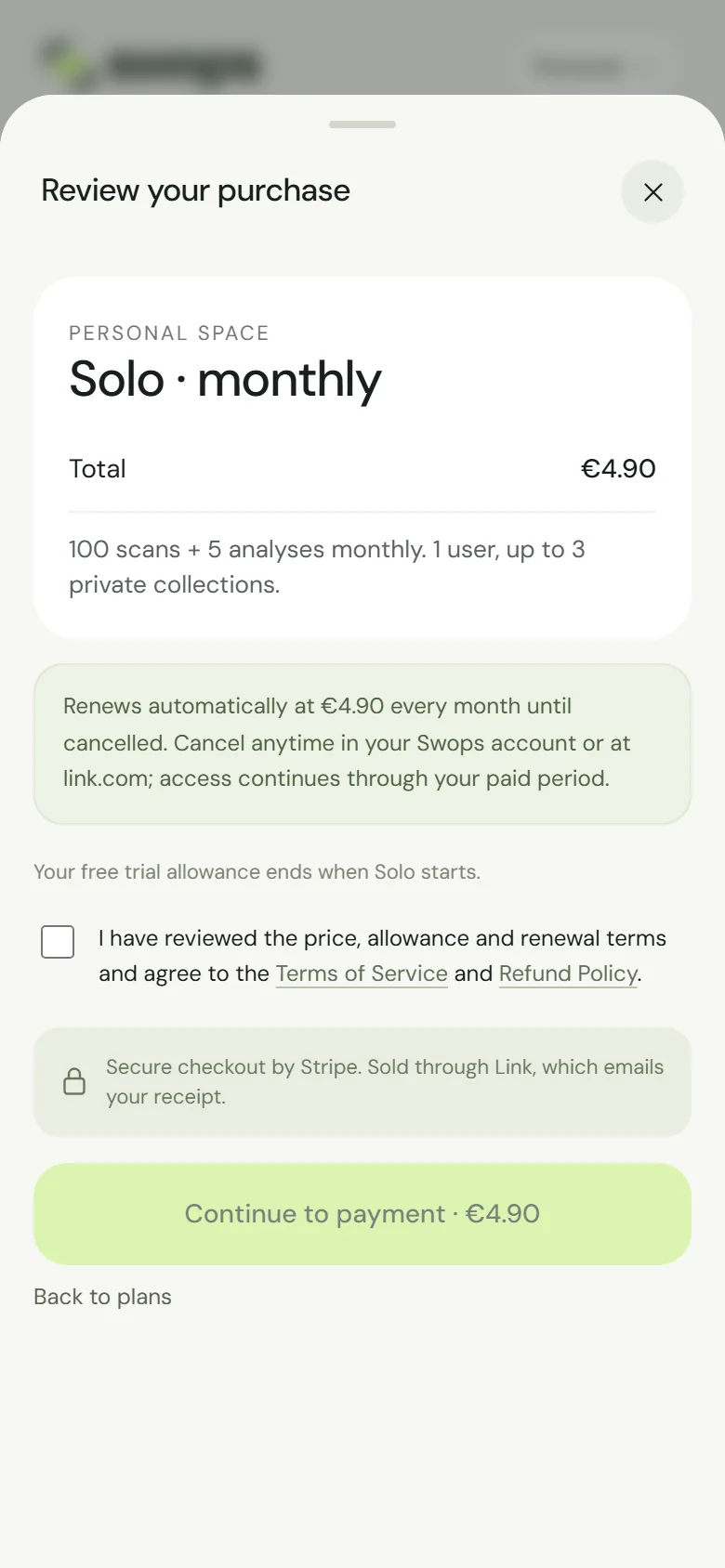
The review shows, in order:
- Where the plan goes (Personal space, or Whole company team with the workspace name), the plan and the price.
- What you get, for example “100 scans + 5 analyses monthly. 1 user, up to 3 private collections.”
- The terms. A subscription: “Renews automatically at €4.90 every month until cancelled. Cancel anytime in your Swops account or at link.com; access continues through your paid period.” A Team Pass: “One payment for your whole team. Pass valid for 12 months. No automatic renewal.”
- A note when it matters: “Your free trial allowance ends when Solo starts.”, or, when you already have a paid plan, “This starts the new plan now at its full price. Your unused paid allowance keeps its original expiry.”
Tick the box, “I have reviewed the price, allowance and renewal terms and agree to the Terms of Service and Refund Policy.” (for a Team Pass it says “validity terms”), then tap Continue to payment · €4.90.
4. Pay in the secure checkout
Stripe’s checkout opens over the app, with Secure checkout and Close at the top. You never leave Swops, and your card details go to Stripe, not to Swops.
Enter your card details. Depending on your phone and browser, the checkout may also offer a wallet such as Apple Pay or Google Pay.
Have a discount code? Tap Add promotion code in the order summary. See Discount codes.
Pay. The bar says Payment complete, and Swops comes back by itself after a moment. You can also tap Back to Swops.
Some payment methods take you to another page to approve the payment. When you return, Swops confirms it: Payment received. Your purchase is ready.
5. You’re ready
The You’re ready sheet says, for example, Solo is active, how many scans and analyses are now available, and “Paid €4.90. Link emails your receipt.” Tap Continue. The workspace you bought for becomes your current one.
Sometimes Stripe needs a few more seconds and you see Almost there: “Payment received. We are confirming it with Stripe.” Carry on. If the plan has not appeared within a few minutes, check Account›Purchase history.
If the payment does not go through
Most messages also tell you whether money was taken.
| Message | What to do |
|---|---|
| Payment did not go through. Nothing was charged. | Try again, or use another card. |
| Checkout closed. Nothing was charged. | You closed the checkout before paying. Start again when ready. |
| Checkout closed. If you completed the payment, it appears in your purchase history in a moment. | Swops could not check yet. Look in Purchase history in a minute. |
| You appear to be offline. Nothing was charged. Check your connection and try again. | Find a better connection and try again. |
| The secure checkout could not be opened. Check your connection and try again. Nothing was charged. | Same: check the connection, then try again. |
| We could not start the checkout. Nothing was charged. Please try again. | Try again in a moment. |
| A payment for this workspace is still being processed. Try again in a few minutes. | An earlier checkout for this workspace, perhaps in another tab, is still being paid. Wait a few minutes. |
More help: The checkout did not finish.
Good to know
- Purchases are sold through Link, an affiliate of Stripe. Link emails a receipt and an invoice for every payment, and both are in Purchase history too. See Invoices and receipts and Who is Link, and why is it on my bill?.
- Paid for a second Solo or Business subscription for the same workspace, for example from two tabs? The extra payment is not applied and is refunded in full automatically. See Refunds.