
First: were you charged?
Swops tells you straight away. Most messages after a checkout say so in plain words:
| Message | What it means |
|---|---|
| Checkout closed. Nothing was charged. | You closed the checkout before paying. Choose the plan again when you are ready. |
| Payment did not go through. Nothing was charged. | The payment was declined or could not be completed, or the checkout could not be started. Try again, or use another payment method. |
| You appear to be offline. Nothing was charged. Check your connection and try again. | Swops could not reach the checkout. Try again on a better connection. |
| The secure checkout could not be opened. Check your connection and try again. Nothing was charged. | The checkout did not load. A weak connection, or a content blocker in your browser, can stop it. |
| Payments are not available right now. Nothing was charged. | Payments are unavailable on our side for the moment. Try again later. |
| A payment for this workspace is still being processed. Try again in a few minutes. | A payment for this workspace, perhaps from another tab or device, is already going through. Wait a few minutes and look in Purchase history before you pay again. |
| Checkout closed. If you completed the payment, it appears in your purchase history in a moment. | Swops could not confirm whether the payment went through. Check Purchase history in a minute or two. |
“Almost there”
A sheet titled Almost there with Payment received means your payment arrived and Swops is confirming it before switching on the plan or top-up. You can carry on using Swops meanwhile. It normally takes a moment. If it has not appeared within a few minutes, check Purchase history.
Check Purchase history
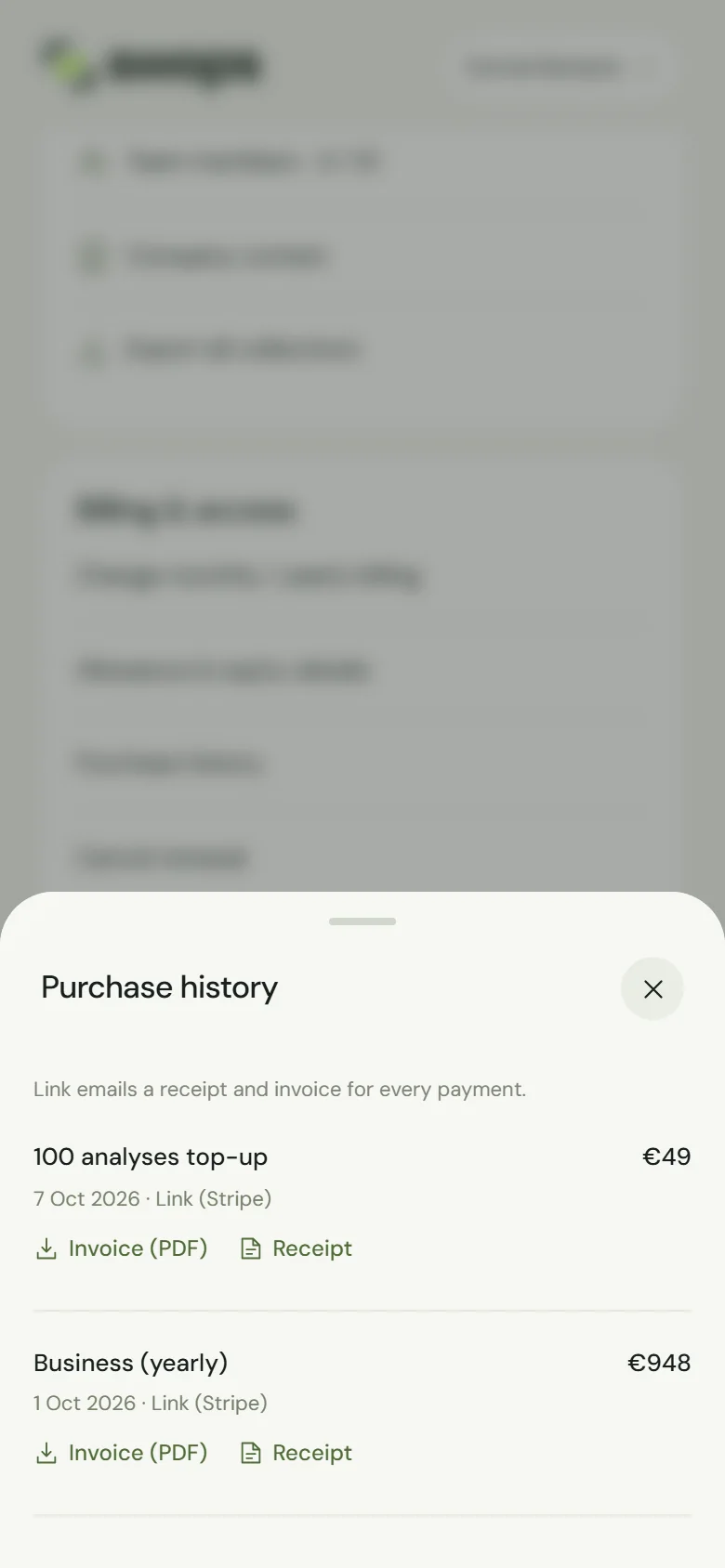
Open Account›Purchase history. Every purchase in the workspace is listed with its date and amount. A word at the end of the date line shows when a purchase is still going through, did not go through or was paid back:
- processing: still going through. A checkout you left without paying also shows as processing, for up to an hour, and then disappears from the list.
- not charged: the purchase did not go through and you paid nothing.
- refunded: the money has been returned.
A paid purchase has Invoice (PDF) and Receipt beside it. Link, the merchant of record, also emails you a receipt. See Invoices and receipts.
Payment methods that take you elsewhere
Some payment methods open your bank’s or provider’s page to approve the payment, then bring you back to Swops. When you return, a short message tells you how it went:
- Payment received. Your purchase is ready.
- Payment received. We are confirming it; it appears in a moment.
- Payment did not go through. Nothing was charged.
- We could not check your payment yet. See Purchase history in a moment.
Paid twice by mistake?
If two payments reach the same workspace, for example from two tabs, Swops applies one and refunds the other in full, automatically. In Purchase history the extra one has “, not applied” after its name, for example Team Pass, not applied, and Link emails you about the refund. You do not need to ask.
Other reasons the plan did not change
- You are not the owner. Only the owner of a company workspace can choose its plan or buy a top-up. Members see Ask the workspace owner. See Owners and members: who can do what.
- The plan is already active. The Plans sheet shows Current plan for it. To switch between monthly and yearly billing, see Monthly or yearly billing.
- You skipped the tick box. Continue to payment stays greyed out until you tick the box above it, confirming you have reviewed the price, allowance and terms.
- You bought it for another space. Solo always belongs to your personal space; Team Pass and Business belong to a company workspace. Switch spaces and look there. See Switch between workspaces.
Still not sure?
Look for a receipt email from Link, and check your bank or card statement for a charge from Link (LINK.COM). Link charges on behalf of Codeiac, the company behind Swops. See Who is Link, and why is it on my bill?.
Then contact us with the date, the amount, the workspace and the email address you sign in with. Never send your card or bank details: we do not need them, and Swops never sees them.