
Point. Shoot. Saved.
Tap Scan in the middle of the bottom menu. The A new connection. sheet opens.
Check the line at the top, for example Save to Automation Expo 2026. That is the collection the contact goes to. Tap it to choose another one.
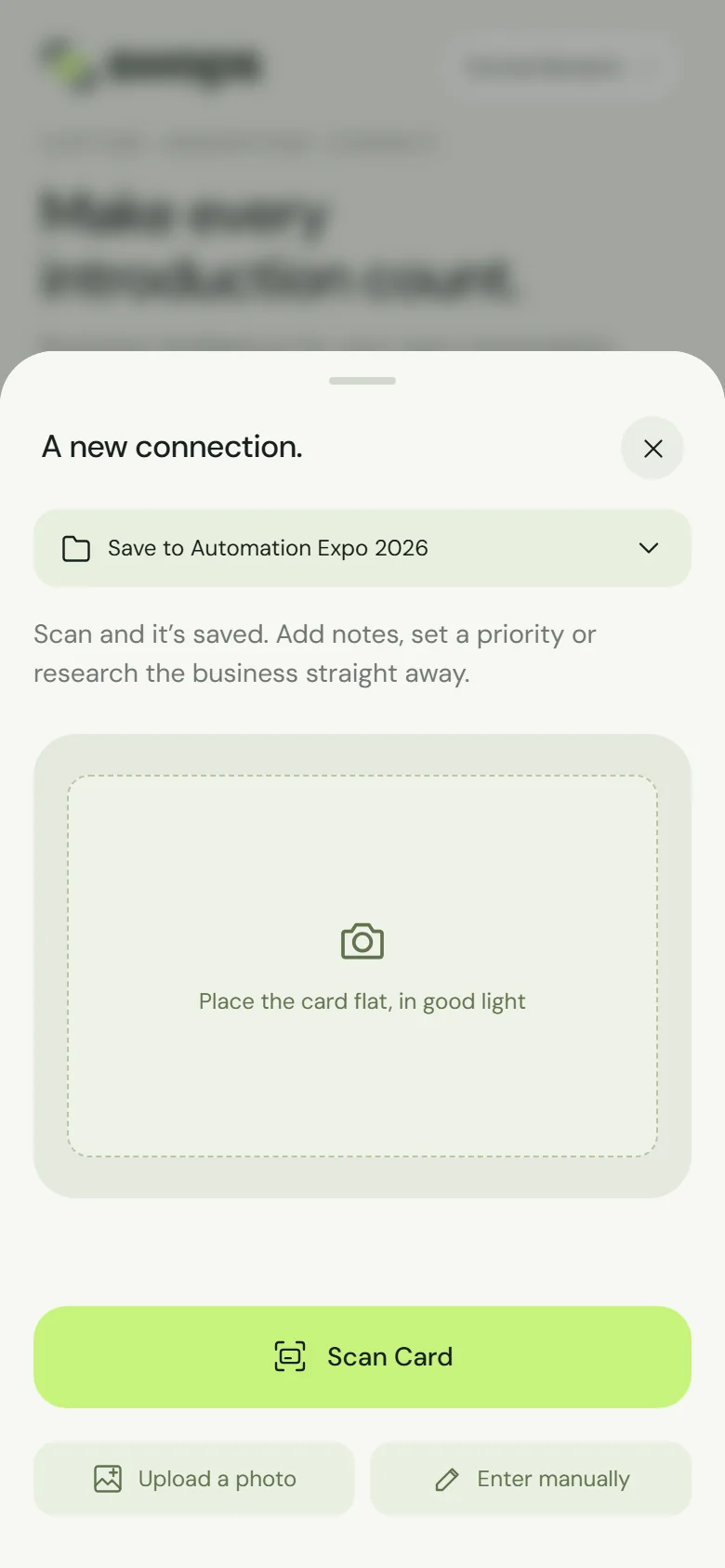
The scan sheet. The destination is at the top. Tap Scan Card. Your phone’s camera opens. Place the card flat, in good light, and take the photo.
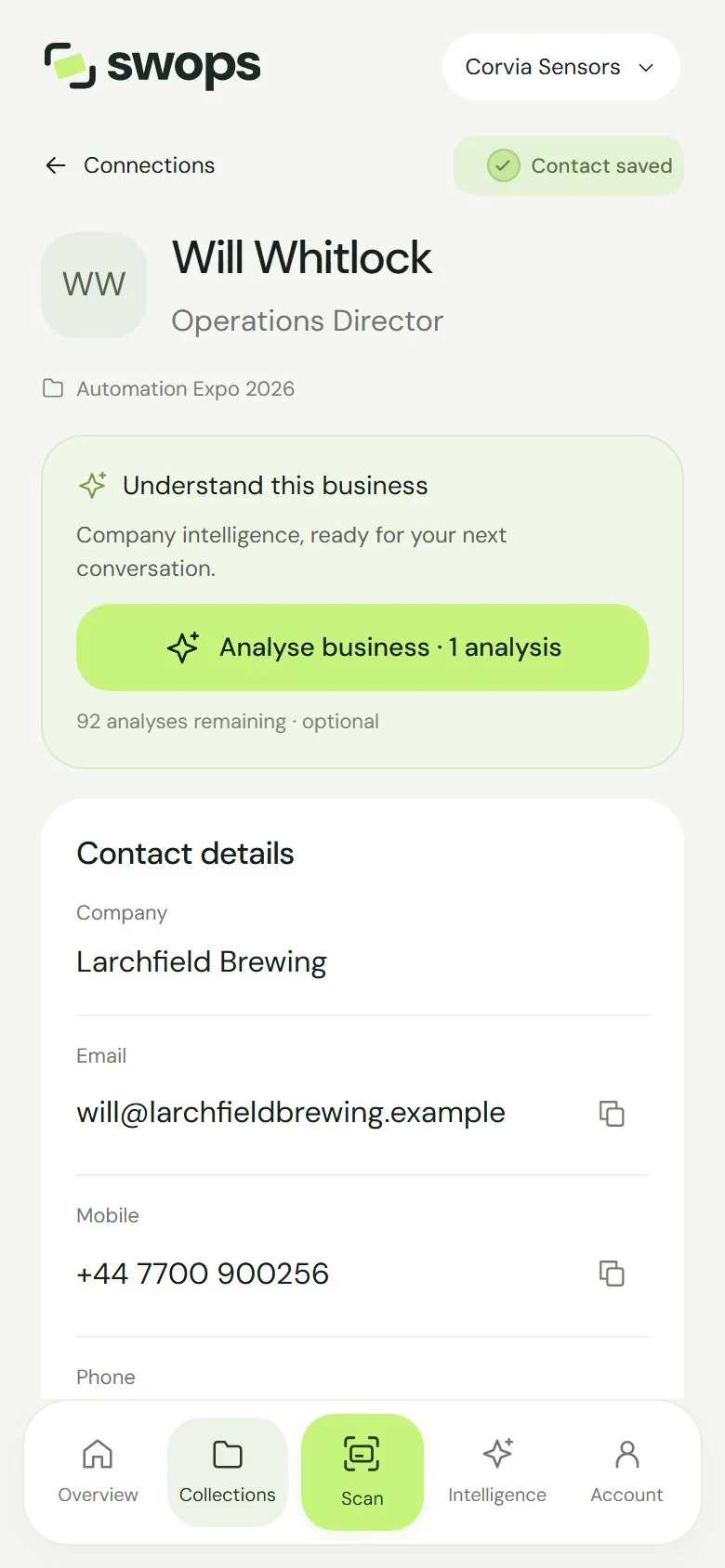
Swops prepares the photo and shows Reading the card…. A moment later the contact opens with Contact saved.
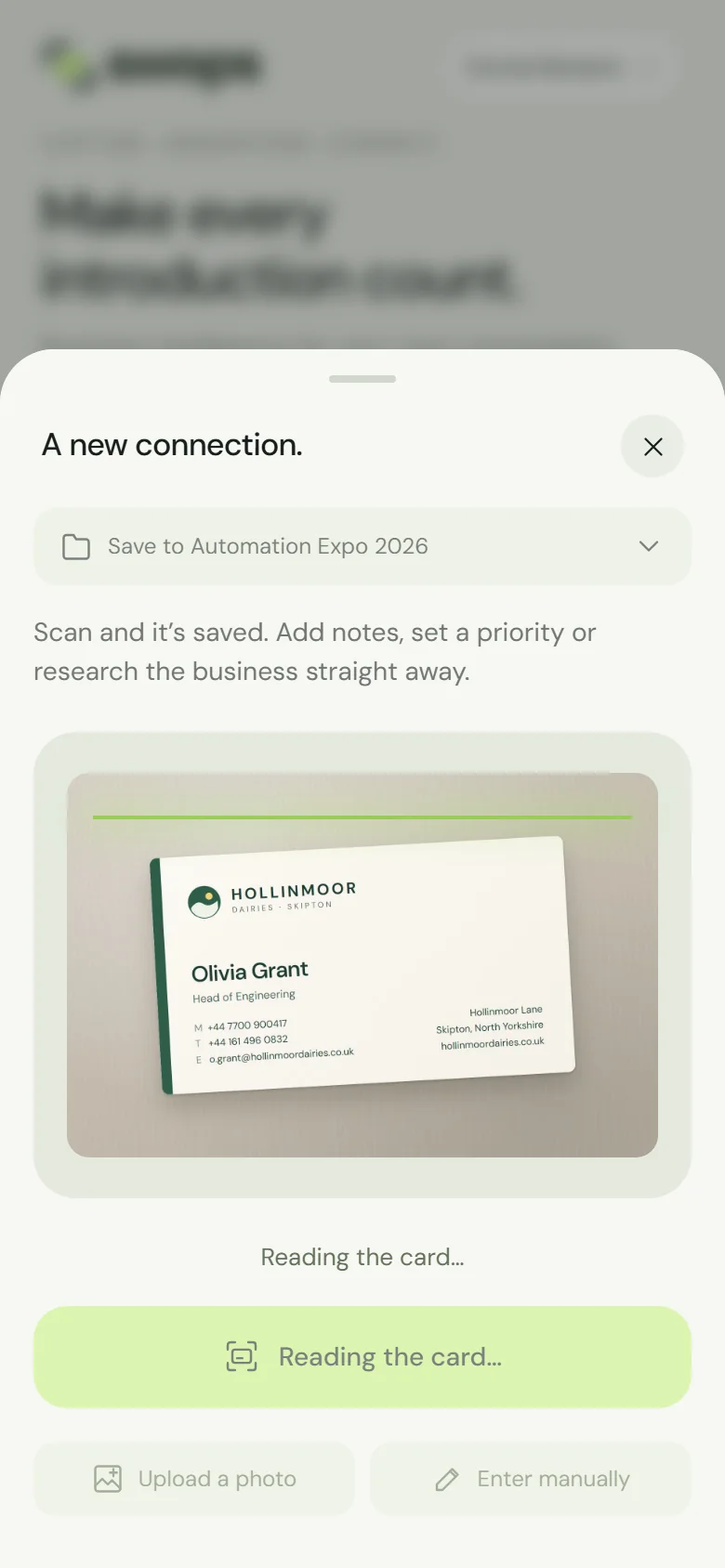
Reading the card…
Already have a photo of the card? Tap Upload a photo instead and pick it from your library. No card at all? Enter manually opens a blank contact, free: see Add a contact by hand.
If your instant follow-up email is switched on in a Team Pass or Business workspace and the card shows an email address, you also see Contact saved · follow-up email sent.
What is read from the card
Name, job title, company, email, mobile, phone (office or landline; fax numbers are ignored), website, LinkedIn, address and country. Swops copies only what is printed: fields that are not on the card stay empty, and nothing is guessed. The country is filled in only from a printed address or a + country code.
Anything that was hard to read is marked Check this detail · it was hard to read on the card. See Check and correct a scanned contact.
Carry on talking
You do not have to wait. If you close the sheet while Swops is reading, the scan carries on and a message tells you when the contact is saved. Then, while the visitor is still in front of you:
- Tap Hot, Warm or Cold and add a note. See Priorities and conversation notes.
- Tap Analyse business · 1 analysis for a quick look at their company. See Analyse a business.
What it costs
One card read successfully uses one scan. These do not use a scan:
- A card that is already in the same collection (“Already in this collection”).
- A photo that is not a business card (“That photo does not look like a business card”).
- A read that fails for any reason.
When fewer than 10 scans are left, the scan sheet shows how many, with Top up (paid plans) or Choose a plan (free trial). With none left, Scan Card and Upload a photo open You’ve used your scans instead. See What uses a scan, and what is free.
On the laptop there is no Scan button: add contacts by hand there, or scan on your phone. See What you can do on the phone and the laptop.
The card photo
A copy of the photo is kept with the contact so you can check a detail later: tap View attached card on the contact to see it. See Card photos: what is kept and where.