
Steps
Open the contact.
Scroll to the bottom and tap Delete contact (on the laptop it sits below the contact details).
Confirm with Delete contact, or tap Keep contact to change your mind.
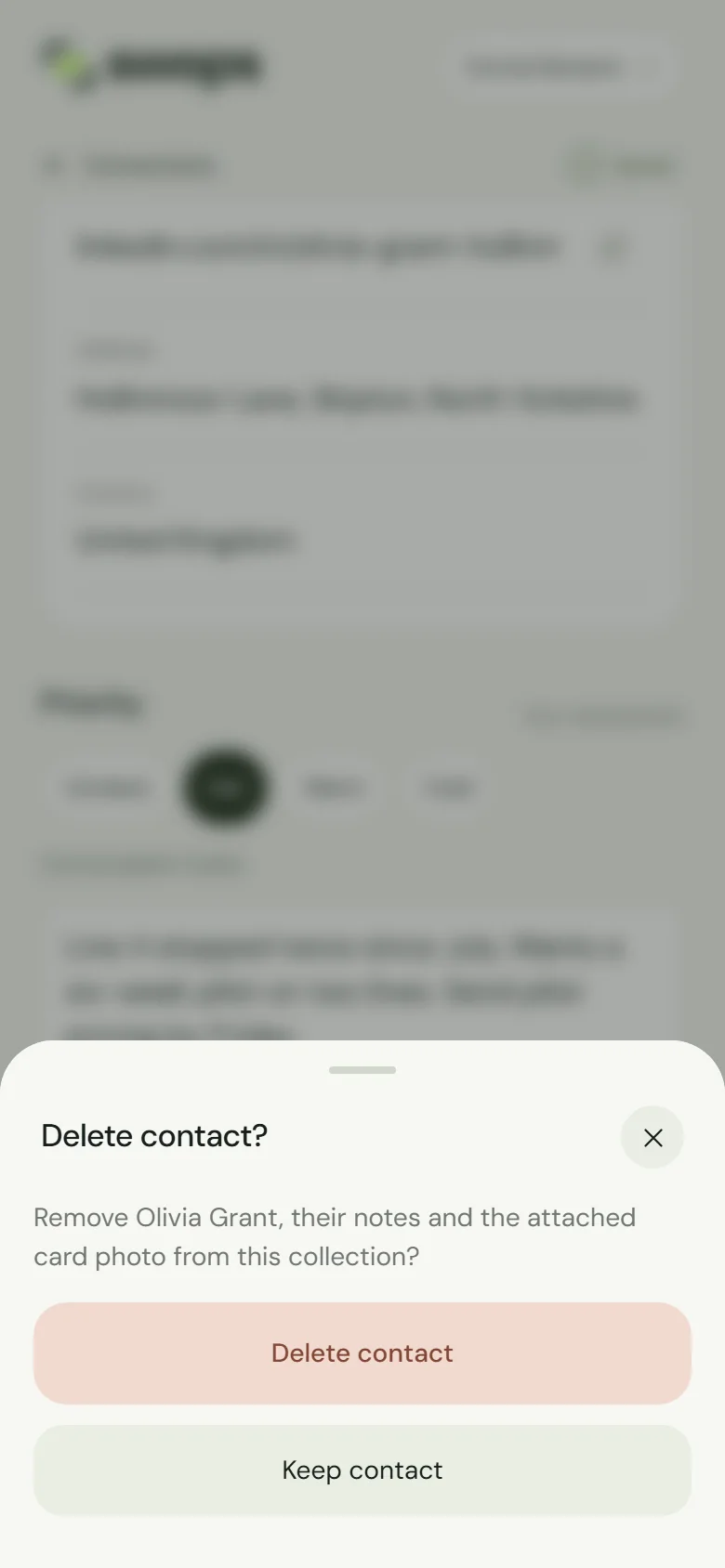
The contact, its notes and its card photo are removed. Contact deleted confirms it.
There is no undo
Deleted contacts cannot be restored, by you or by us. If you might need the details again, export the collection first.
Good to know
- Any member of a company workspace can delete contacts in it, including ones a colleague captured.
- Read-only collections (archived, or after a plan ends) cannot be changed. Restore the collection first if your plan is active. See Why a collection is read-only.
- Deleting does not give back the scan. The scan paid for reading the card.
- A saved brief stays. Briefs belong to the business, not the contact, so other contacts at the same company keep it. It also stays in Intelligence.
- Someone asked you to delete their details? Deleting the contact removes their details, your notes and the card photo from that collection. The same person may also be in another collection: check with View all on the laptop. See Privacy for the people you scan.