
One account, two ways to work
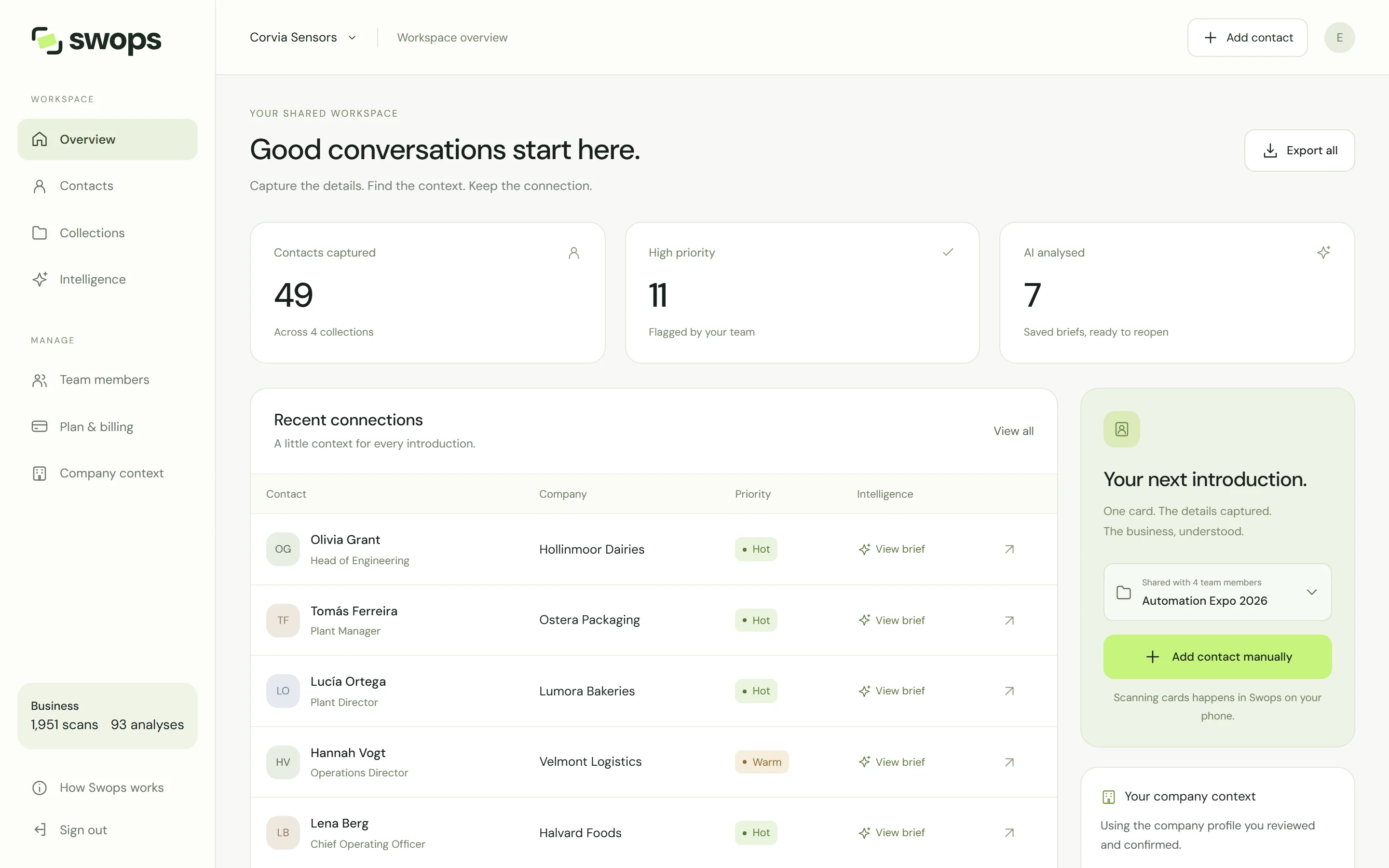
Swops is the same account, the same workspaces and the same contacts on every device. What changes is the layout:
- On a phone (or a narrow browser window): a bottom menu with Overview, Collections, Scan, Intelligence and Account.
- On a laptop (or another wide screen): a sidebar with Overview, Contacts, Collections and Intelligence, plus Team members (in a company workspace), Plan & billing and Company context.
Who does what
| Phone | Laptop | |
|---|---|---|
| Scan cards and badges | Yes | Use your phone (the laptop says “Scanning cards happens in Swops on your phone”) |
| Add a contact by hand, with or without a card photo | Yes | Yes |
| Priorities, notes and editing | Yes | Yes |
| Analyse a business, read briefs | Yes | Yes |
| See and search your contacts | Yes, collection by collection, with search and priority filters | Yes, one collection at a time, or every collection together with View all |
| Export to CSV | Yes | Yes |
| My card | QR code to show, Scan my own card to fill it in | Card and details, Share |
| Team, plan and billing | Yes | Yes, with more room |
| Add to home screen | Yes | Not needed: use the browser |
Tablets
The layout follows the width of the window, not the device. Most iPads held upright get the phone layout, including scanning; the largest iPad Pro is wide enough for the laptop layout even upright. Turned sideways, an iPad gets the laptop layout. On phones, Swops works in portrait only: turn the phone upright if you see Turn your phone upright.
A good rhythm for events
- At the stand: phones only. Scan, tap a priority, type a line, move on.
- In the evening: open the laptop, filter the collection to Hot, read the briefs and add to the notes.
- After the show: export the collection for your CRM the same day. See Export contacts to a CSV file.