

Follow up before they reach the next stand
Write your message once and switch it on. From then on, right after you scan someone’s card into a Team Pass or Business workspace, Swops emails that person your details and your message. Your name is in their inbox while the conversation is still fresh.
What you need
- My card, saved with at least your name and email address. The email sends your details from My card. See Set up My card.
- A Team Pass or Business workspace with an active plan, to scan into. Cards scanned in your personal space (Free trial or Solo) never send one.
You can set it up from anywhere. If you are not in a Team Pass or Business workspace yet, the sheet says so: "Available in Team Pass and Business workspaces. You can switch it on now; it only sends for cards scanned there."
Set it up
Open Account and, under Your account, tap Follow-up email · Off. On the laptop it is under Your account on Plan & billing.
Under Your message, write what you want to say. A short, friendly message is there to start from.
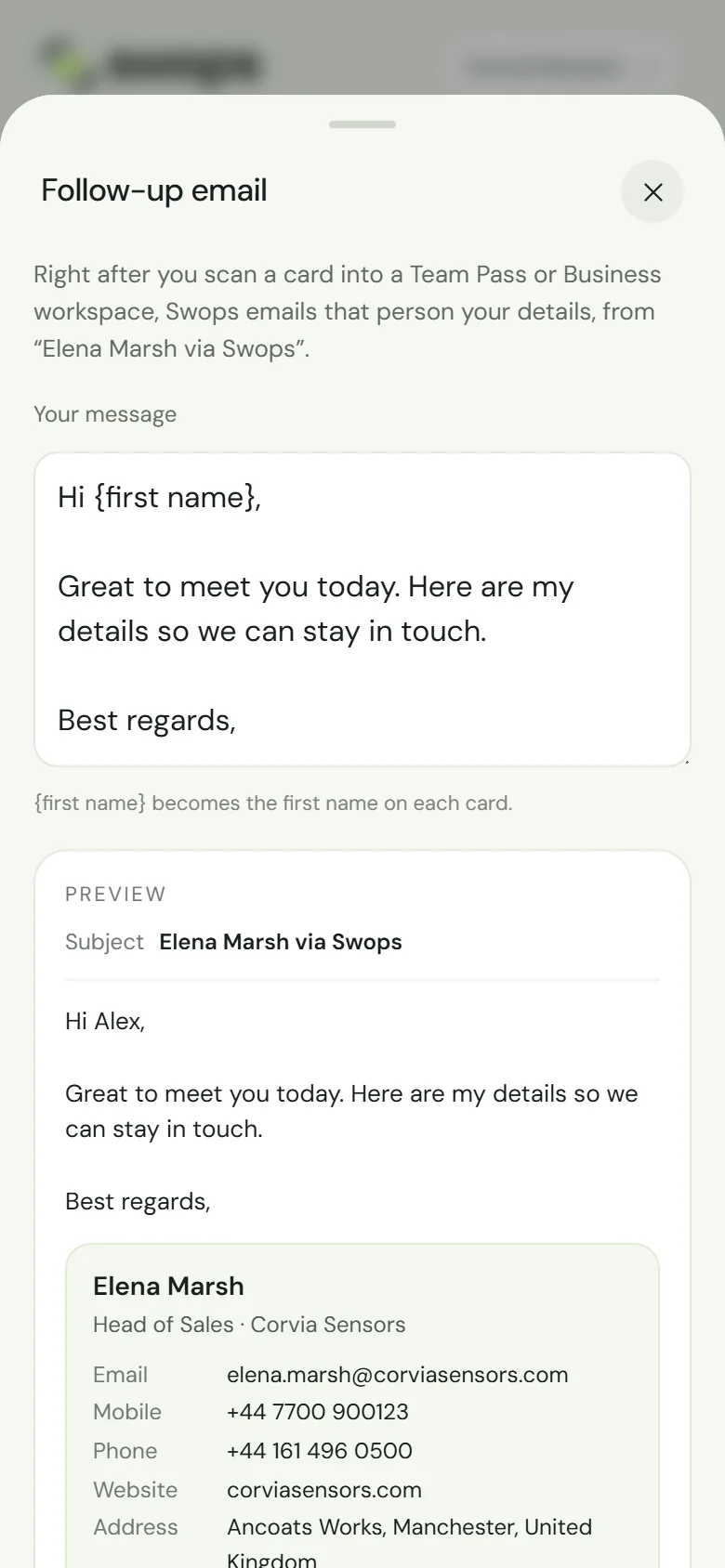
Your message, with {first name} where the name goes. Put {first name} where the person’s first name should go: "{first name} becomes the first name on each card." It is the only placeholder.
Check the Preview. It shows the subject, your message (with "Alex" as an example name), your card details and the attachment.
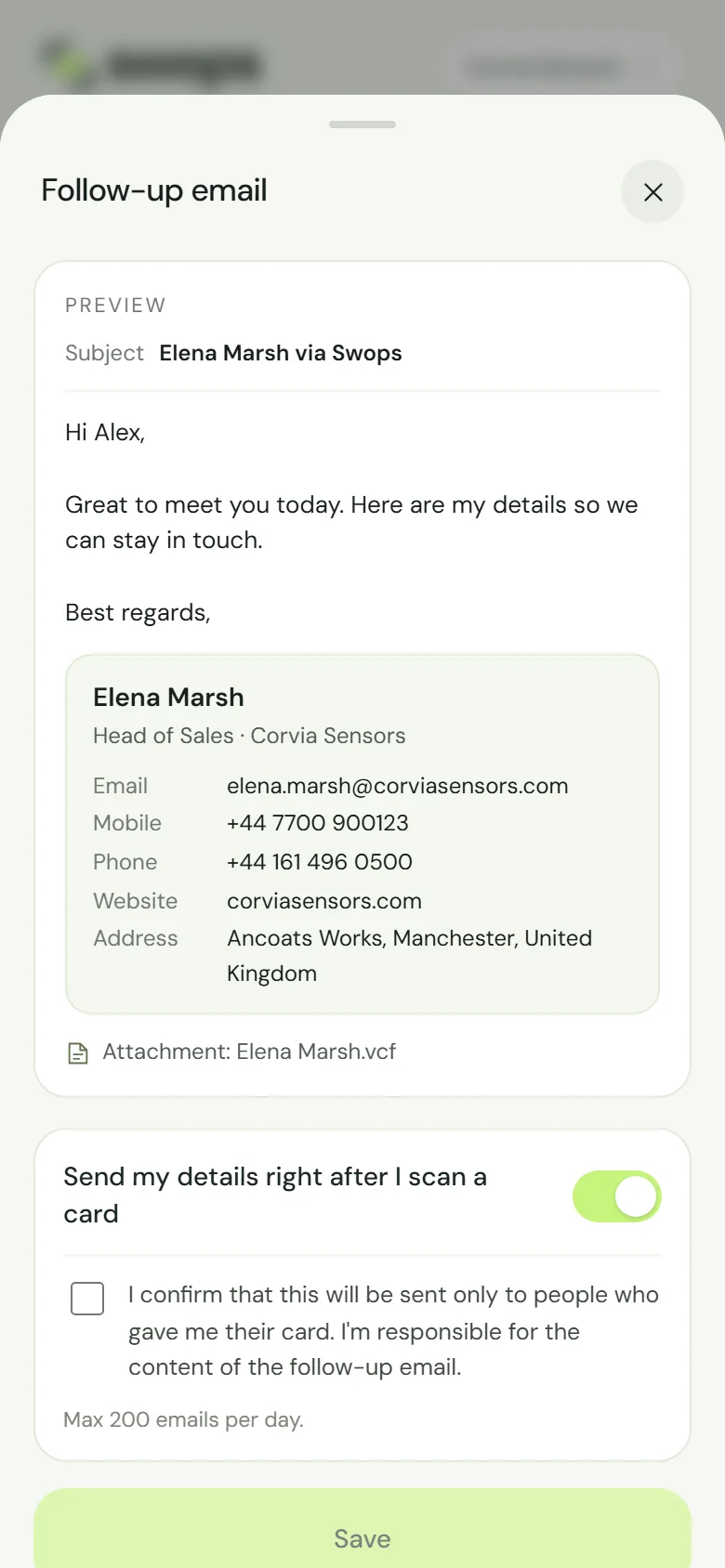
The preview: your message and card, as the person will see them. Switch on Send my details right after I scan a card.
The first time, tick the box underneath: "I confirm that this will be sent only to people who gave me their card. I’m responsible for the content of the follow-up email." Save stays greyed out until you do. You confirm once, not every time.
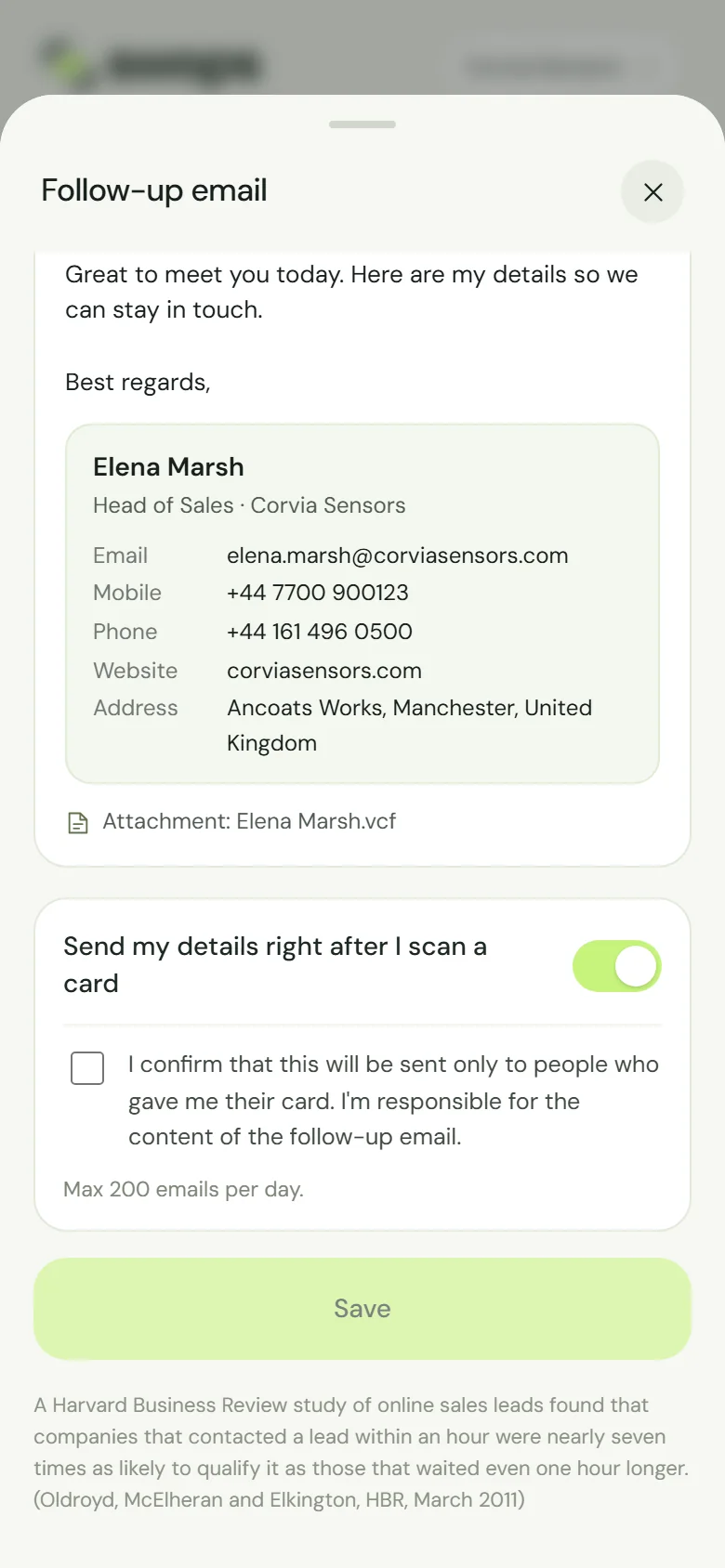
Switched on. Tick the confirmation, then Save. Tap Save. You will see Follow-up email on, and the Account row now reads Follow-up email · On.
To switch it off, open the same sheet, switch it off and tap Save: Follow-up email off. A change to the message alone shows Follow-up email saved.
What the person receives
| From | "<Your name> via Swops" |
|---|---|
| Subject | "<Your name> via Swops" |
| Message | Your message, with their first name filled in |
| Your details | Your name, job title and company, then the email, mobile, phone, website, LinkedIn and address on My card |
| Attachment | Your contact file, one tap to save |
| Footer | "<Your name> saved your card with Swops, the business-card app for events." and a Privacy link |
The name is the one on My card. The email comes from a no-reply address, so a reply does not reach you: people get back to you through the details in the email and the contact file.
After a scan that sends one, Swops shows Contact saved · follow-up email sent.
One setting, every team
The follow-up email is your personal setting, not the workspace’s. It applies to every Team Pass and Business workspace you scan into. Each colleague switches on their own, with their own message and their own My card.
"A Harvard Business Review study of online sales leads found that companies that contacted a lead within an hour were nearly seven times as likely to qualify it as those that waited even one hour longer. (Oldroyd, McElheran and Elkington, HBR, March 2011)"
Good to know
- Only a scan that saves a new contact with an email address sends one, and each person gets one from you, once. The full list: When the follow-up email is sent, and when it is not.
- You are the sender. Send it only to people who gave you their card and can expect to hear from you.
- Expected one that did not go out? Work through The follow-up email was not sent.