
The short version
Every new contact, scanned or typed in, is saved to your current collection. You can see which one in two places:
- Overview. The button under the heading shows “Private · only you” or “Shared with 4 team members”, and the collection’s name.
- The scan sheet. The line at the top, for example Save to Automation Expo 2026.
Tap either one to open Save to a collection, then tap the collection you want. A tick marks the current one. Swops confirms with New contacts will save to Food Tech Summit.
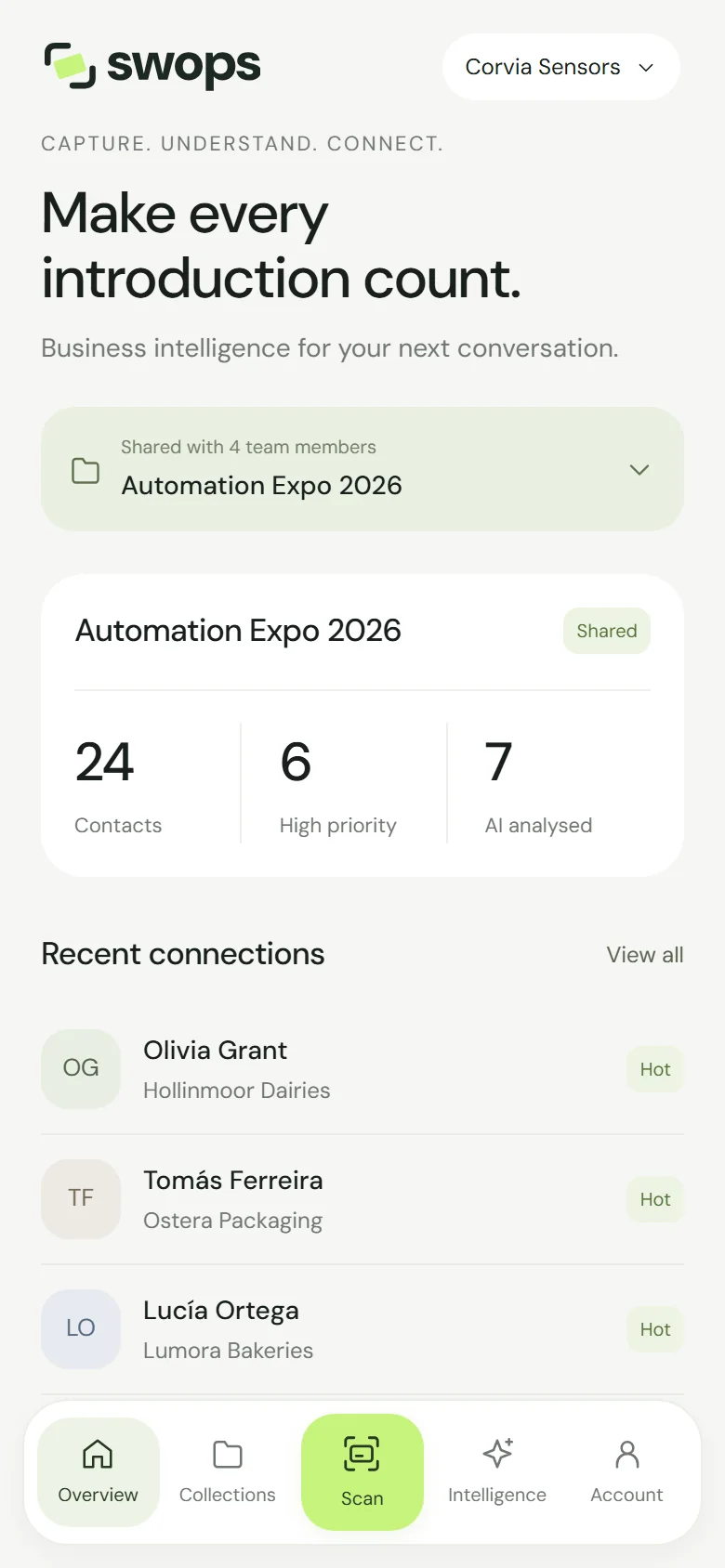
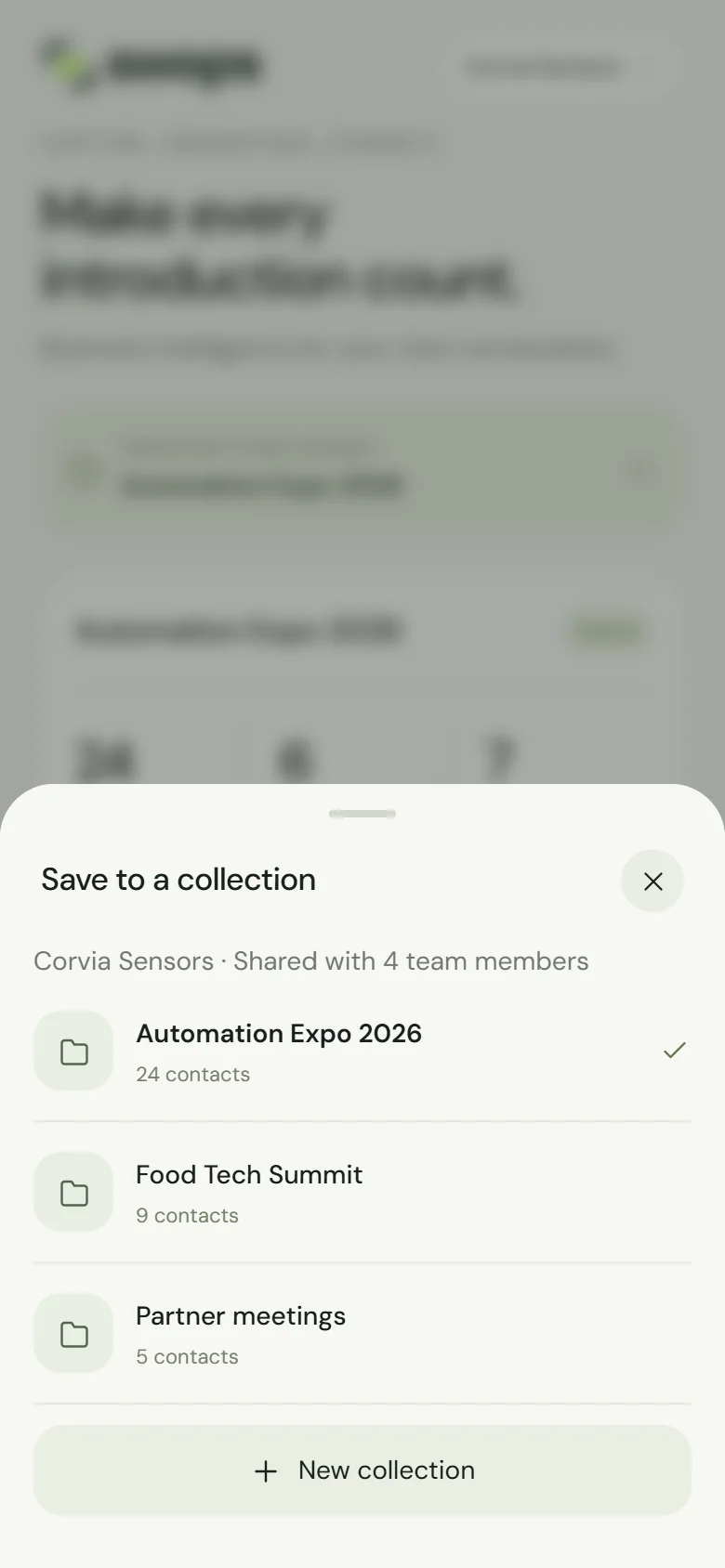
On the laptop, the same button sits on Overview, next to Add contact manually. The sheet also has New collection at the bottom: see Create a collection.
It stays put until you choose
Imagine being at a fair. You choose “Automation Expo 2026” in the morning. Between visitors you open a contact from last month, read a saved brief in Intelligence, or check something in your personal space. Your next scan still goes to Automation Expo 2026. That is on purpose.
The current collection changes only when you:
- pick one in Save to a collection, from Overview or the scan sheet,
- open a collection from the Collections page,
- tap Add contact manually inside a collection, or
- create a new collection.
On the laptop, picking a collection in the selector on the Contacts page does the same.
Opening a contact never changes it, whichever collection the contact is in.
Opening an older collection from the Collections page makes it the current one. If you looked something up that way, check the line at the top of the scan sheet before the next card, and tap it to switch back.
Remembered per workspace, and per device
- Each workspace has its own. Your personal space and each company workspace remember their own current collection. Switching workspaces does not mix them up.
- Each phone and browser has its own. Your phone and your laptop can point at different collections. So can every colleague: in a company workspace, each person chooses their own. Before a show, tell the team which collection to pick.
- A private browser window, or clearing the browser’s site data, starts fresh.
Good to know
- Archived collections cannot be chosen. They do not appear in Save to a collection. If the current collection gets archived (or you open an archived one from Collections), Scan shows This collection is read-only. Tap the button on Overview and choose an active collection.
- If the remembered collection is gone, Swops uses the first active collection in the list.
- No collection at all? Scan takes you to Collections with Choose or create a collection first.
- Saved to the wrong collection? There is no move button. Add the contact by hand in the right collection, then delete the old one. See How collections work.