
On the phone
Tap Collections and open a collection.
Type in the search box (“Name, company or notes”), or tap a priority: All, Hot, Warm, Cold, Unrated.
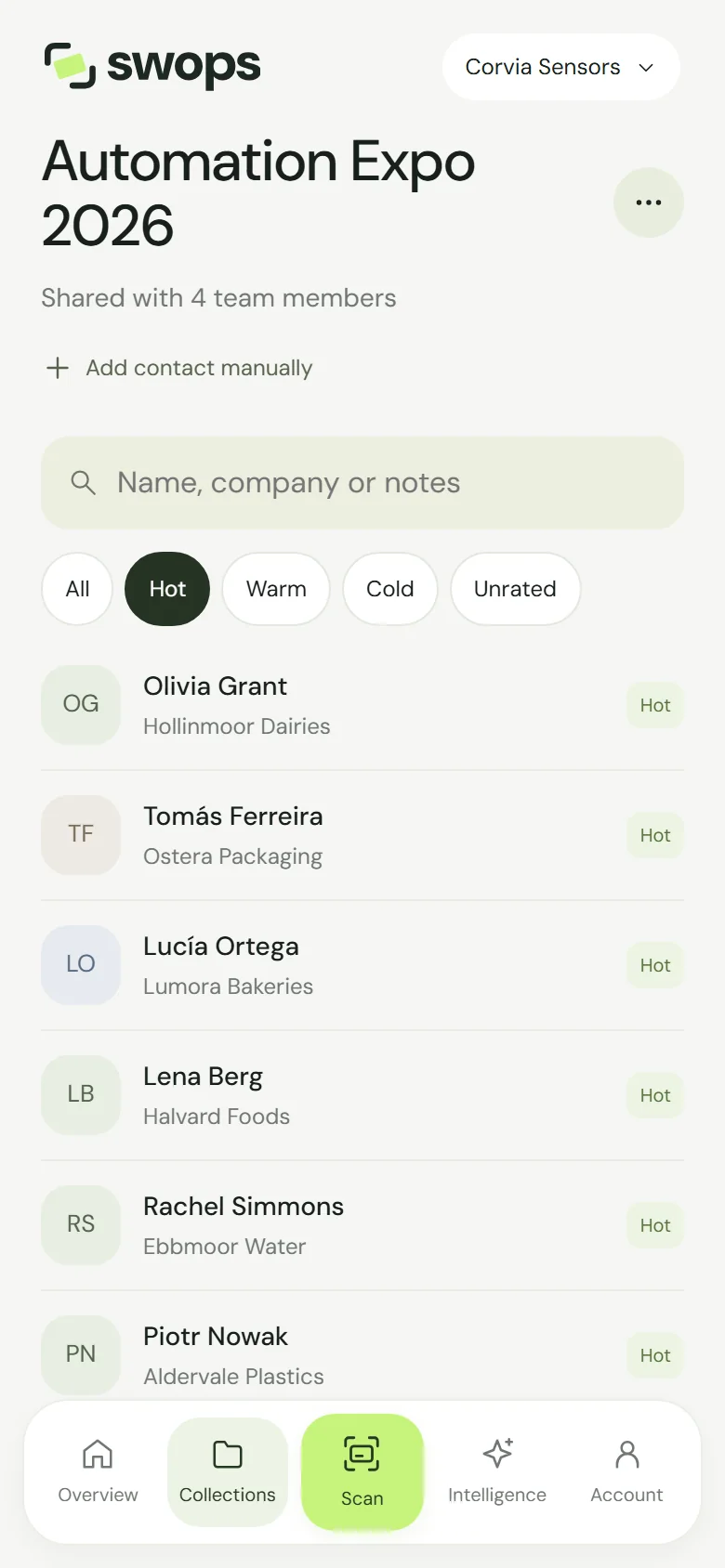
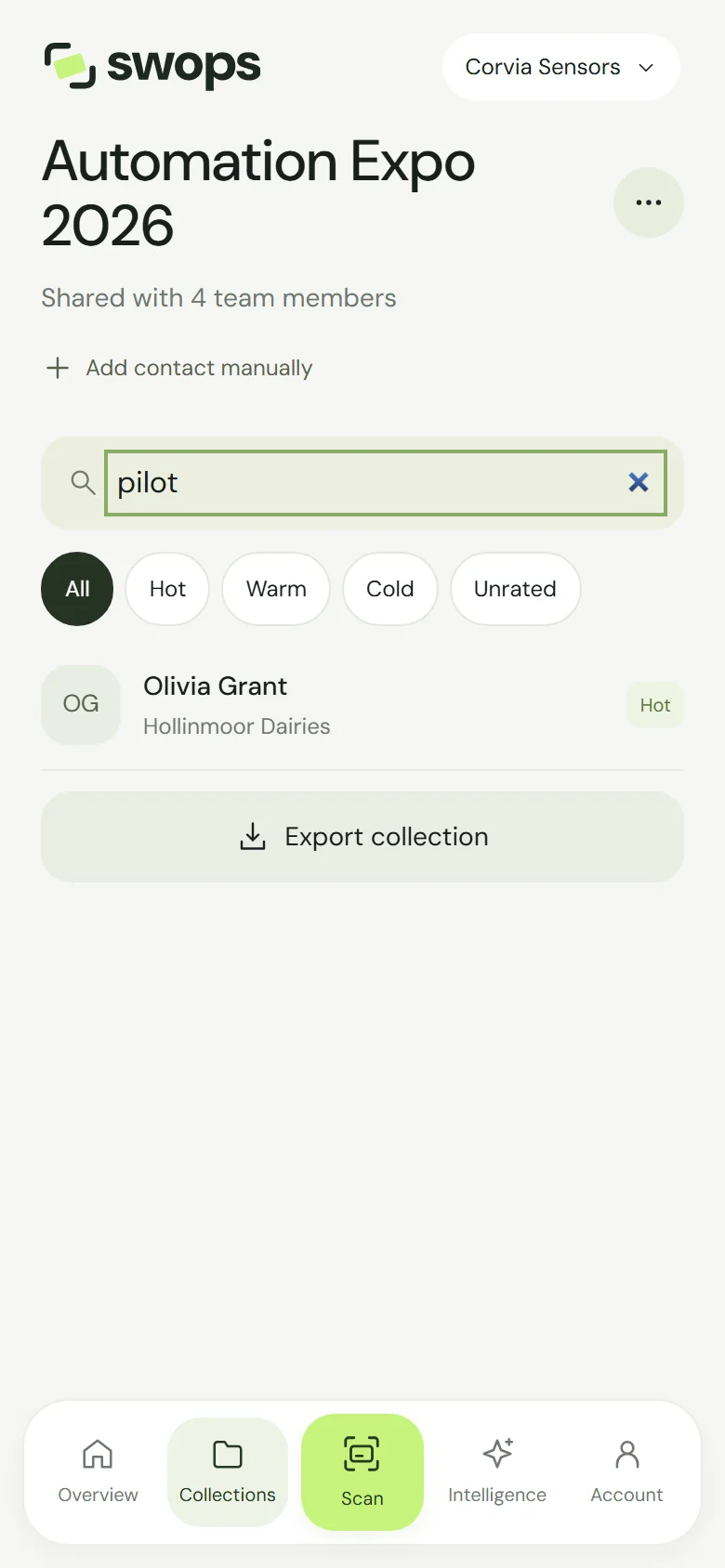
The newest contacts come first. On long lists, tap Load more at the bottom for the rest.
A collection you open from the Collections page becomes your current collection, so your next scan or manual contact goes there too. At an event, check the Save to line at the top of the scan sheet before the next card, and tap it to switch back. See Choose where new contacts go.
On the laptop
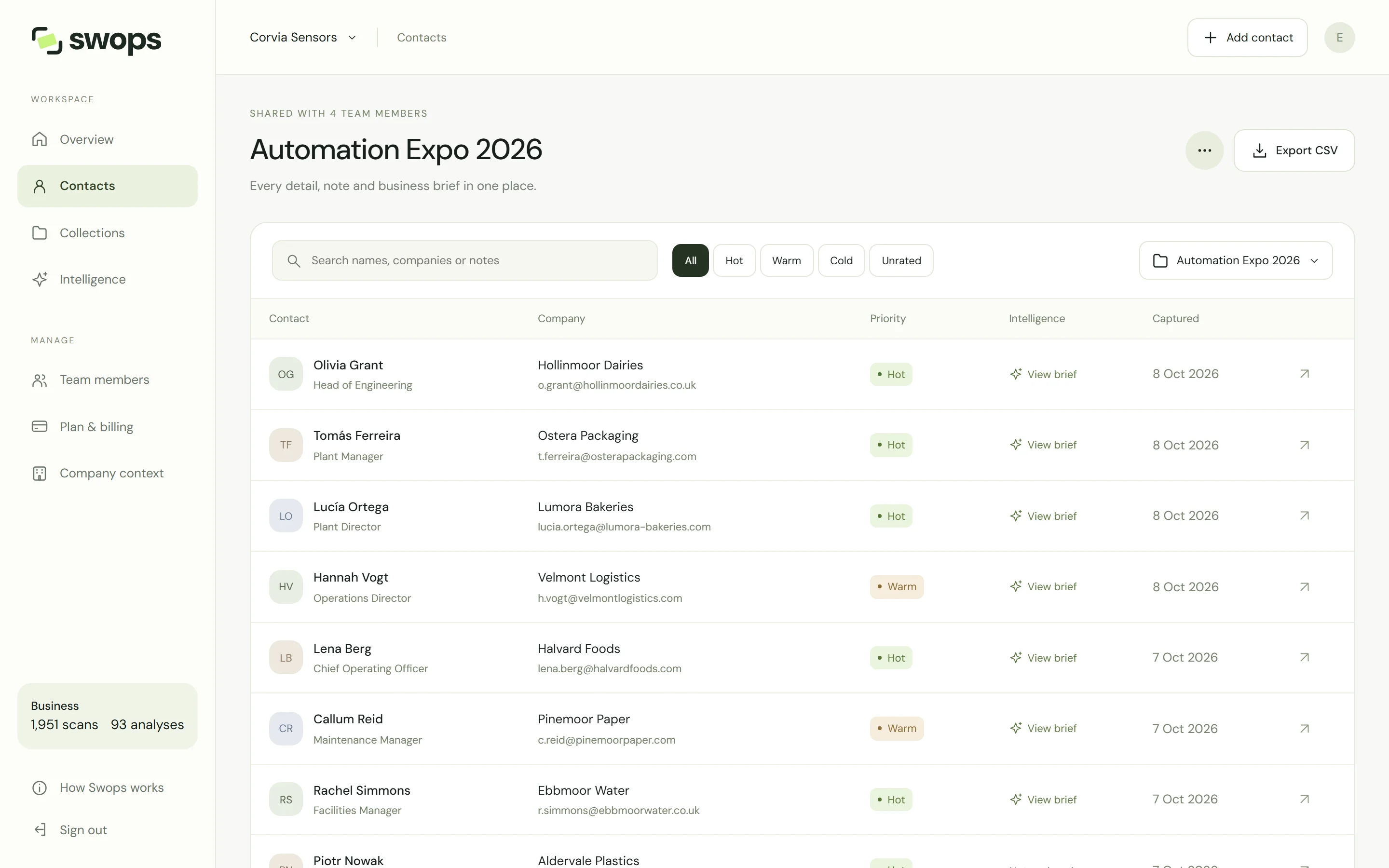
Click Contacts in the sidebar. You get a table with the contact, company, priority, whether the business has been analysed (View brief) and when it was captured. Use the collection selector to switch collections, or choose View all to search every collection in the workspace at once. Picking a collection in the selector also makes it the laptop’s current collection; your phone keeps its own.
What search looks at
Name, company, job title, email, mobile, phone, country and conversation notes. Website, LinkedIn and address are not searched.
Can’t find someone?
- Wrong collection? On the phone, search works inside the collection you opened. Try the others, or use View all on the laptop.
- Wrong workspace? Your personal space and each company workspace are separate. Switch with the workspace name at the top. See Switch between workspaces.
- A filter still on? Tap All.
- Archived collection? Open Collections, then the Archived tab. Opening an archived collection makes it your current one, so Scan then says This collection is read-only: choose an active collection with the button on Overview before the next scan.
- Deleted? Deleted contacts cannot be brought back. See Delete a contact.