
Swops support
Scanning & contacts
Cards, badges, manual entry, priorities, notes and everything on a contact.
13 articles
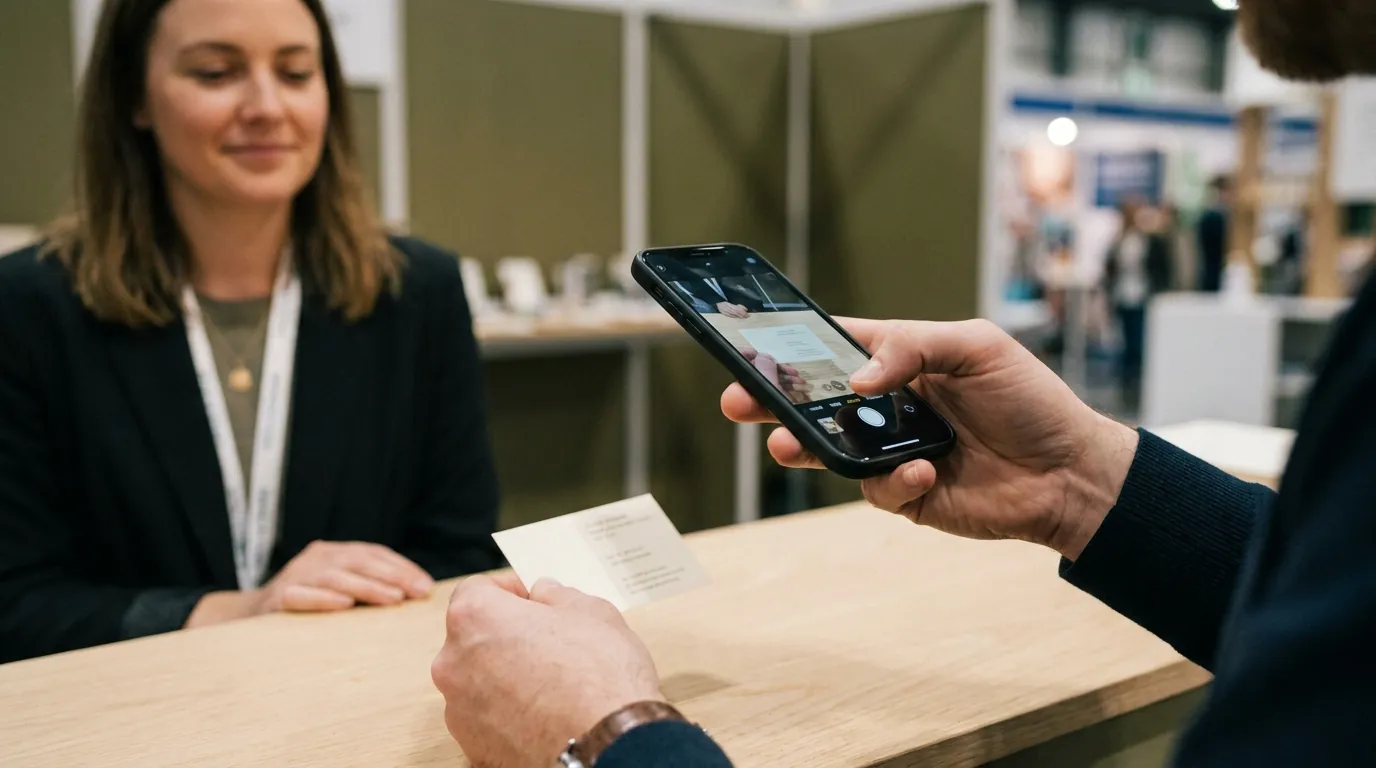
- Scan a business cardTap Scan, take a photo of the card and the contact is saved into your current collection, read by AI.
- Scan an event badgeConference and exhibition badges are scanned just like business cards. A few tips for lanyards, small print and missing emails.
- Tips for a clean scanLight, angle, focus and two-sided cards. Small habits that make every card read first time.
- Check and correct a scanned contactFields that were hard to read are flagged. Tap any detail to fix it, then save.
- Add a contact by handNo card, no problem. Type a contact in on the phone or the laptop, optionally with a photo of the card. Always free.
- “Already in this collection”Scanned someone twice? Swops opens the contact you already have and gives the scan back.
- “That photo does not look like a business card”Swops refused a photo. Nothing was charged. Why it happens and how to get the contact saved.
- Priorities and conversation notesHot, warm or cold, decided at the stand. Plus one note your future self will understand.
- Find a contactSearch names, companies and notes, filter by priority, and see every collection at once on the laptop.
- Everything on a contactA tour of the contact page: details, copy buttons, the card photo, priority, notes, the business analysis and who captured it.
- Delete a contactRemove a contact, its notes and its card photo. Deleting cannot be undone.
- Cards in other languages and scriptsNames, titles and addresses are kept as printed, in their own language and alphabet. The app itself is in English.
- What uses a scan, and what is freeOne card read successfully uses one scan. Duplicates, refused photos, failed reads and manual contacts are free.
Still stuck?
A real person,
one message away.
Use our contact page and tell us what you were trying to do. Include the email address you sign in with. It helps us answer in one go.