
On the phone
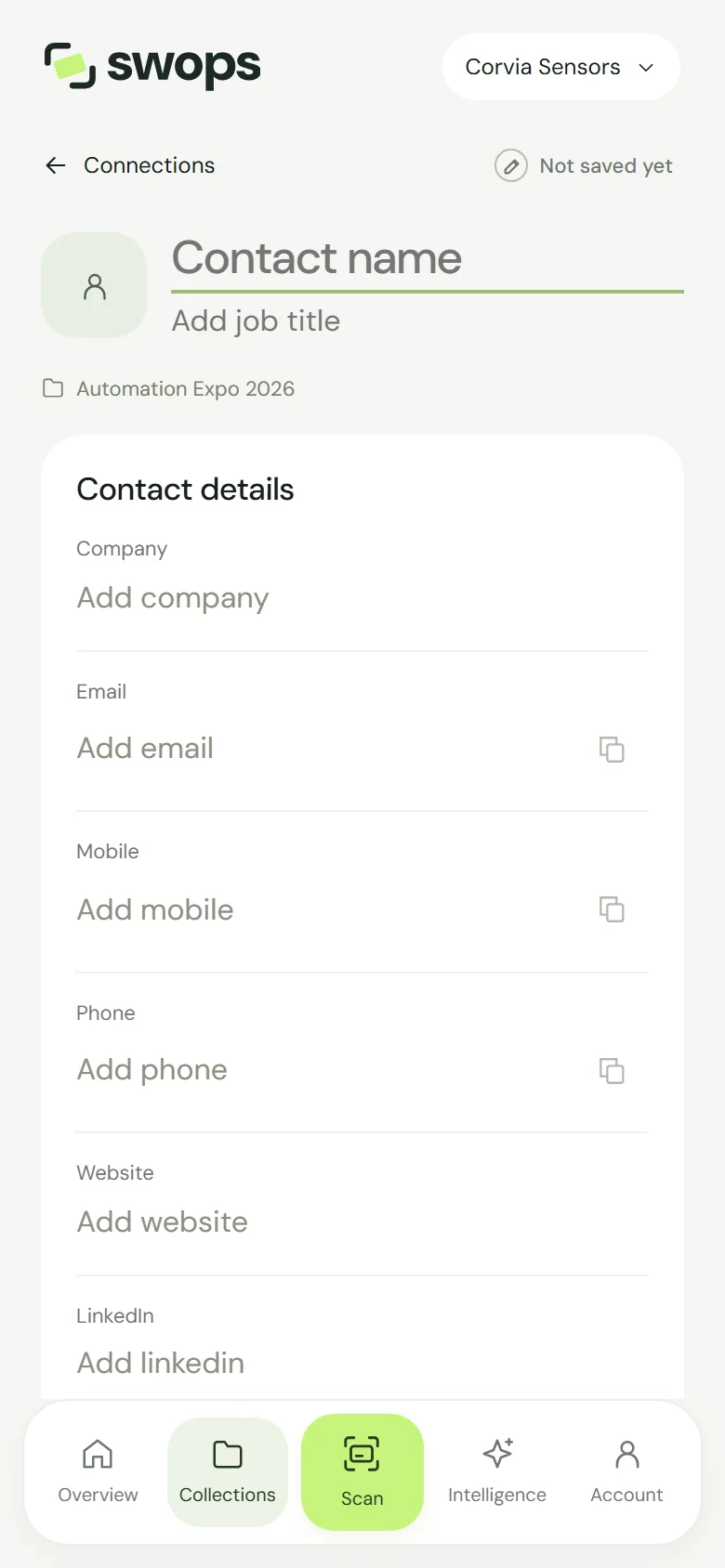
Tap Scan, then Enter manually. Or open a collection and tap Add contact manually.
Type the name (required) and any other details. The top says Not saved yet until you save.
Set a priority and add notes if you like.
Tap Save contact.
On the laptop
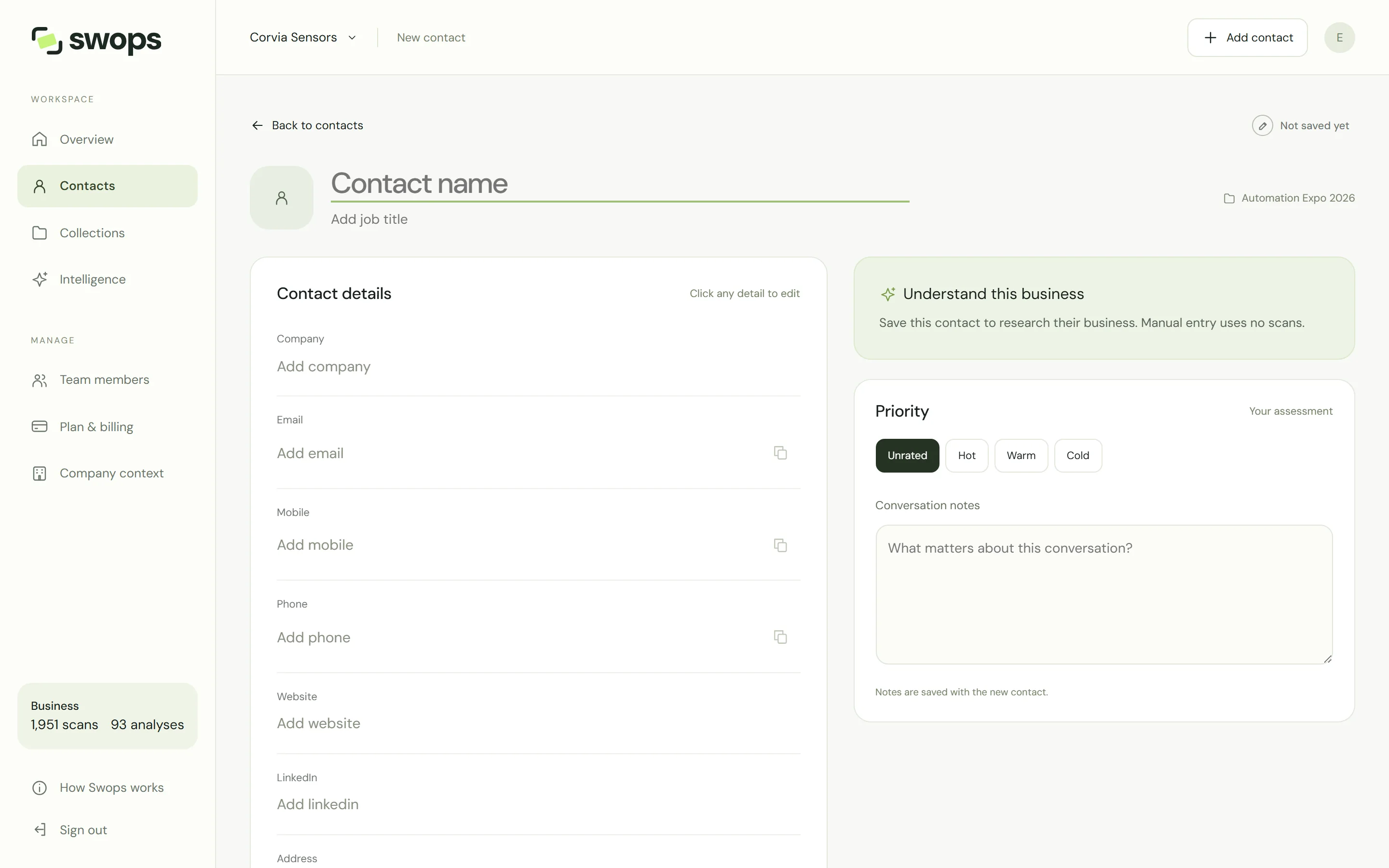
Click Add contact in the top bar, Add contact manually on the Overview, or the same link under the contacts table. Fill in the details and click Save contact.
Attach a photo of the card, without reading it
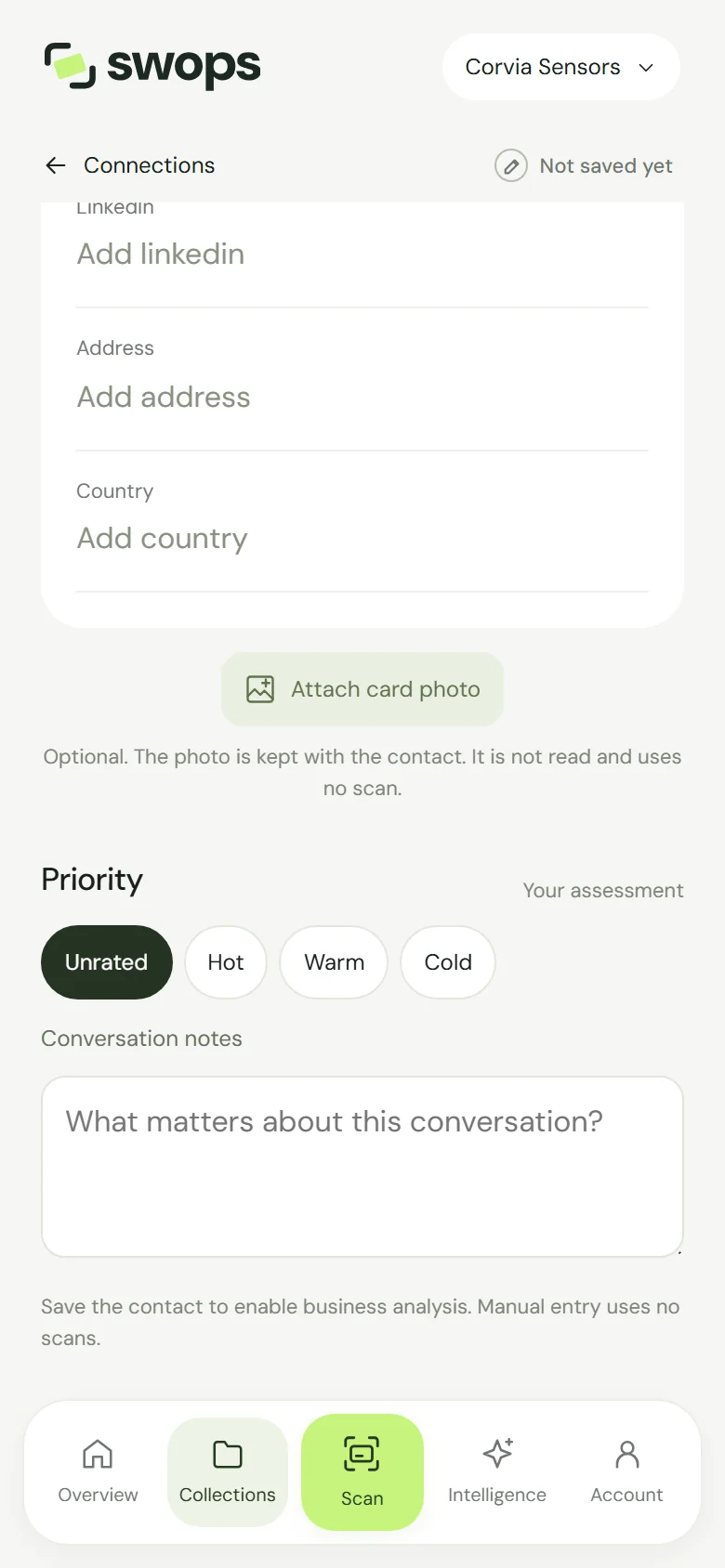
Have the card but want to type the details yourself? Tap Attach card photo on the new contact and choose a photo. It is kept with the contact so you can look at it later. It is not read and uses no scan.
Where it is saved
A manual contact goes into your current collection, the same place your scans go. Tapping Add contact manually inside a collection makes that collection the current one. See Choose where new contacts go.
What it costs
Nothing. Manual entry never uses your allowance, on any plan.
Business analysis works the same for manual contacts once you save them. Two things are for scanned contacts only: the duplicate check (see “Already in this collection”) and the instant follow-up email.