
From card to brief
Open a contact. Right after a scan, you are already there.
Tap Analyse business · 1 analysis in the Understand this business card. Under the button, Swops shows how many analyses are left.
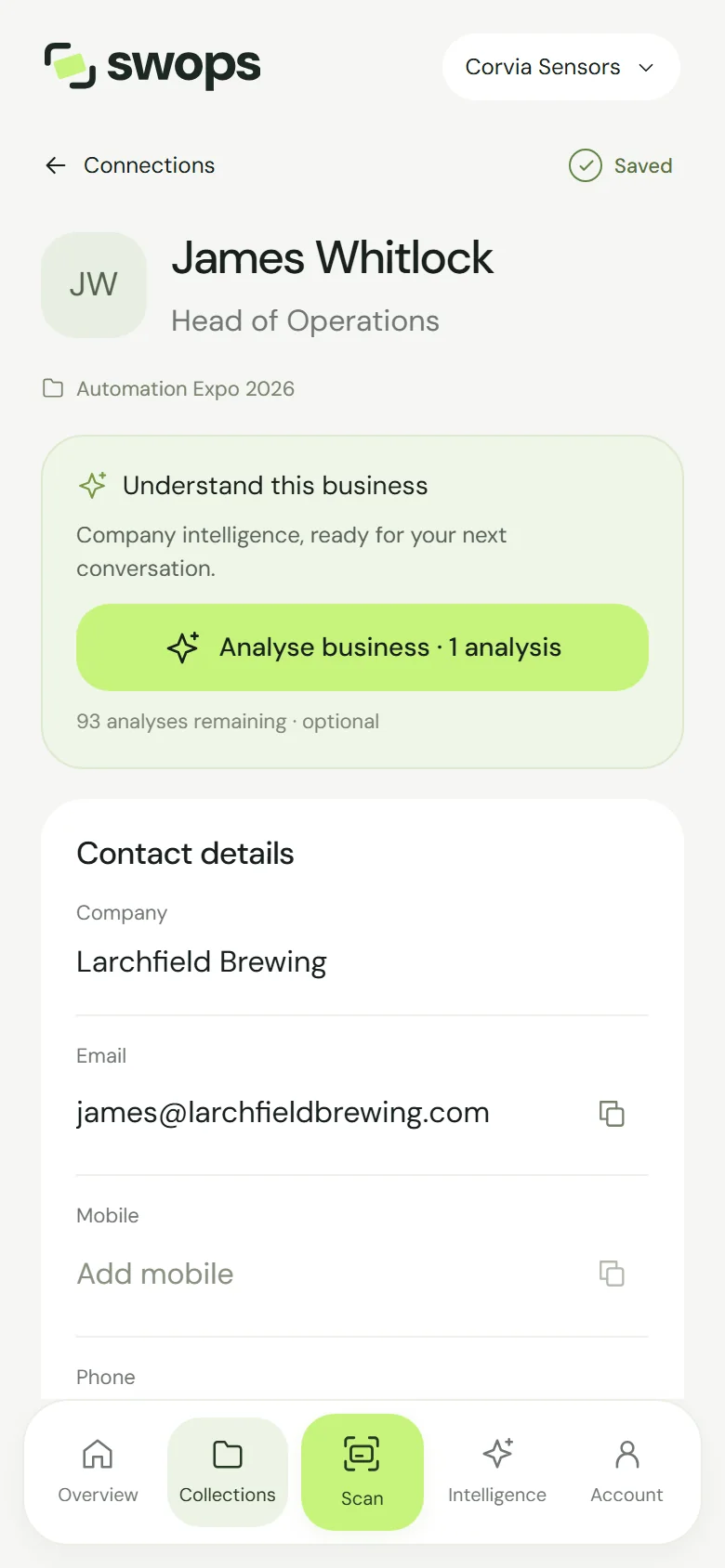
Understand this business. One tap, one analysis. The research starts, and its steps tick along: Finding the company, Reading business signals, Connecting the context, Preparing your brief.
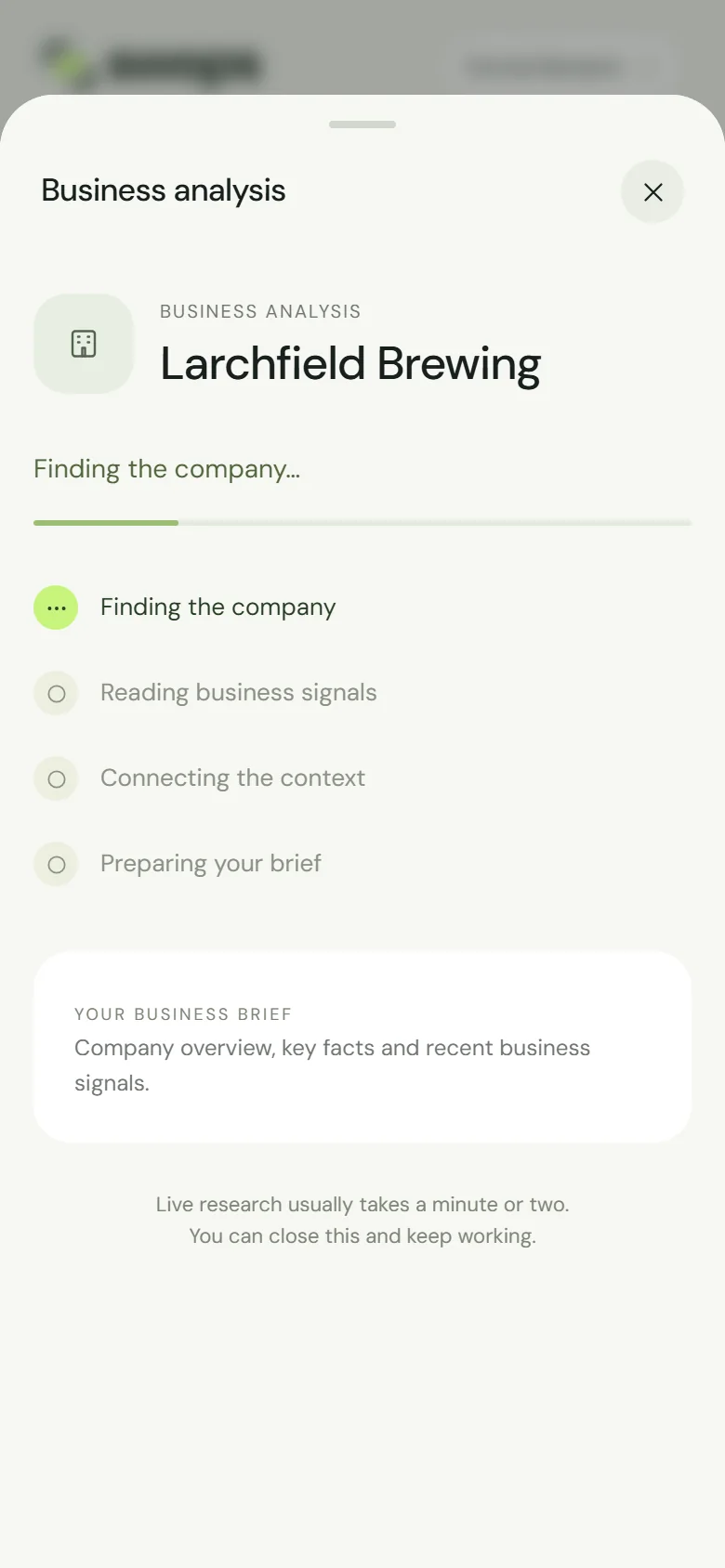
Live research usually takes a minute or two. Within seconds, a Quick look appears: “A first look while we dig deeper. Your full brief appears here when it’s ready.” Read it while the full analysis carries on in the strip above.
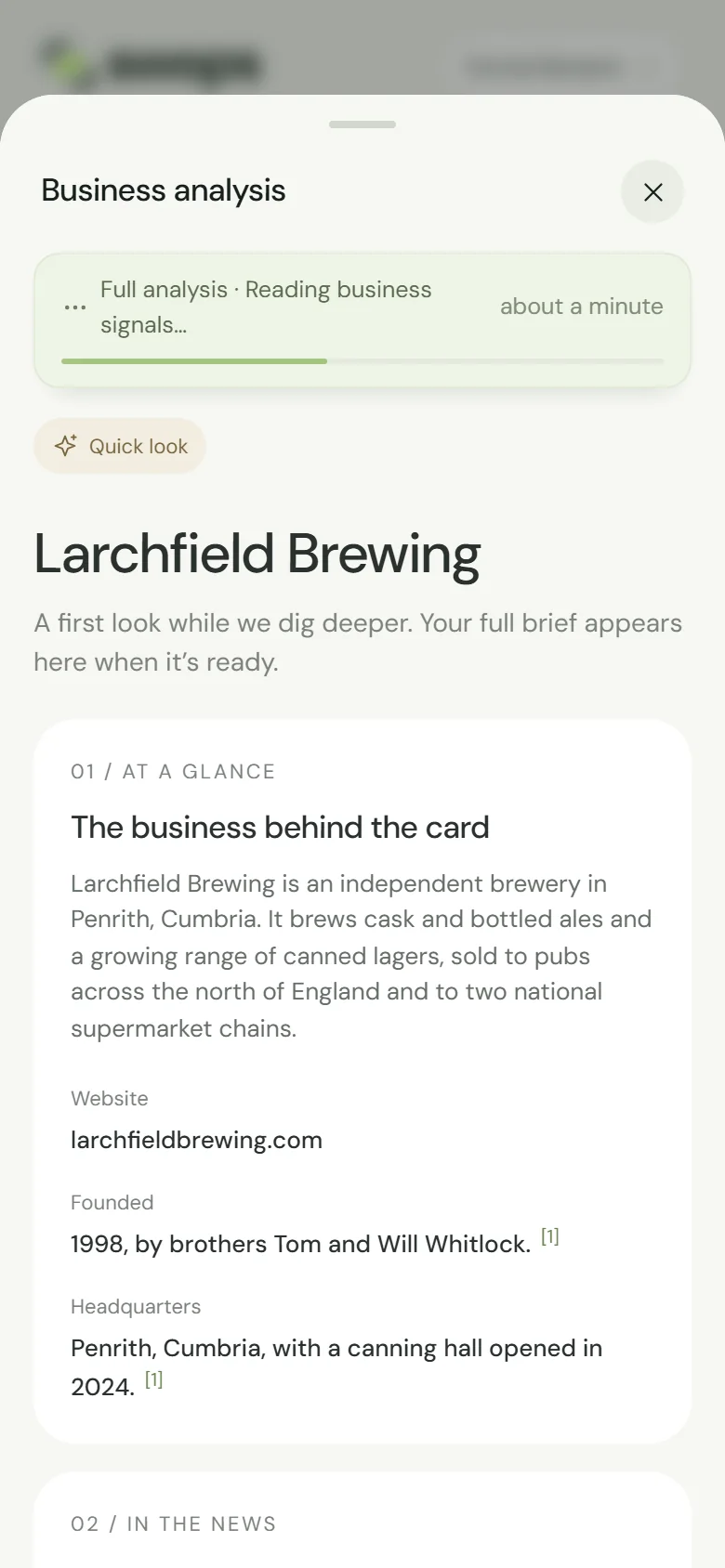
The quick look. The full analysis keeps reading above it. When the full analysis is done, the full brief takes its place, marked Brief ready and “Saved 15 Oct 2026 · dated snapshot”.
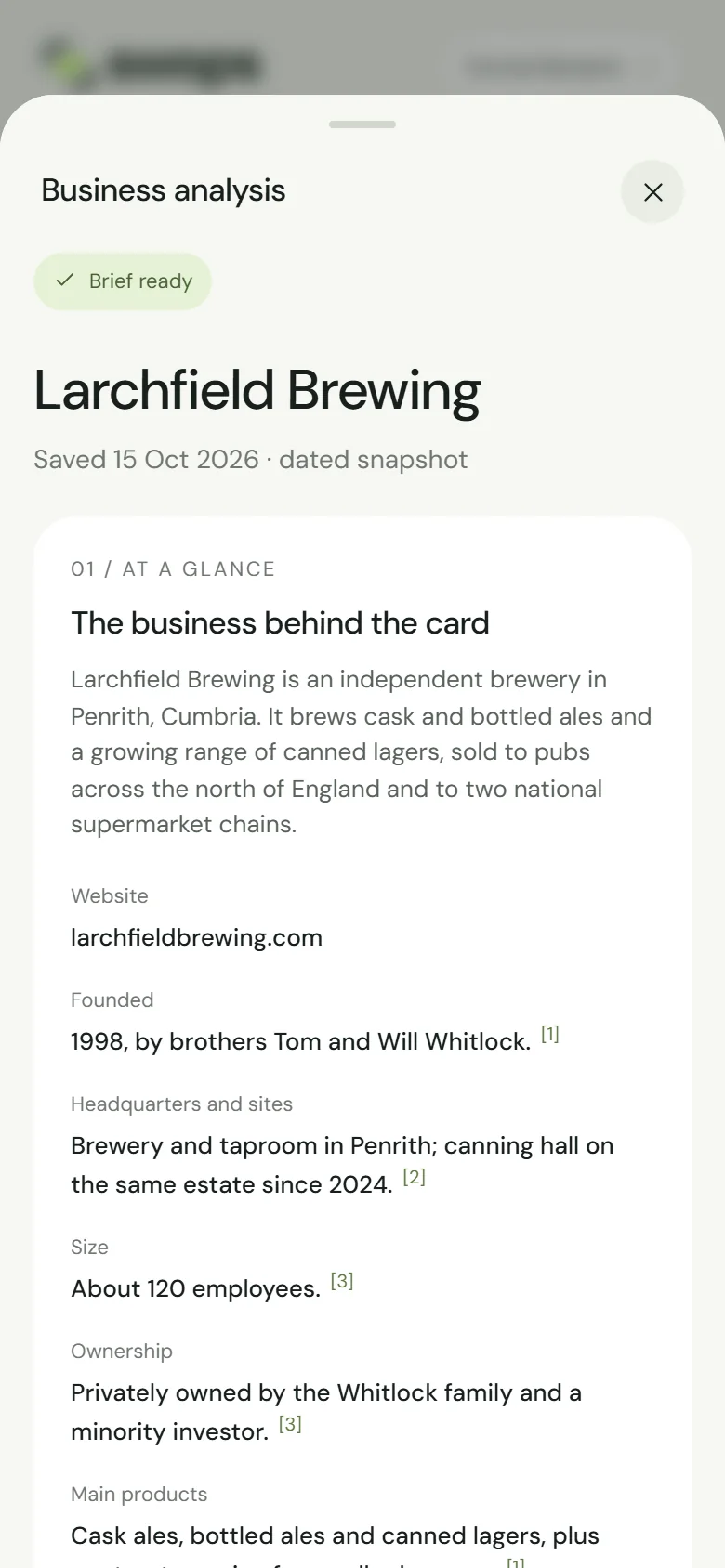
Brief ready. Saved for the whole workspace.
What each part of the brief means: see What is in a brief.
Keep talking
You do not have to watch it. Close the sheet and go back to the conversation, the priority or the notes: “You can close this and keep working.” While it runs, the contact shows View research progress and 1 analysis reserved.
The research carries on when you leave the contact, scan the next card or lock your phone. If you are still on the contact when it finishes, Swops tells you with Business analysis ready. Either way, the brief is then on the contact, with Read full analysis, and in Intelligence.
The full analysis usually takes a minute or two. If it takes longer, see A business analysis is taking long.
What it costs
- One analysis for each new research. It is reserved when you tap the button.
- Failures are free. If the research cannot finish, the analysis is given back automatically: Research did not complete · no analysis used. See When research does not complete.
- Reopening is free, as often as you like, for everyone in the workspace. See Reopen a saved brief.
- Other contacts at the same business share the saved brief at no cost. If a colleague is already researching that business, Swops follows their research instead of starting, and charging, a second one.
How many analyses each plan includes: see Plans at a glance. What else is free: What uses a scan or an analysis.
Before you tap
- The contact needs a company name or a website. Without either: “Add a company name or website before researching.”
- Corrected the company or website a moment ago? Save the contact first: “Save the updated company details before researching.”
- The website and the email address decide which business is researched. A quick look at those two before you tap saves an analysis. See Which business Swops researches.
- No analyses left? The button reads Get more analyses and opens You’ve used your analyses. See Top-ups.
- In a read-only collection you can open saved briefs but not start new research. See Why a collection is read-only.
On the laptop
Analysing works the same on the laptop. Open the contact from Contacts: the analysis card sits on the right, with the same button, and the brief opens in a panel beside the contact. In the contacts table, the Intelligence column shows View brief, Researching… or “Not analysed”.
Add your company context once and each new brief also says why that business could matter to you. See Add your company context.