
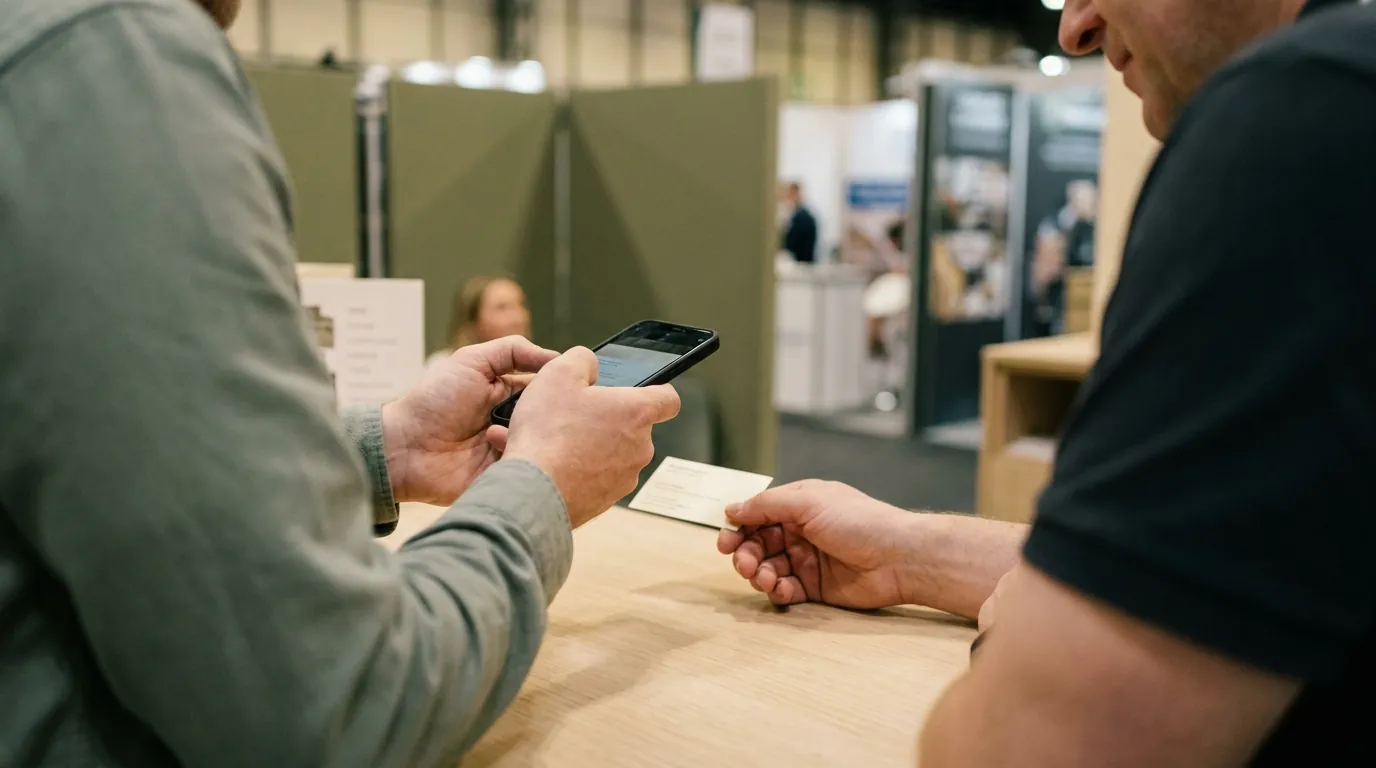
Give it something clear to read
Lay the card flat. On the counter, a notebook or your palm. A bent card bends the text.
Use even light. Shadows from your hand and reflections from overhead spotlights hide characters. Turn slightly until the card is evenly lit.
Keep all four edges in view. A cropped email or phone number cannot be read.
Hold still for a moment. Let the camera focus on the small print before you take the photo.
Glossy or metallic card? Tilt it a few degrees. Reflections move; text does not.
Cards with two sides
Swops reads one photo per scan. Photograph the side with the contact details. If the back has something you need, such as a mobile number, add it to the contact by hand after the scan.
Check the essentials
Before you put the phone away, glance at the four details that matter most later: the name, the company, the email and the website. The website and the part of the email after the @ are what Swops uses to research the business, so a typo there can point the research at the wrong company. See Which business Swops researches.
Busy Wi-Fi at the venue
If the connection drops before the card is read, nothing is charged: tap Try this photo again when you have signal. See Poor connection at the venue.
Not every scan is perfect
Fields the AI was unsure about are marked Check this detail. Correct them in place and tap Save changes. See Check and correct a scanned contact.