
Flagged fields
When the AI is not sure about a detail, it says so. The field shows Check this detail · it was hard to read on the card. The note disappears while you edit the field and can come back after you save. Once you have checked the detail, you can ignore it.
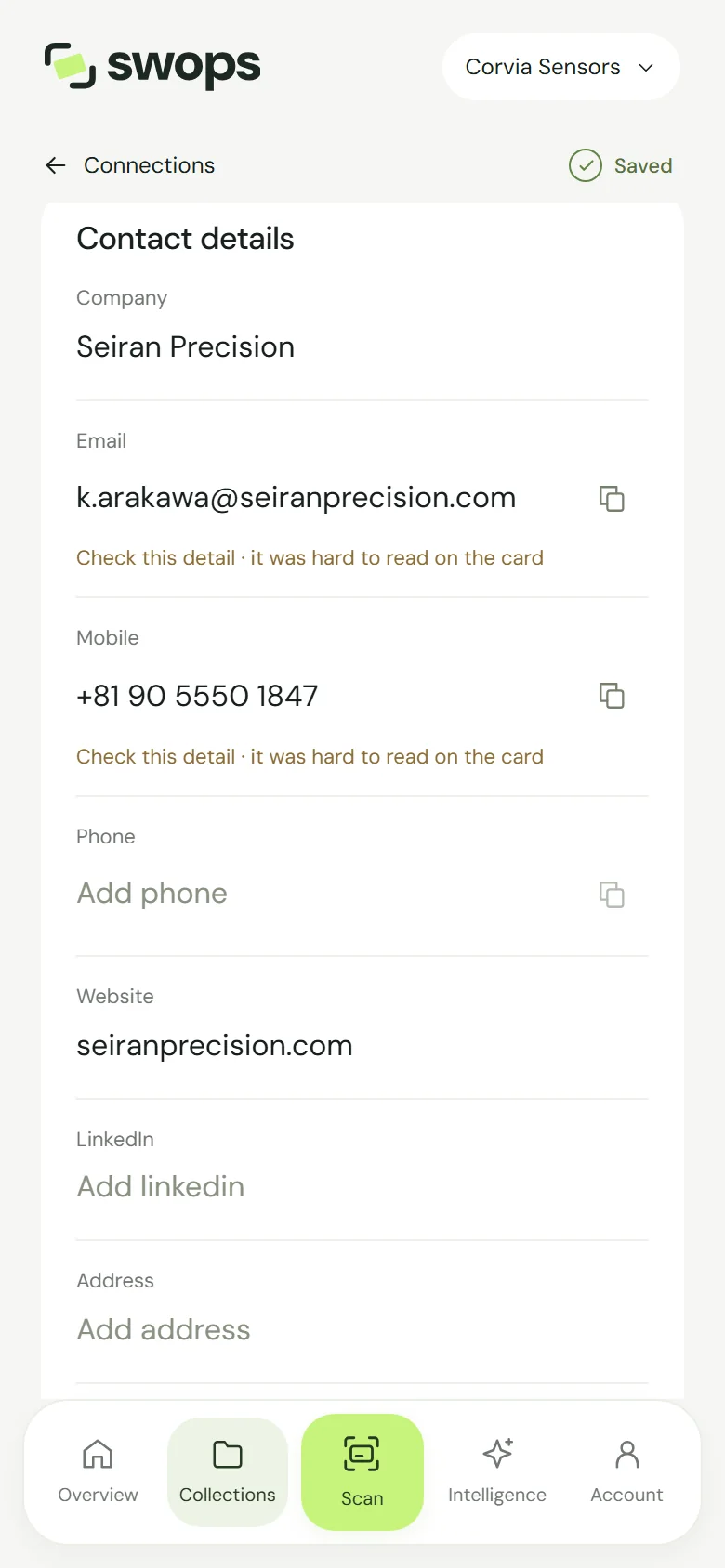
Compare it with the card, or tap View attached card further down the contact to see the photo.
Edit any detail in place
Tap the field you want to change: the name and job title at the top, or any of the contact details.
Type the correction. A bar appears at the bottom: Save changes and Discard changes.
Tap Save changes. Changes saved appears at the top.
On the laptop the same works with a click: Click any detail to edit.
While you have unsaved changes, Swops will not let you leave the contact by accident: it asks you to Save changes or Discard changes first. That also applies before opening the scan sheet or switching workspace.
Why the company and website matter
The website (or, without one, the company part of the email address) is how Swops knows which business to research and which saved brief belongs to the contact. If you correct the company or website after an analysis, the contact may link to a different saved brief, or to none. See Which business Swops researches.
Working at the same time as a colleague
If a teammate edits the same contact while you do, the fields you did not touch keep their changes when you save yours.