
How it should work
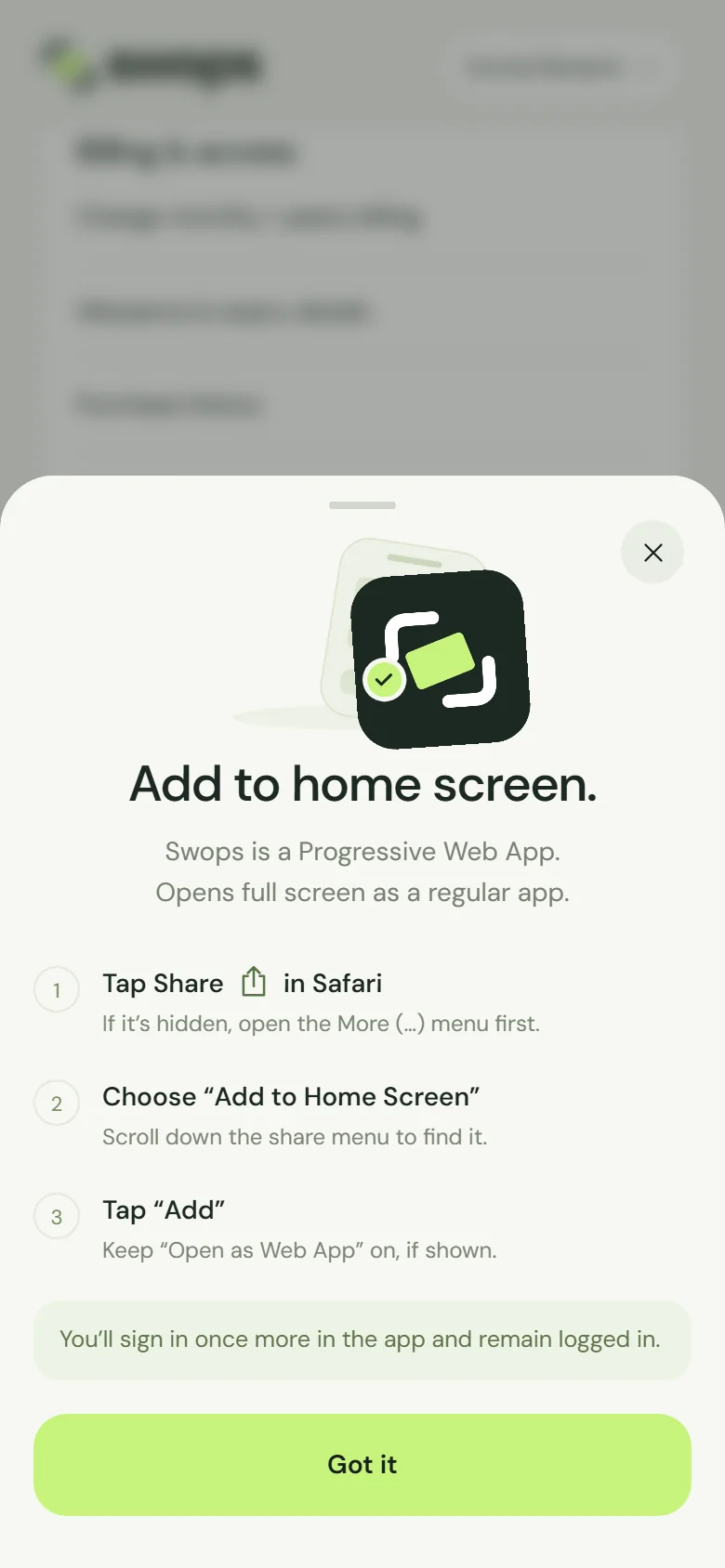
Swops is not in the App Store. It installs from the browser: in Safari, tap Share, choose Add to Home Screen and tap Add. The full steps, for every browser, are in Add Swops to your home screen.
If that does not work, one of these is usually the reason.
You opened Swops inside another app
LinkedIn, Instagram, Facebook, Gmail, Outlook, WhatsApp and many other apps open links in their own built-in browser. These browsers cannot add anything to your home screen, and their menus do not offer it.
Tap the app’s menu (often … or a compass icon).
Choose Open in Safari or Open in browser.
In Safari, follow the usual steps.
No such menu? Open Safari yourself and go to app.swops.ai.
“Add to Home Screen” is not in the share menu
- Scroll down. The share menu shows a row of apps first, then a list of actions. Add to Home Screen is in that list, often below the first few items.
- Look under Edit Actions. At the bottom of the list, Edit Actions lets you add actions that are hidden. Find Add to Home Screen there and add it.
- Cannot find Share? In some Safari layouts it sits in the More (…) menu next to the address bar.
You use Chrome, Edge or Firefox
These browsers can add Swops on recent versions of iOS too. In Chrome, tap Share at the right end of the address bar. In Edge or Firefox, tap the menu in the bottom bar, then Share. Then choose Add to Home Screen.
On older versions of iOS only Safari can add apps to the home screen. If your browser does not offer it, use Safari.
“Open as Web App” was switched off
On recent versions of iOS, the last screen may show an Open as Web App switch. Keep it on: that is what makes Swops open full screen, like an app. If you added Swops with it off, the icon opens an ordinary Safari tab. Remove the icon and add it again with the switch on.
You are in a private tab
Private Browsing can stop Safari from offering Add to Home Screen, and it forgets your sign-in when you close the tab. Open app.swops.ai in a normal tab and try again.
It is a work phone
Company-managed iPhones, and phones with Screen Time restrictions, can block adding web apps or limit what Safari can do. Ask your IT team, or use Swops in Safari meanwhile.
Added it, and it asks you to sign in again
That is expected. On iPhone the home-screen app keeps its own sign-in, separate from Safari. Open Swops from the new icon and sign in once more with your email code. After that you stay signed in.
Enter the 6-digit code in the app. The link in the email opens Safari, not the app on your home screen. See Create your account and sign in.
Still not working?
Swops works fully in Safari too, without installing it. Bookmark app.swops.ai or keep the tab open and you stay signed in. Scanning, My card and everything else work the same way.