
On the phone
Tap the workspace name at the top right, next to the small arrow.
Your spaces lists your personal space and every company workspace you belong to. A tick marks the one you are in.
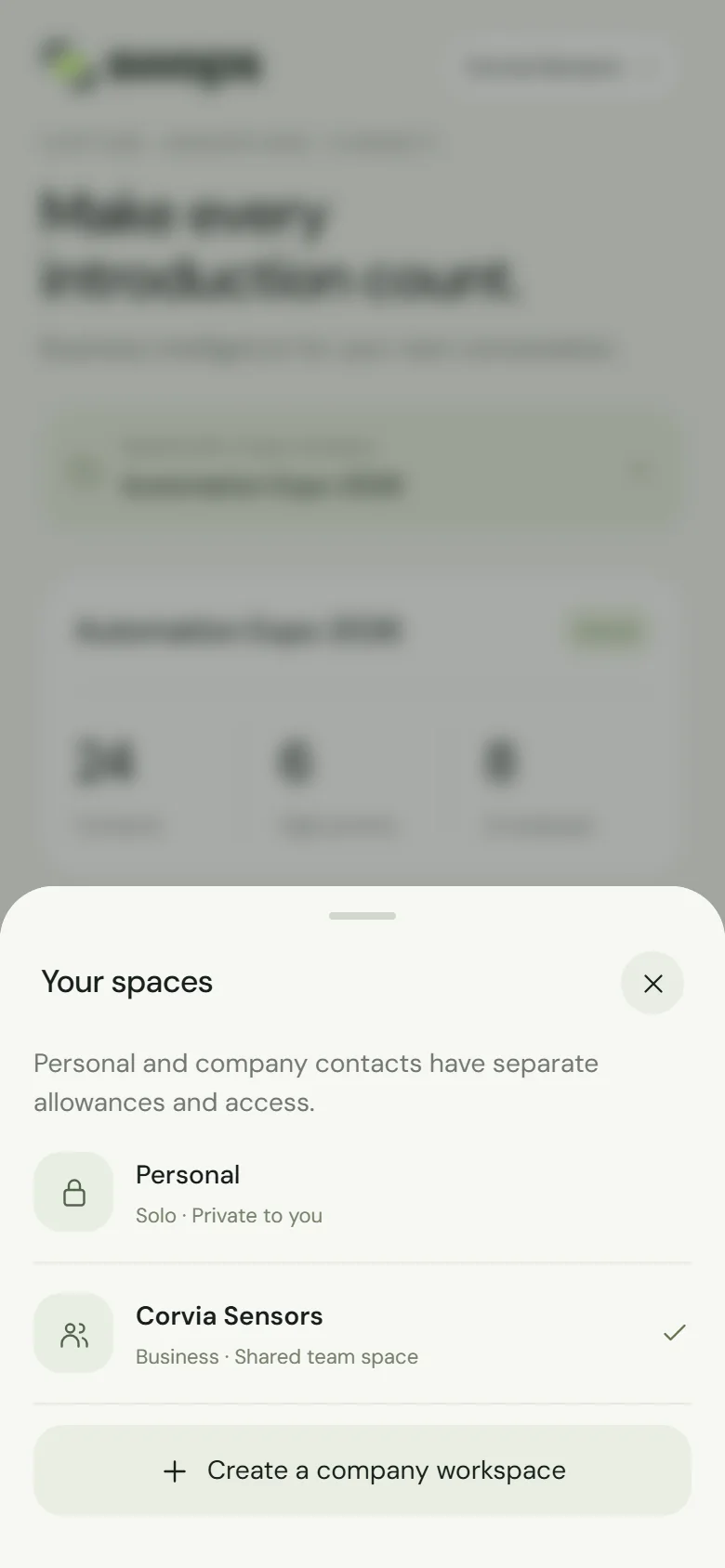
Your spaces: tap one to switch. Tap a workspace. Swops opens its Overview.
On the laptop
Click the workspace name at the top left of the page, next to the page title. Choose from Your spaces in the menu. Swops opens that workspace’s Overview.
The same menu has Create a company workspace and, when someone has invited you, Invitations.
What the labels mean
Under each name you see its plan and what kind of space it is. The phone says "Private to you" or "Shared team space"; the laptop says "Only you" or "Shared workspace".
| Label | Meaning |
|---|---|
| Free, Solo, Team Pass, Business | The plan the space runs on |
| Private to you / Only you | Your personal space |
| Shared team space / Shared workspace | A company workspace |
| No plan yet | A company workspace waiting for its Team Pass or Business |
| Export only | Paid access has ended. You have 30 days to view and export: What happens when a plan ends |
| Expired | Your personal space after its free trial or plan ended. Choose a plan to start it again |
A company workspace leaves the list once its export window is over and its contents have been deleted, or when its owner deletes it.
Good to know
- Contacts missing? You may be in another workspace. Contacts, collections and analyses belong to the workspace they were captured in, and each workspace only shows its own.
- Each device remembers its own. Swops remembers the last workspace you used, separately on each phone or browser. A new phone starts in your personal space.
- Unsaved changes come first. While a contact has unsaved changes, Swops stays put and says Save your changes or discard them below.
- Links switch for you. Opening a link to a contact in another of your workspaces switches to that workspace by itself.
- Where new contacts go is remembered per workspace too: Choose where new contacts go.