
How Scan Card uses the camera
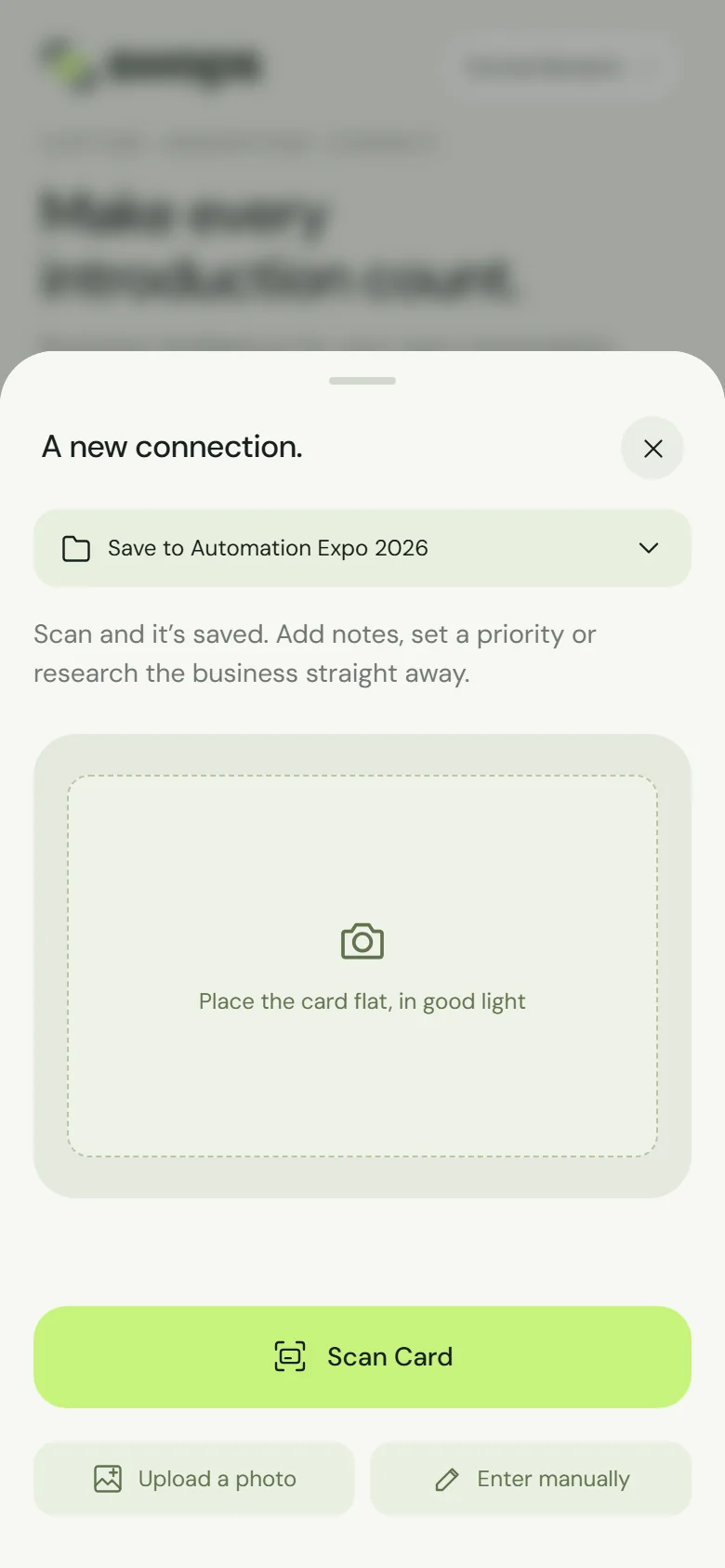
Swops has no camera of its own. When you tap Scan Card, Swops asks your browser to open your phone’s camera. You take the photo, the browser hands it to Swops, and Swops reads the card.
So when the camera does not open, the cause is nearly always outside Swops: a permission, another app holding the camera, or the kind of browser Swops is running in. All three are quick to fix.
The quick way round: Upload a photo
Need the contact now? Take the photo with your phone’s own camera app, then open Scan in Swops, tap Upload a photo and pick it. Swops reads it exactly as if you had used Scan Card, and it uses one scan just the same.
Or tap Enter manually and type the details. Manual entry is always free.
Check the camera permission
iPhone
Open the Settings app.
Find the browser you use for Swops: Chrome, Edge or Firefox. On recent versions of iOS the browsers are listed under Apps.
Switch Camera on.
Go back to Swops and tap Scan Card again.
In Safari, Scan Card opens the iPhone camera without a website camera permission, so there is no Safari switch to check. Still nothing, in any browser? Check that the camera is not switched off for every app under Screen Time > Content & Privacy Restrictions. On a work phone, your company may manage this setting for you: ask your IT team.
Android
Open Settings > Apps and choose your browser, for example Chrome or Samsung Internet.
Open Permissions > Camera and choose Allow only while using the app (or Ask every time).
If your browser also shows site settings for app.swops.ai, make sure the camera is not blocked there either.
Go back to Swops and tap Scan Card again.
The menu names differ a little between phone makers. Searching Settings for “camera” usually gets you there.
Swops on your home screen runs on your phone’s browser, so the same camera settings apply. If the camera works in the browser but not in the installed app, close the app fully and open it again.
Other things that stop the camera
- Another app is using it. A video call, another scanning app or a torch app can hold on to the camera. Close them and try again.
- You opened Swops from another app. LinkedIn, Instagram, Gmail and similar apps open links in their own built-in browser, which may not open the camera. Use that app’s menu (…) and choose Open in Safari, Open in Chrome or Open in browser.
- The phone needs a fresh start. Close the browser fully and open it again. If the phone’s own camera app does not work either, restart the phone.
There is no Scan button
Scanning is a phone feature. On a laptop, and in any wide browser window, Swops shows the laptop layout, which has no Scan button. Add contacts by hand there, with a photo of the card attached if you like, or scan on your phone. A tablet held upright usually gets the phone layout, with Scan. See What you can do on the phone and the laptop.
Still stuck?
Keep collecting with Enter manually and take photos of the cards so you can upload them later. Then contact us with your phone model, the browser you use and what you see when you tap Scan Card.