
The collection options
Open the collection and tap the round … button next to its name. On the laptop it sits next to Export CSV at the top of the collection. The options sheet shows the collection’s name, who it is shared with and how many contacts it holds, then:
- Export CSV: download its contacts. See Export contacts to a CSV file.
- Rename collection
- Archive collection, or Restore collection on an archived one.
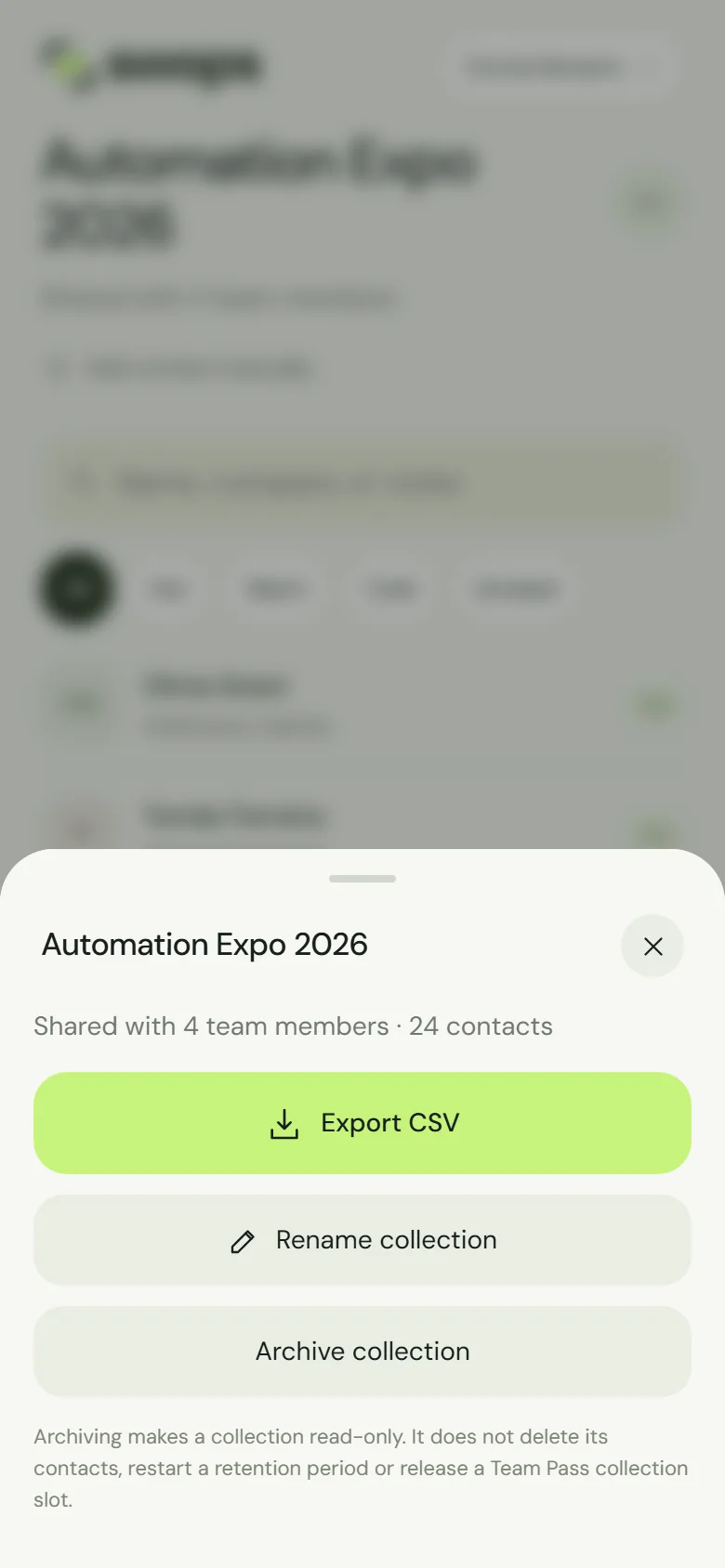
Any member of a company workspace can rename, archive and restore collections, not only the owner.
Rename a collection
In the options, tap Rename collection.
Change the name and tap Save name.
Swops shows Collection renamed. Contacts, notes and briefs are not touched. An archived collection cannot be renamed: restore it first.
Archive a collection
Archive a collection when the event is over and the follow-up is done. It moves out of the way, and everything in it is kept.
In the options, tap Archive collection.
Swops asks Archive this collection? and explains: “Automation Expo 2026 will become read-only. You can still view and export it, or restore it while your plan is active.”
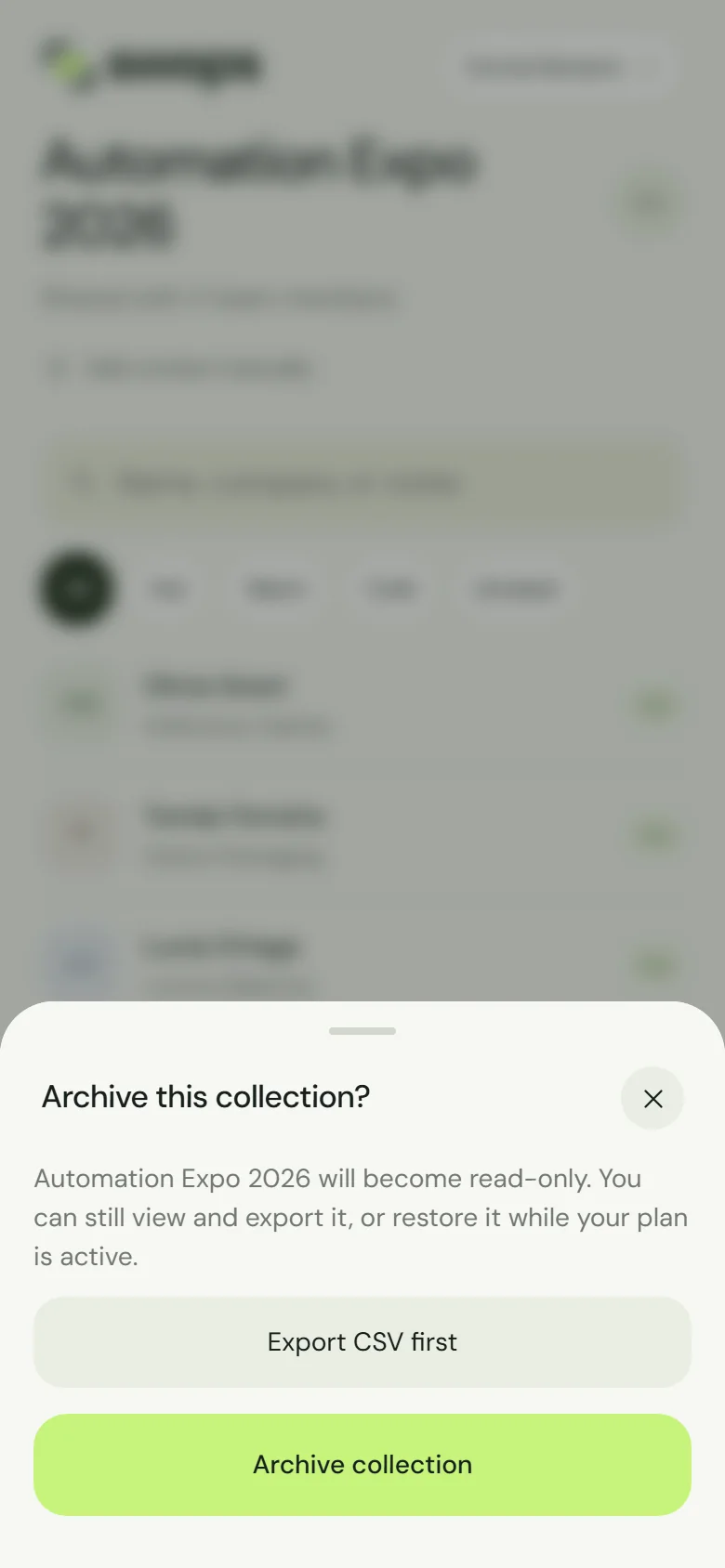
Archive this collection? Export first if you want a copy now. Tap Export CSV first if you want a copy straight away, then Archive collection.
Swops shows Collection archived and the collection moves to the Archived tab.
What archiving does
- Makes the collection read-only: no new contacts, no edits, no priorities or notes, no new research. See Why a collection is read-only.
- Keeps it viewable and exportable, saved briefs included, for as long as the workspace keeps its data.
- On the free trial and Solo, frees a slot for a new collection.
What archiving does not do
- It does not delete any contacts.
- It does not restart or extend a retention period. Archived collections follow the workspace’s dates: when its plan and export window end, they are deleted with everything else. See What happens when a plan ends.
- It does not free a Team Pass collection slot. See How many collections you can have.
Opening a collection from the Collections page makes it your current collection, so the one you just archived is usually it. Choose another one before the next scan: until you do, Scan shows This collection is read-only. See Choose where new contacts go.
Restore a collection
Open Collections and tap the Archived tab.
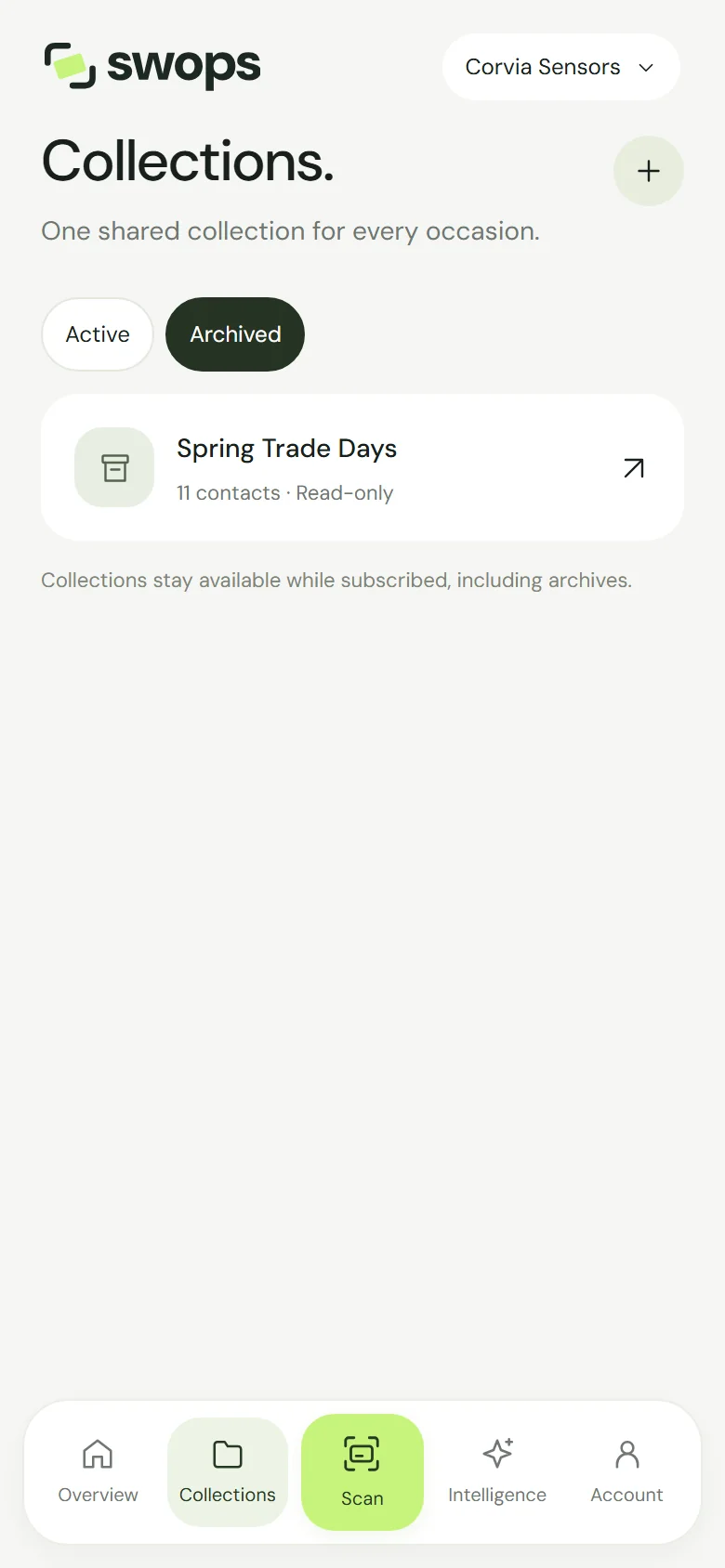
The Archived tab. Archived collections are read-only. Open the collection, tap … and choose Restore collection.
Swops shows Collection restored. The collection is back on the Active tab and can be changed again. Because you opened it from Collections, it is now also your current collection: new scans go there until you choose another.
Restoring needs an active plan. On the free trial and Solo it also needs a free slot. At the limit, Swops says so, for example “Solo includes up to 3 private collections at a time. Archive another one before restoring this one.” On Team Pass and Business you can always restore.
There is no “delete collection”
Collections cannot be deleted one by one. Archive the ones you have finished with, and delete single contacts if you need to (Delete a contact). The owner of a company workspace can delete the whole workspace once its plan has ended: see Delete a company workspace.
After paid access ends, the options show only Export CSV: the workspace is read-only until a plan is chosen again.