
Your contacts, in a file
Any collection can leave Swops as a CSV file: one row per contact, with their details, your priority and notes, and the saved business analysis if you want it. Exporting is free, uses no allowance, and any member of a workspace can do it, not only the owner.
Export a collection on your phone
Tap Collections in the bottom menu and open the collection. This also makes it your current collection, where new scans and manual contacts go: see Choose where new contacts go.
Scroll below the contacts and tap Export collection. Or tap the round … button at the top and choose Export CSV.
The Export contacts sheet shows the collection and how many contacts it holds.
Leave Include AI analysis ticked to add each contact’s saved business analysis and its date. Untick it for contact details only. The box appears only when some contacts have a brief.
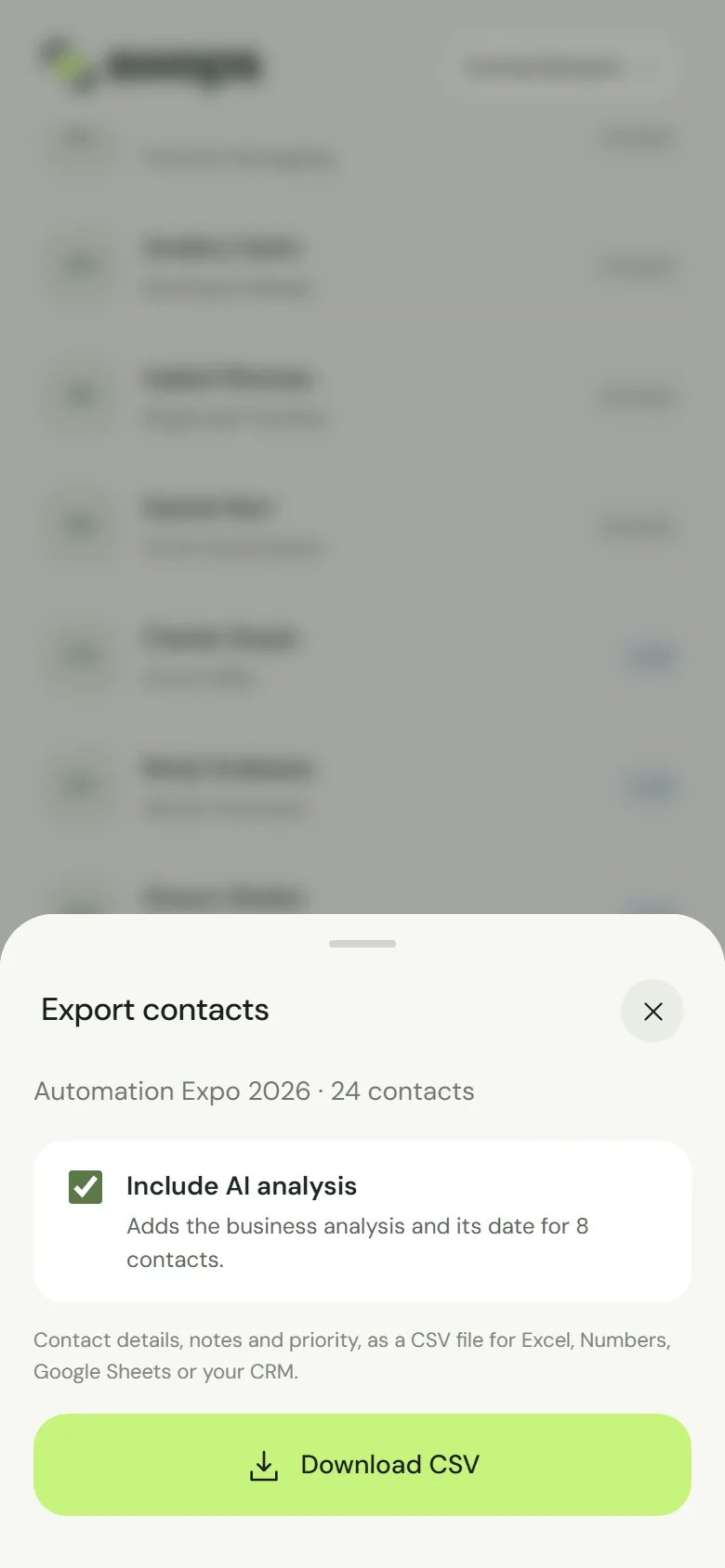
Automation Expo 2026 · 24 contacts, 8 of them with a brief. Tap Download CSV. Swops shows Preparing your file…, then Downloading… with a percentage, then Done.
CSV exported · contacts, notes, ratings and research confirms it (without the analysis: CSV exported · contacts, notes and ratings). The sheet closes by itself.
Export everything at once
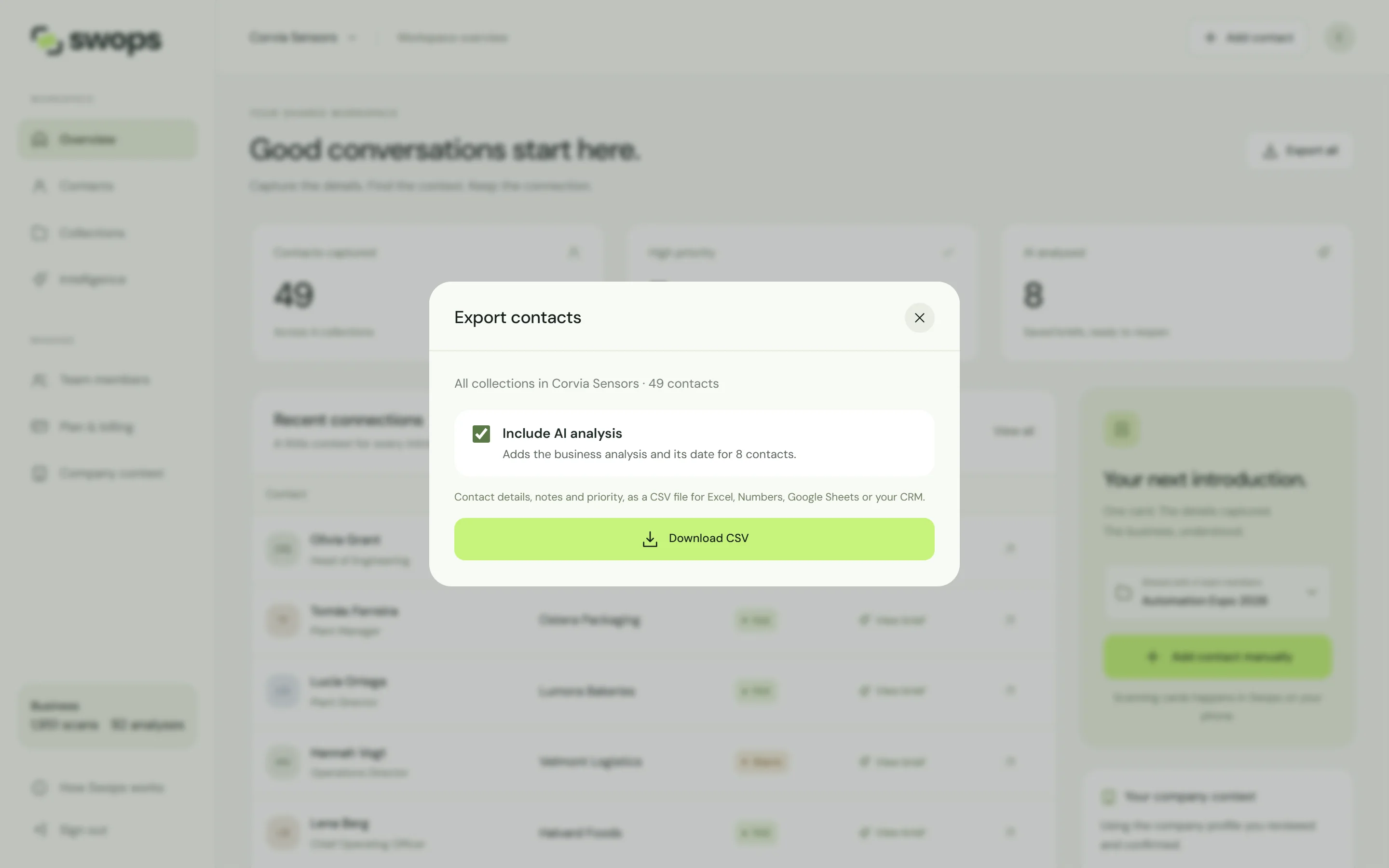
Account›Export all collections puts every collection in the current workspace into one file, archived ones included. A Collection column says where each contact belongs. Switch workspace first if you want another one: each workspace exports on its own.
On the laptop
- Overview: Export all, top right, for the whole workspace.
- Contacts: Export CSV exports the collection you are looking at, or every collection when View all is selected.
- A collection’s … menu: Export CSV.
- Plan & billing: Export all collections, under Your workspace.
Opening a collection from Collections, or picking one in the Contacts selector, also makes it the collection new contacts go to. Exporting everything at once leaves that unchanged. See Choose where new contacts go.
The file
It is named after the collection or workspace, for example Automation-Expo-2026.csv. Rename the file afterwards if you like: the contents are not affected. Your browser saves it with your other downloads: on a laptop, the Downloads folder; on a phone, usually the Files app (iPhone) or Downloads (Android).
There is no row limit. The file always holds every contact, even when the list on screen needs Load more to show them all.
What each column holds, and how to open the file: What is in your CSV export.
When you can export
| Situation | Export |
|---|---|
| Active plan or free trial | Yes |
| Archived collection | Yes, it stays exportable |
| The 30 days after a paid plan ends (Export only) | Yes |
| After the free trial ends | No. Trial contacts are deleted at day 30, with no export window |
| After the 30-day export window | No. The contacts have been deleted |
Swops reminds the owner by email before anything is deleted, and the export links in those emails open the export straight away. See What happens when a plan ends.
The Archive this collection? sheet offers Export CSV first. Archived collections stay exportable, so you can also export later.
Taking it into a CRM
Swops has no direct CRM connection: the CSV file is the bridge, and most CRMs import one. Step-by-step guides for HubSpot, Salesforce, Pipedrive and more: Prepare your Swops export for a CRM.
Good to know
- Exporting changes nothing in Swops. Your contacts stay where they are.
- Card photos are not in the file, and neither are the full briefs. You can view both in Swops while you have access.
- Nothing to export? An empty collection shows No contacts to export yet.
- Export after every event. Swops is not a backup service, so keep your own copy of what matters.