
One collection per occasion
A collection is a list of contacts that belong together: everyone you met at one trade show, one conference, one client group, or this month’s meetings. Every contact lives in exactly one collection.
Small and specific works best. Next spring, “Automation Expo 2026” will tell you more than “Leads”.
Private or shared
A collection takes its character from the workspace it lives in.
| Where it lives | Shown as | Who can open it |
|---|---|---|
| Your personal space | Private · “Private · only you” | Only you |
| A company workspace | Shared · “Shared with 4 team members” | Everyone in that workspace |
In a shared collection, everyone in the team can add contacts, set priorities, write notes and research businesses, and the whole team uses one allowance. See Personal space and company workspaces.
Collections never mix across workspaces. Contacts, notes and research in your personal space stay there, and a company workspace’s collections stay with the company.
Where to find them
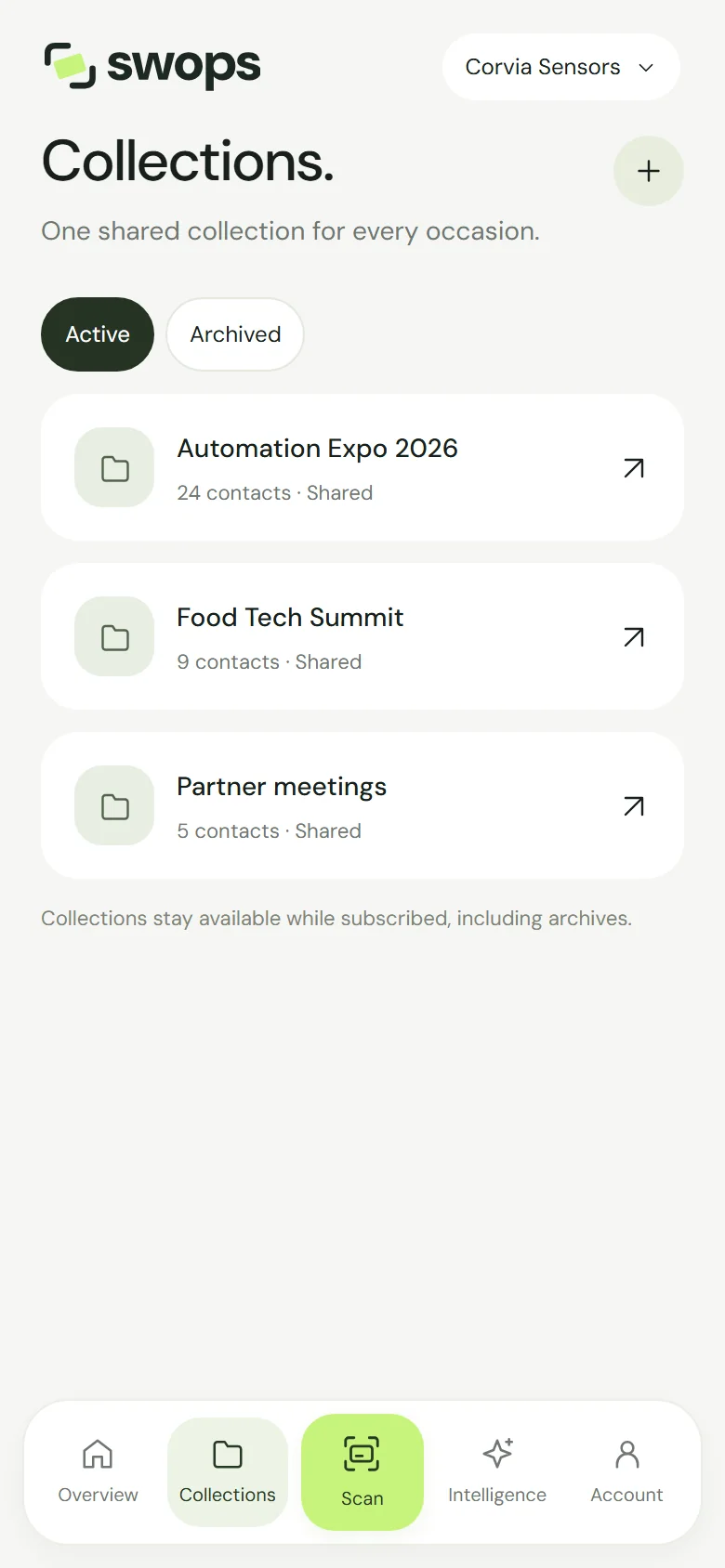
On the phone, tap Collections in the bottom menu. The Active tab lists the collections you are using; Archived lists the ones you have finished with. Each card shows the name, the number of contacts and Private, Shared or Read-only.
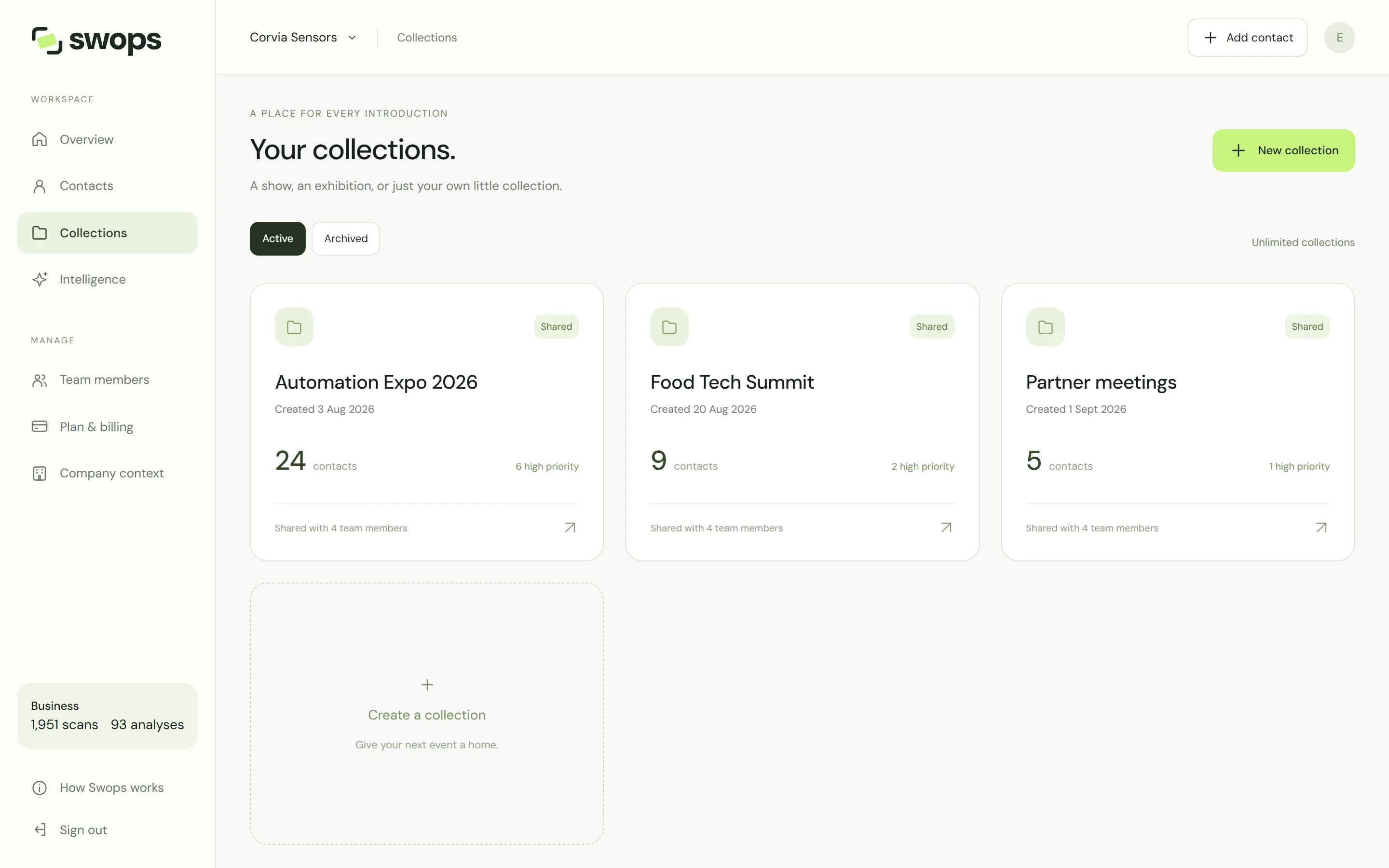
On the laptop, choose Collections in the sidebar. Each tile shows when the collection was created, how many contacts it holds and how many of them are high priority (Hot). The Contacts page shows one collection at a time, or every collection together with View all.
Open a collection to see its contacts, search them and filter by priority. Its round … button holds the options: export, rename and archive. See Rename, archive and restore a collection. Opening a collection from the Collections page also makes it your current collection.
The current collection
One collection at a time is your current collection: the one new scans and manual contacts are saved to. Overview shows it, and so does the top of the scan sheet (Save to Automation Expo 2026). It changes only when you pick another one, open one from the Collections page or create one. See Choose where new contacts go.
Your first collection
You never start empty-handed. Your personal space comes with a collection called My contacts, and a company workspace gets My first event when its plan starts. Rename them to suit you: see Rename, archive and restore a collection.
How many collections you can have depends on the plan: see How many collections you can have.
Good to know
- There is no “move to another collection” button. To move someone, add them by hand in the other collection (Add a contact by hand), copy any notes across, then delete the old contact (Delete a contact). The saved brief is not lost: it belongs to the business, not the contact, so the new contact links to it again as long as the company details match.
- The same person can be in several collections. Swops checks for duplicates within one collection only, so someone you meet at two shows can appear in both. See “Already in this collection”.
- There is no “delete collection”. Archive a collection when you are done with it. It stays viewable and exportable.