
From the invitation email
Open the email "<name> invited you to <workspace> on Swops" and tap Accept invitation.
Swops opens on Join <workspace>. with the invited address already filled in. Tap Email me a code and enter the 6-digit code from your inbox. New to Swops? Your account is created right then. Details: Create your account and sign in.
Swops shows Accepting your invitation…, then opens the team’s Overview with Welcome to <workspace>.
Already signed in with the invited address? The button takes you straight in.
From inside Swops
Signed in with the invited address, you will find the invitation in several places:
- Phone: the row Invitations · 1 under Account›Your account, and a note in Your spaces (tap the workspace name at the top) with View invitations.
- Laptop: Invitations in the workspace menu at the top left: "1 team is waiting for you".
The Join your team. screen lists each invitation with who sent it and when. Tap Accept invitation, or Decline if it is not for you (Invitation to … declined).
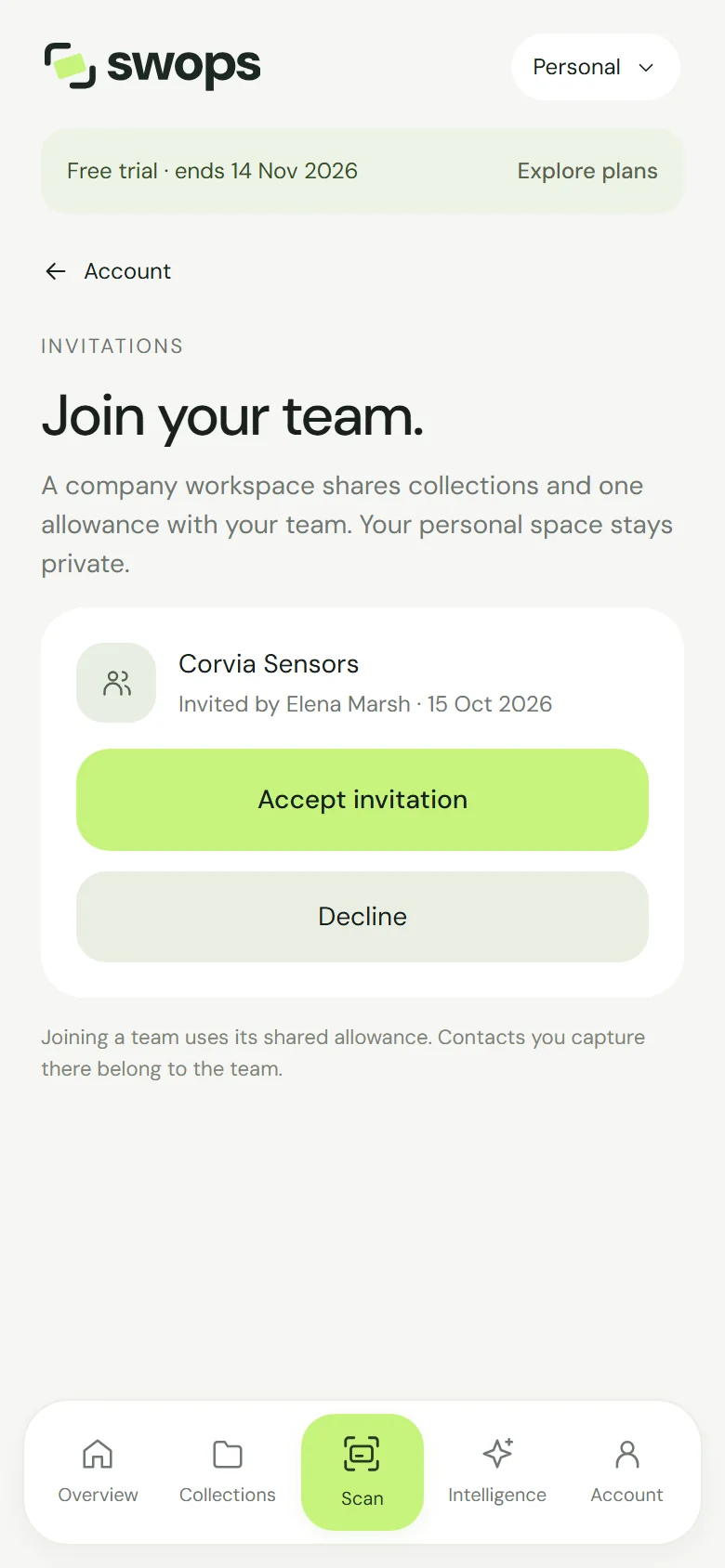
Nothing there? The screen says No pending invitations. Ask your team’s workspace owner to invite followed by your sign-in address. Check that the owner used exactly that address.
If it does not work
| Message | What to do |
|---|---|
| "This invite was sent to … Sign in with that email address to accept it." | You are signed in with a different address. Tap Sign out and use the invited address, then sign in with the invited one. Or ask the owner to invite the address you use. |
| "This invite has expired. Ask the workspace owner for a new one." | Invitations last 14 days. The owner can invite you again. |
| "This workspace is full. Ask the owner to free a seat." | Every seat is taken by members who have already joined. The owner can remove a member to free one. |
| "Invite was not found." | The invitation was revoked or already used. Ask the owner for a new one. |
Sign out in Swops signs you out on all your devices, not only this one. See Sign out.
After you join
- One shared allowance. "Joining a team uses its shared allowance. Contacts you capture there belong to the team." They stay with the team if you leave one day.
- Your personal space stays private. It is still there, separate, with its own allowance. Switch with the workspace name at the top: Switch between workspaces.
- You are a member. You can scan, research, export and organise collections. The plan, billing and the team are the owner’s: Owners and members: who can do what.
- Add your name if you have not yet. Your team sees it on the contacts you capture: Change your name.