
Steps
Open Account. On the laptop, open Plan & billing in the sidebar, or tap the round button with your initial at the top right.
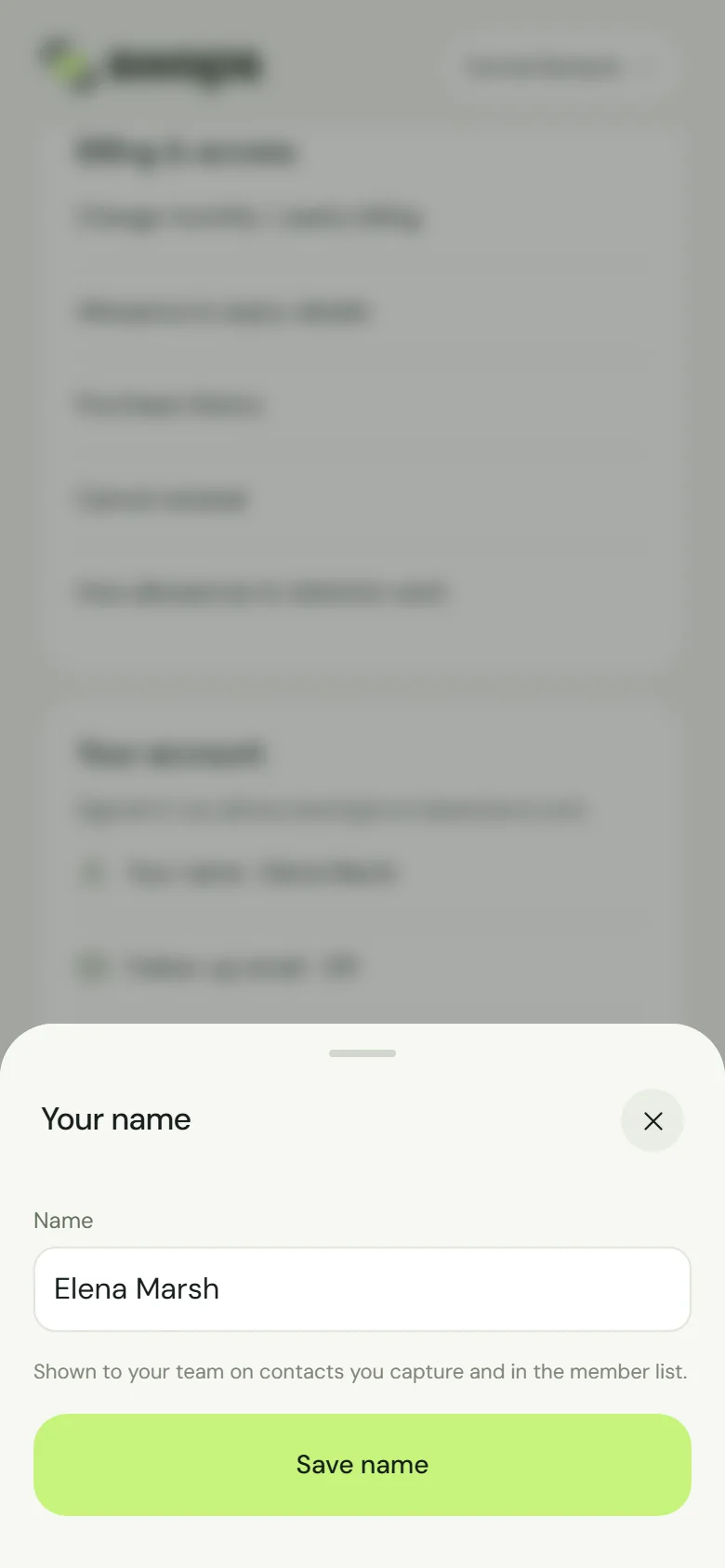
Under Your account, tap Your name, or Add your name if you skipped it when you signed up.
Type your name.
Tap Save name. Name saved confirms it.
Where your name appears
- On contacts you capture in a company workspace: the line under a contact reads, for example, “Captured 2 Oct 2026 · Card scan · Elena Marsh”.
- In the member list of each company workspace you belong to.
- On invitations you send, as the person who invited them.
A change shows everywhere straight away, on older contacts too. Without a name, your team sees your email address instead.
Your name on My card is separate
My card, your QR code and contact file, has its own name field. The instant follow-up email also uses the name from My card. Change it in My card with Edit. See Set up My card.
Good to know
- The name cannot be left empty. Saving a blank name shows Add your name.
- Your name is the only account detail you can edit. The email address you sign in with cannot be changed in the app. See Change your email address.