

Invite a teammate
Only the workspace owner can invite, and the workspace needs an active Team Pass or Business.
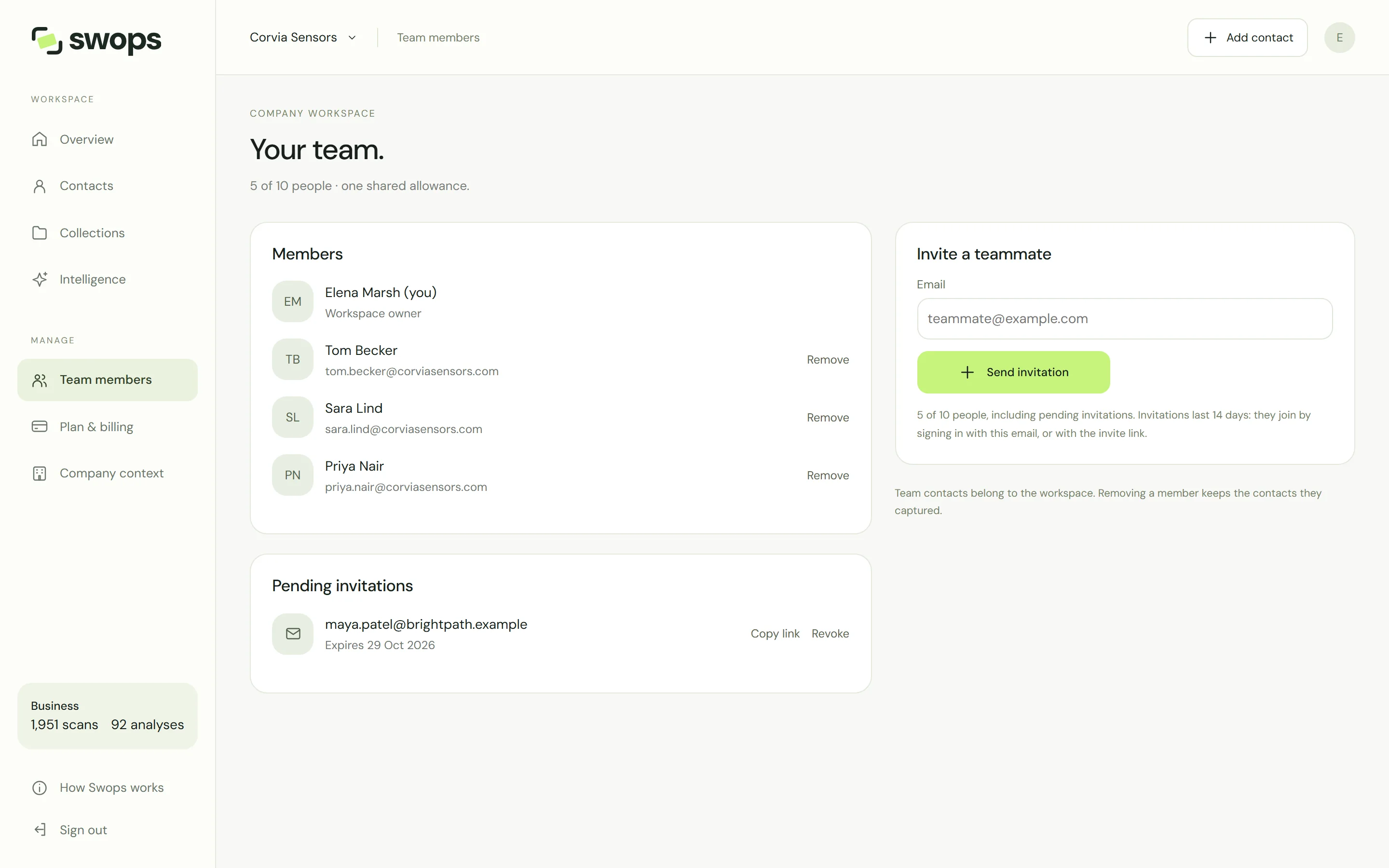
Open Team members. Phone: Account›Your workspace›Team members. Laptop: Team members in the sidebar.
Under Invite a teammate, type their email address. Use the address they will sign in with, usually their work email.
Tap Send invitation. You will see Invitation sent to … with their address, and they appear under Pending invitations with the date the invitation expires.
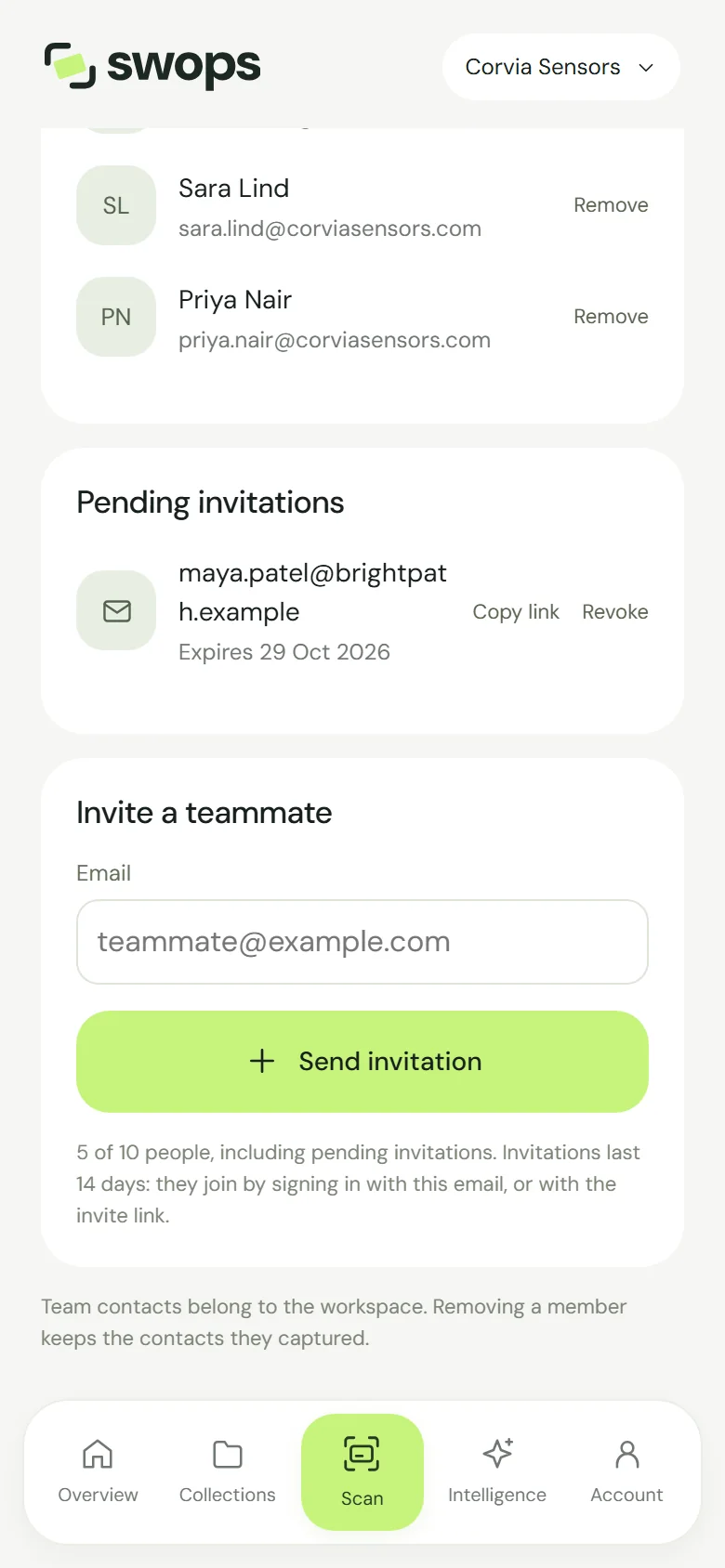
The invite form, under the pending invitations.
On the laptop, the same page has the members on the left and the invite form on the right.
What they receive
An email with the subject "<your name> invited you to <workspace> on Swops" and an Accept invitation button. It tells them which address the invitation is for, and to sign in or create an account with it. They do not need Swops already: their account is created when they first sign in. Their side of it: Join a team.
Pending invitations
- They last 14 days. The expiry date shows under the address. An invitation that expires disappears from the list and frees its seat. Invite the same address again if needed.
- Copy link copies the invitation link (Invite link copied), so you can send it another way: a chat message, say. The link works only for the invited address. If your browser blocks copying, Swops shows the link in a field to select and copy.
- Revoke cancels the invitation, with Invitation for … revoked. The link stops working.
Seats
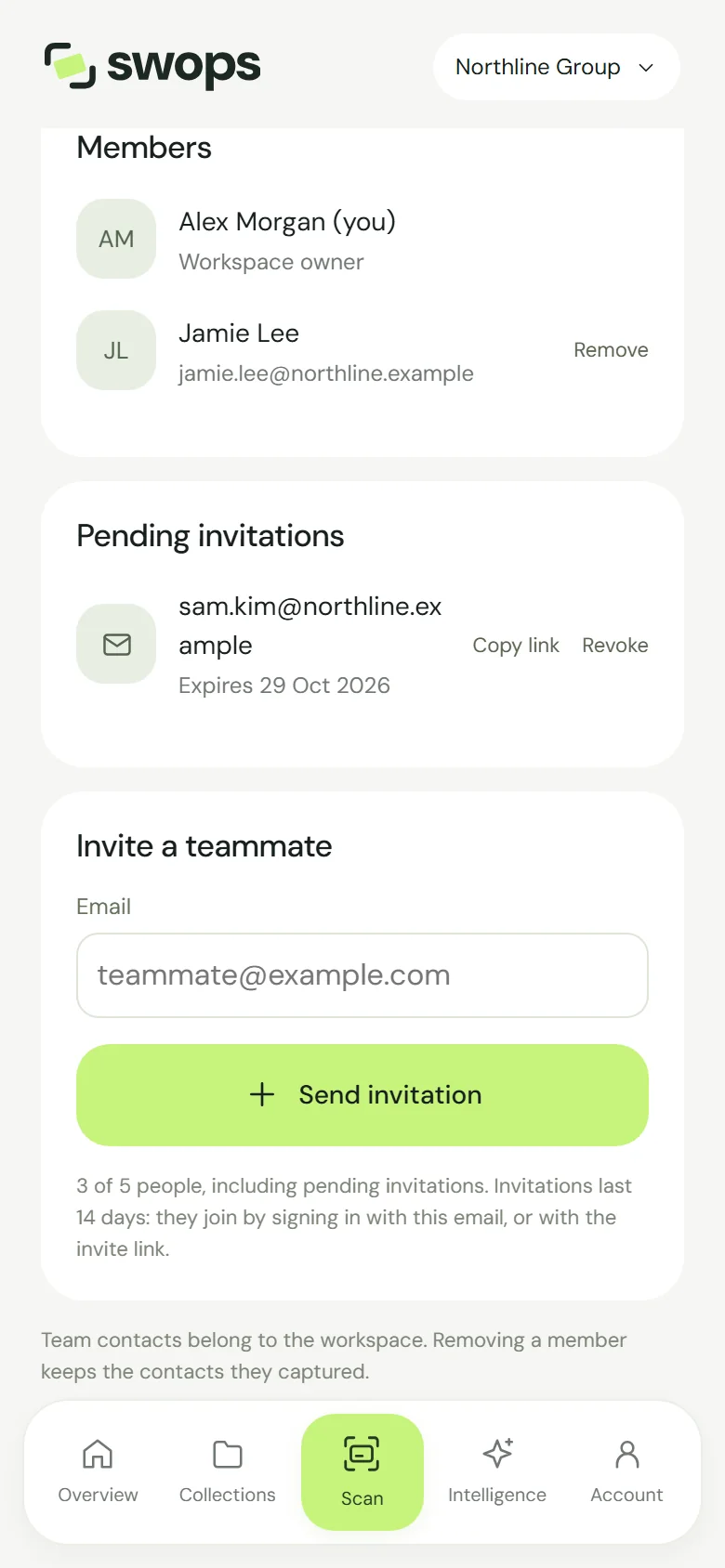
Pending invitations take a seat, just like members. Team Pass has 5 seats and Business 10, counting you. The page keeps count: "5 of 10 people, including pending invitations." When every seat is taken, Swops shows Your team is full. See Team size and seats.
Messages you may see
| Message | What it means |
|---|---|
| "… is already a member of this workspace." | They are in already. |
| "… already has an invite. Copy the invite link to share it again." | Use Copy link on their pending invitation. |
| "You can send up to 20 invitations a day from this workspace. Try again tomorrow, or copy the link of an invite you have already sent." | 20 a day per workspace, revoked ones included. |
| "Choose Team Pass or Business to invite your team to …" | The workspace has no active plan yet. |
| "Enter a valid email address." | Check for a typo. |
In your personal space, Team members says Your personal space is private. Invitations need a company workspace: Create a company workspace.
Tips for event teams
- Invite a few days before the show. Ask everyone to sign in once and accept, at home or in the office. Venue Wi-Fi on opening morning is no place for sign-in codes.
- Everyone adds Swops to their home screen. It opens in one tap at the stand: Add Swops to your home screen.
- Agree on the collection. Create one for the show and ask everyone to pick it as the place new contacts go. Each person chooses on their own phone: Choose where new contacts go.
- Everyone sets up My card, and the follow-up email if you use it: The instant follow-up email.