
Remove a member (owner)
Open Team members. Phone: Account›Your workspace›Team members. Laptop: Team members in the sidebar.
Tap Remove next to the person.
Swops asks Remove this member?: "… will lose access to company collections. Their captured contacts will stay with your team."
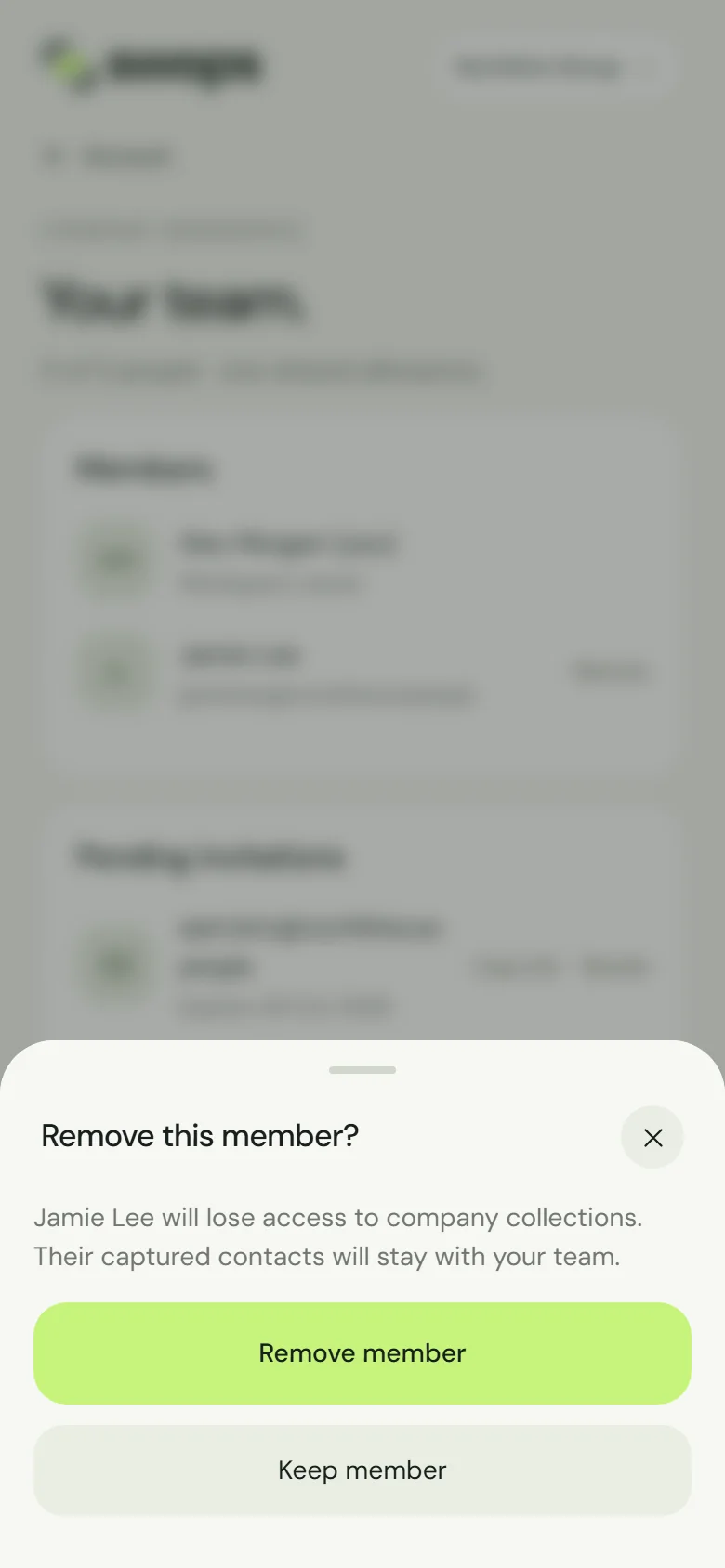
Remove member, or Keep member to cancel. Tap Remove member. You will see … removed.
What happens next:
- Access ends at once. The workspace disappears from their list of spaces, on every device.
- Their contacts stay. Everything they captured stays in the workspace, with their name on it.
- Their seat is free for someone new.
- Their own account is untouched, with their personal space and My card.
- You can invite them again later if needed: Invite your team.
Remove them on their last day. They may still be signed in to Swops on their phone, and removing them is what ends their access to the team’s contacts.
Leave a workspace (member)
Switch to the workspace and open Team members.
Under Leave this workspace it says: "You will lose access to … and its collections. The contacts you captured stay with the team." Tap Leave workspace.
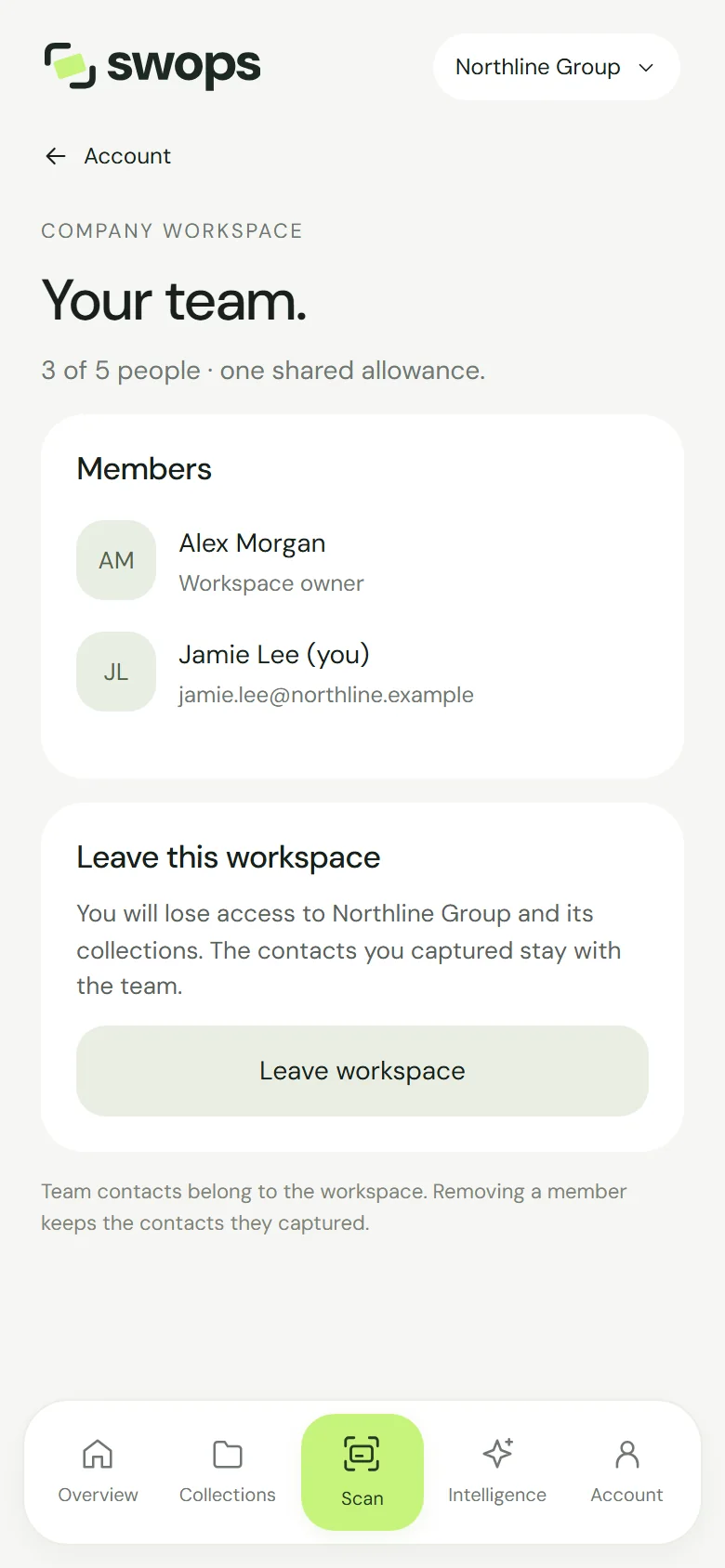
A member’s view, with Leave this workspace. Confirm with Leave workspace in Leave this workspace?, or tap Stay.
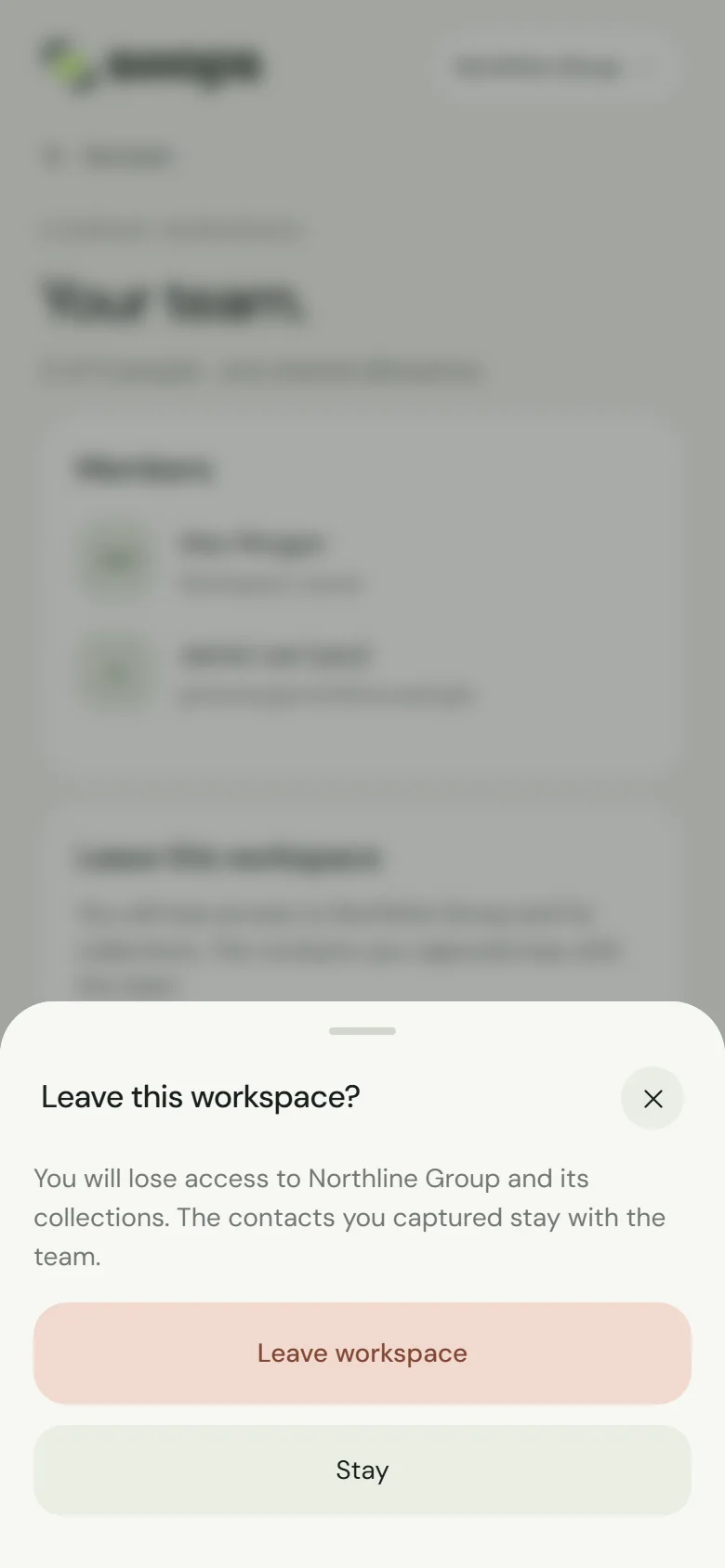
One more tap to leave. Stay cancels.
Swops shows You left … and takes you back to your personal space. To return later, ask the owner for a new invitation.
The owner cannot leave
The owner has no Leave option. To step away, delete the workspace instead: see Delete a company workspace. Ownership cannot be handed over in the app: Owners and members: who can do what.
Deleting your Swops account
A member who deletes their Swops account leaves every workspace they were in. The contacts they added there stay with each team. See Delete your account.