
Signing in, step by step
Open app.swops.ai and tap Continue with email.
Type your email address and tap Email me a code.
Open the email from Swops (subject “Your Swops sign-in code”, or “Confirm your Swops account” the first time) and type the 6-digit code. As soon as you have typed six digits, Swops continues by itself.
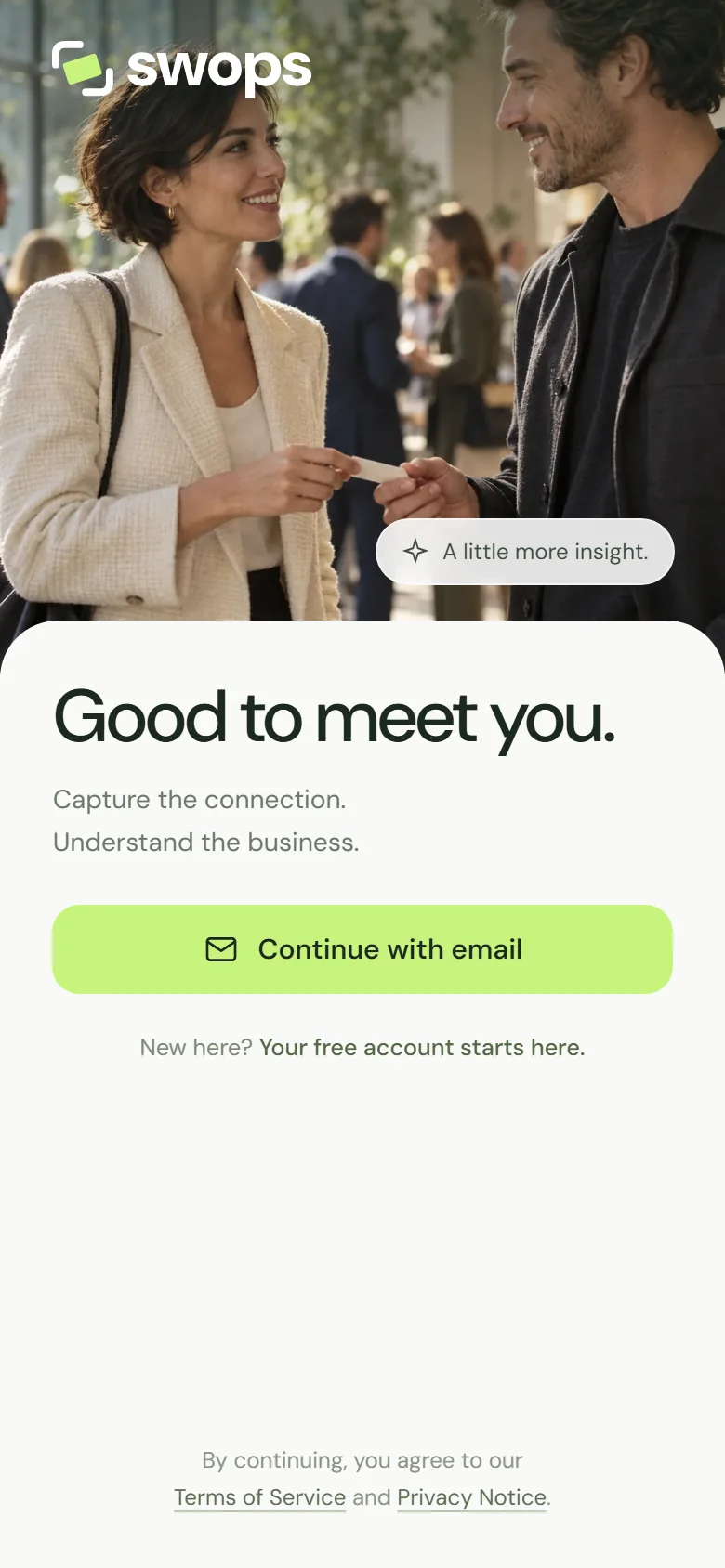
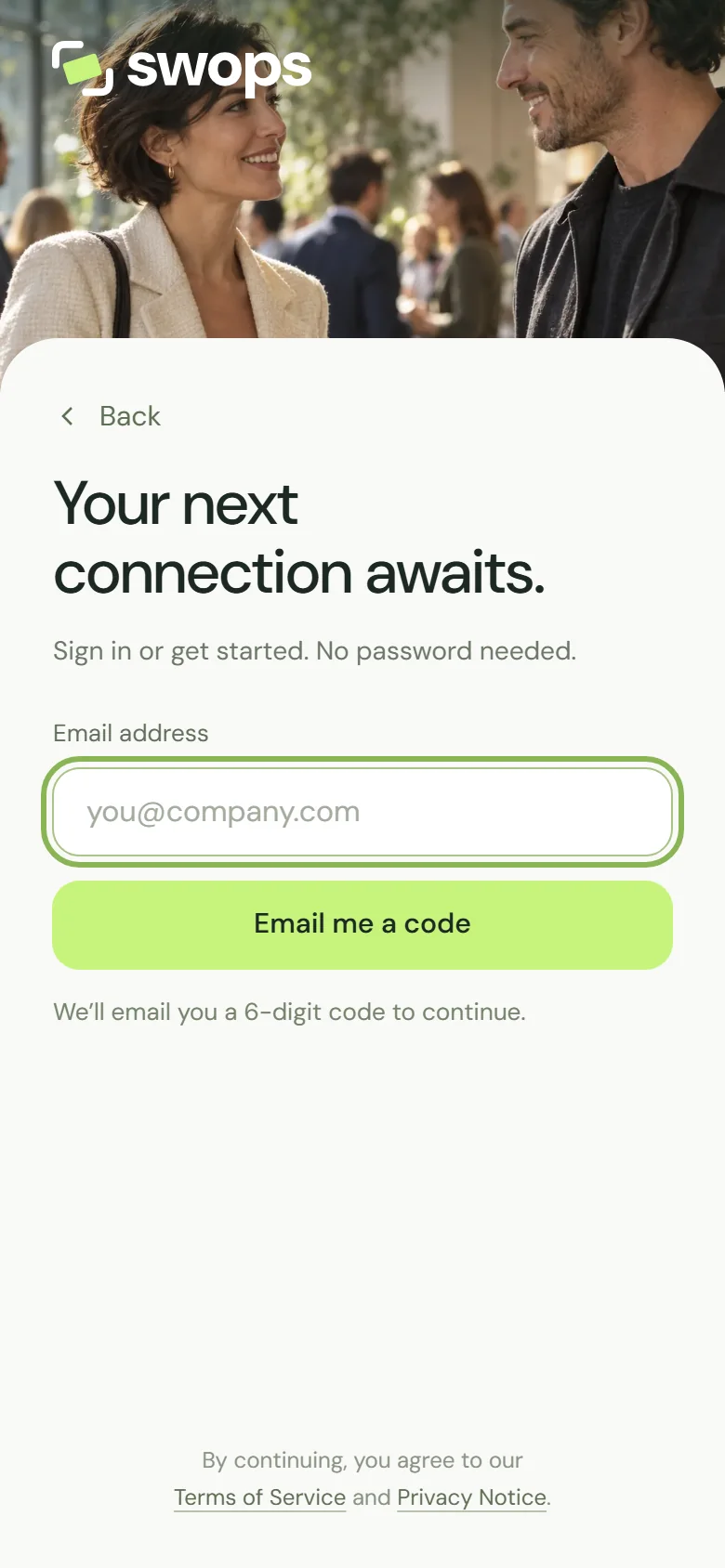
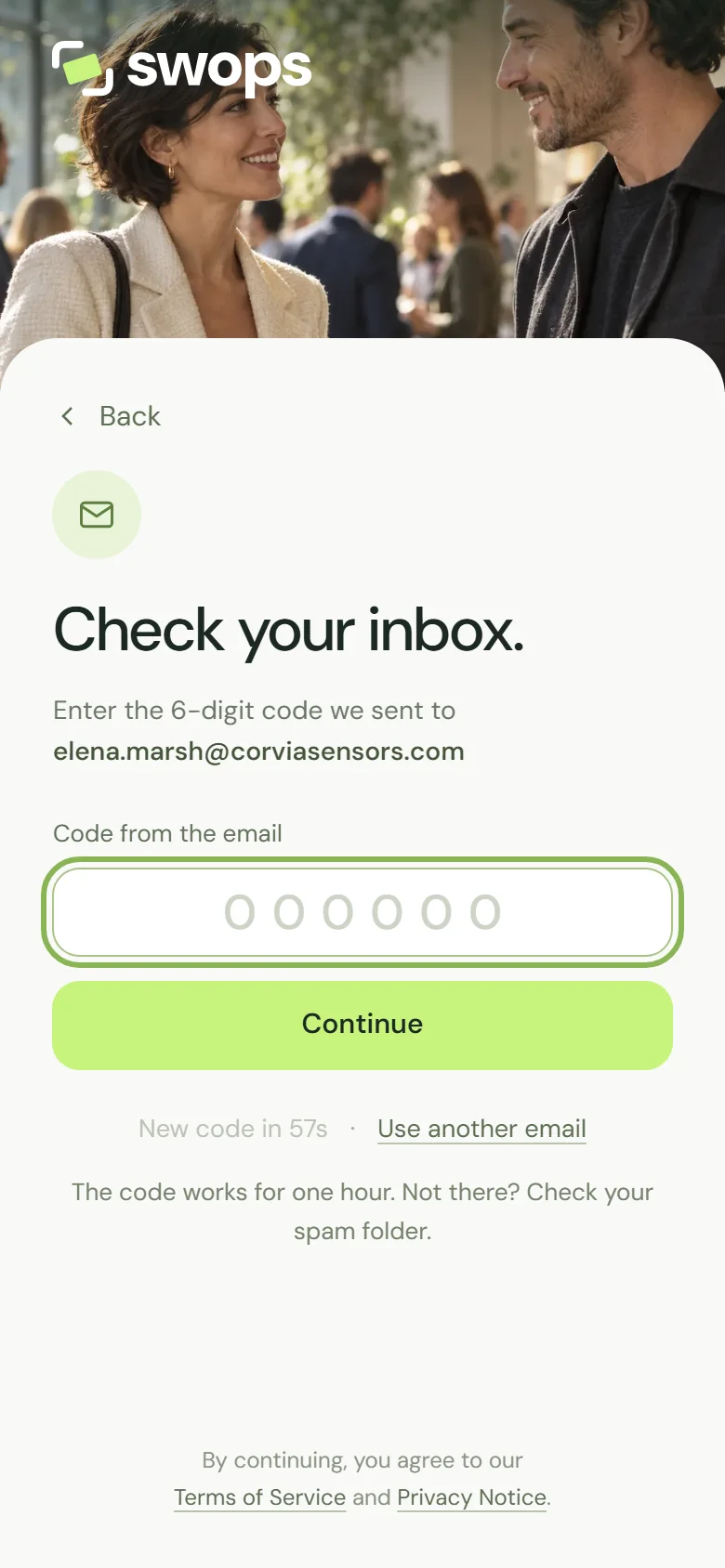
There is no separate sign-up. If the address is new to Swops, your account and your private personal space are created the moment you enter the code, with a 30-day free trial.
What to know about the code
- It is valid for one hour.
- It is for one sign-in only. Asking for a new code makes the old one useless, so always use the latest email.
- You can ask for a new code after 60 seconds: tap Send a new code when the countdown ends.
- The email also contains a sign-in link. It works in the same browser that asked for it. On a phone with Swops on the home screen, type the code instead: the link opens your browser, not the app.
The security check
Before a code is sent, a quick security check confirms you are a person. Usually you will not see it. Sometimes a small box asks you to tick it. If it will not load, see The code or sign-in link does not work.
Choosing your name
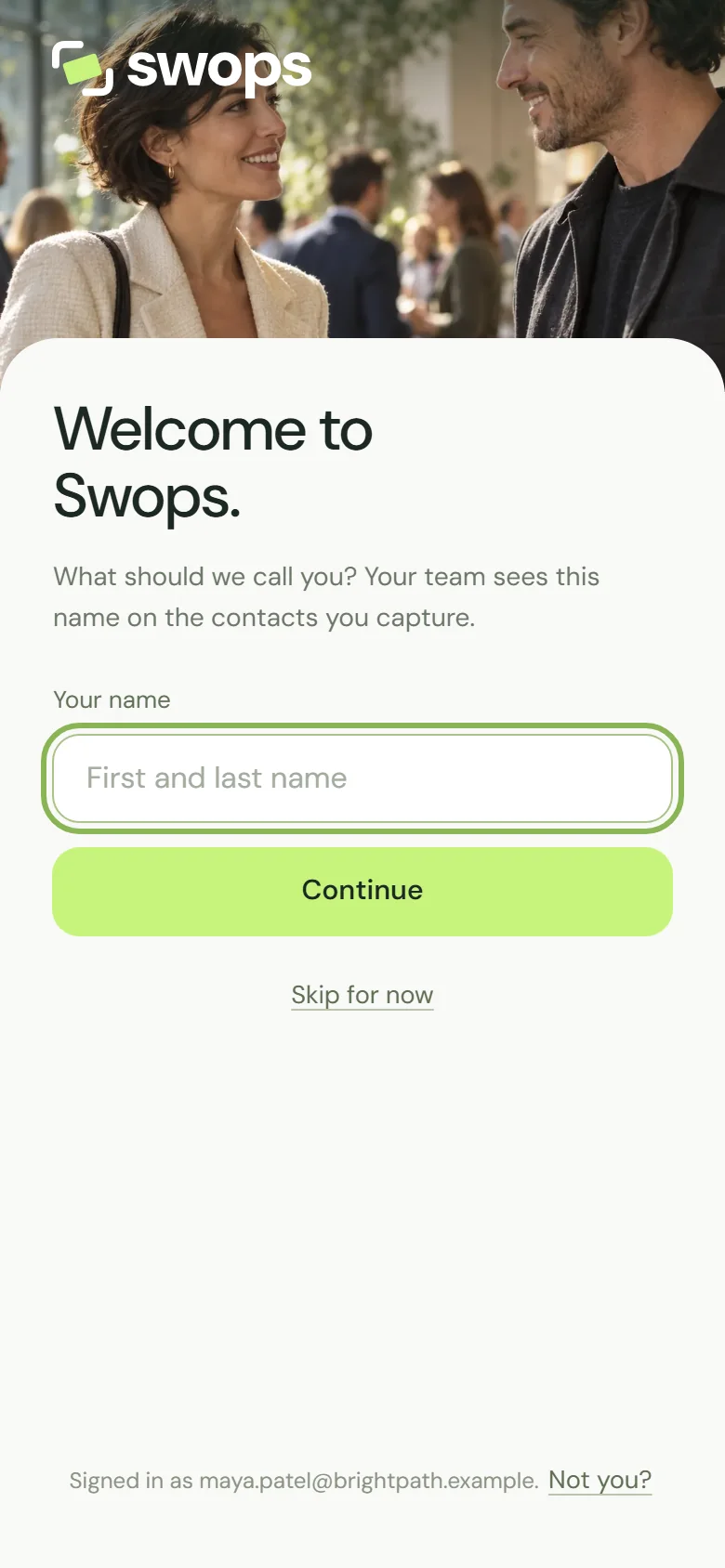
New accounts are asked What should we call you? Your team sees this name on the contacts you capture and in the member list. You can tap Skip for now and add it later in Account›Add your name.
Staying signed in
Swops keeps you signed in on each phone and browser until you sign out. Sign out signs you out on every device: see Sign out. On iPhone, the home-screen app keeps its own sign-in, so you sign in once more the first time you open it from the home screen. After that you stay signed in.
Today Swops signs everyone in with an email code. There is no password to remember, reset or leak.
By signing in you agree to the Terms of Service and Privacy Notice. Swops is for people aged 18 and over.