
Why there is no app store download
Swops is a web app that installs straight from your browser. Once it is on your home screen it opens full screen, without the browser’s address bar, and sits with your other apps. Updates come straight from Swops: when a new version is ready, tap Reload. Nothing to download from an app store.
Swops shows you how
The first time you open Swops in your phone’s browser, a short guide appears on the Overview with the exact steps for your phone and browser. It may appear once more a week or so later, after you have saved a few contacts. You can open it any time from Account›Add Swops to your home screen.
iPhone
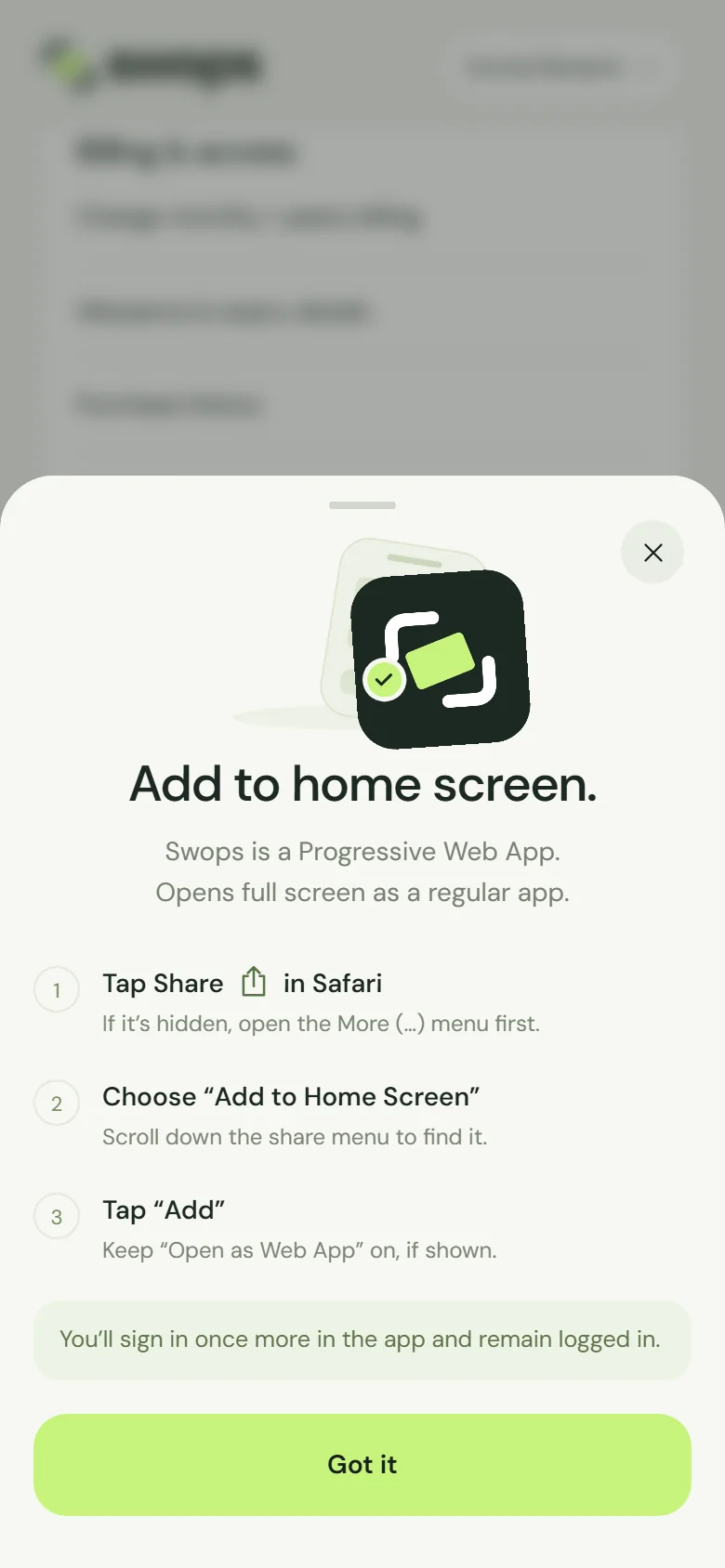
In Safari
Tap the Share button. If you cannot see it, open the More (…) menu first.
Scroll down the share menu and choose Add to Home Screen.
Keep Open as Web App switched on, if you see it, and tap Add.
In Chrome, Edge or Firefox
Chrome: tap Share at the right end of the address bar. Edge and Firefox: tap the menu in the bar at the bottom, then Share.
Choose Add to Home Screen (scroll down the share menu to find it).
Tap Add.
On iPhone the home-screen app keeps its own sign-in. Open Swops from the new icon and sign in once more with your email code. After that you stay signed in.
Android
Some Android browsers show an Install Swops button right in the guide. Tap it and confirm. Otherwise:
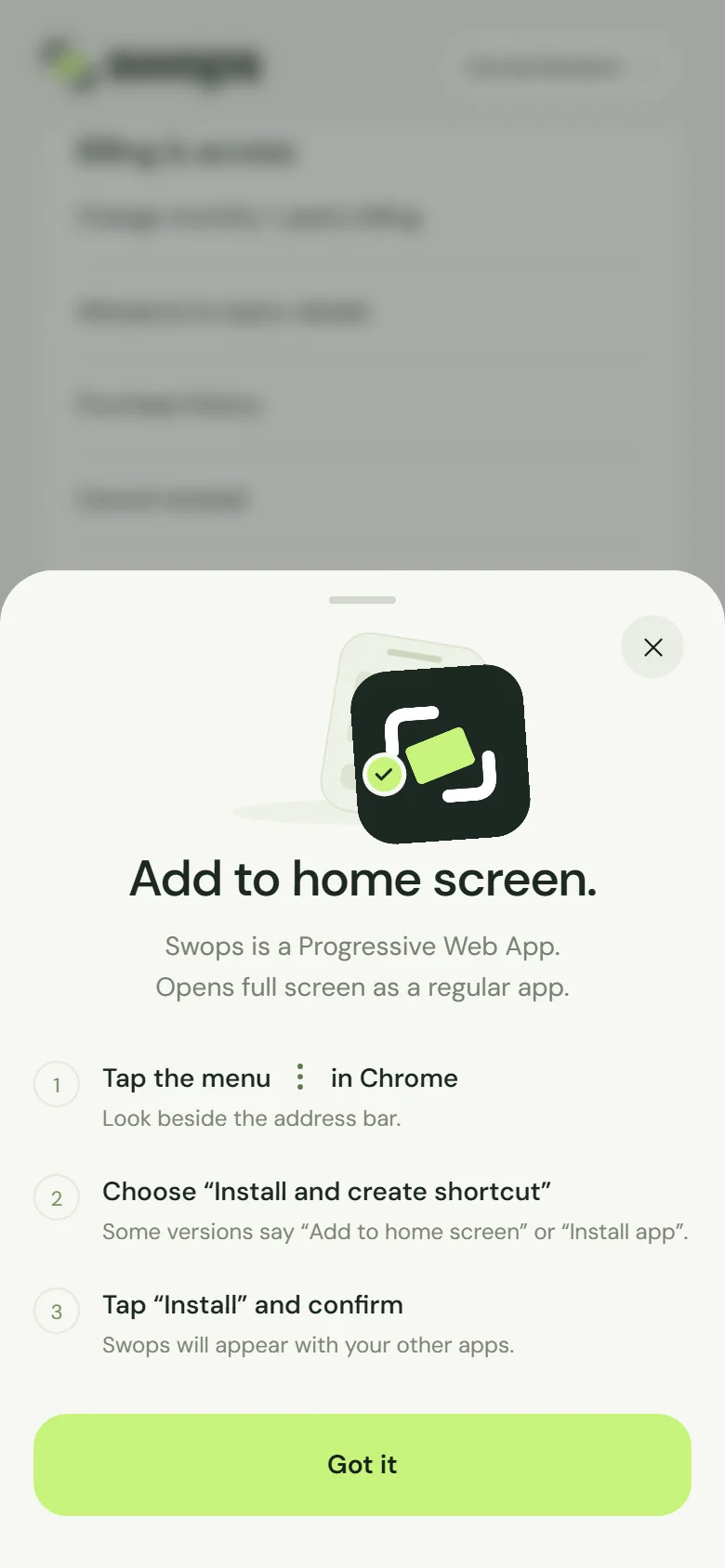
Chrome
Tap the menu beside the address bar.
Choose Install and create shortcut. Some versions say Add to home screen or Install app.
Tap Install and confirm.
Samsung Internet
Tap the menu in the bar at the bottom.
Choose Add page to, then Home screen. If you see an install icon in the address bar, tap that instead.
Tap Add.
Edge: menu at the bottom, then Add to phone (or Install app). Firefox: menu beside the address bar, then Add to Home screen (or Install).
Long-press the Swops icon on your home screen and choose My card to show your QR code in one move. See Share My card with a QR code.
Opened from LinkedIn, Instagram or an email app?
Apps like these open links in their own built-in browser, which cannot add anything to your home screen. Use that app’s menu (…) and choose Open in Safari, Open in Chrome or Open in browser, then follow the steps above.
On the laptop
On a laptop, use Swops in your browser at app.swops.ai. Bookmark it, or pin the tab. Card scanning happens on the phone; see What you can do on the phone and the laptop.
Still not working? See Cannot add Swops to the home screen on iPhone.