
Two ways back to a brief
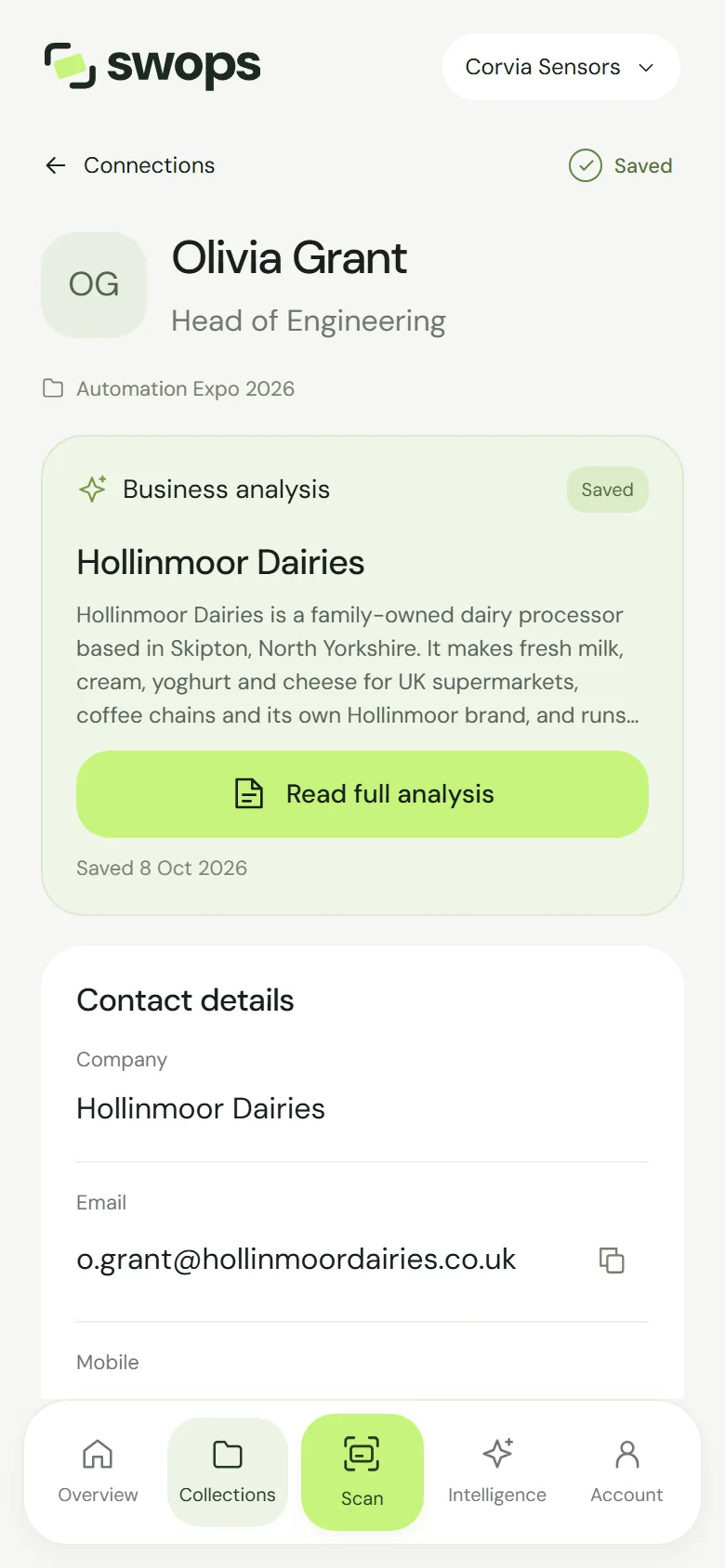
From the contact. Open the contact and tap Read full analysis on its Business analysis card. The card shows the start of the overview and the date it was saved.
From Intelligence. Tap Intelligence in the bottom menu, or in the sidebar on the laptop. It lists every saved brief in the workspace, newest first, each with “Saved 8 Oct 2026 · free to reopen”. Tap one to read it.
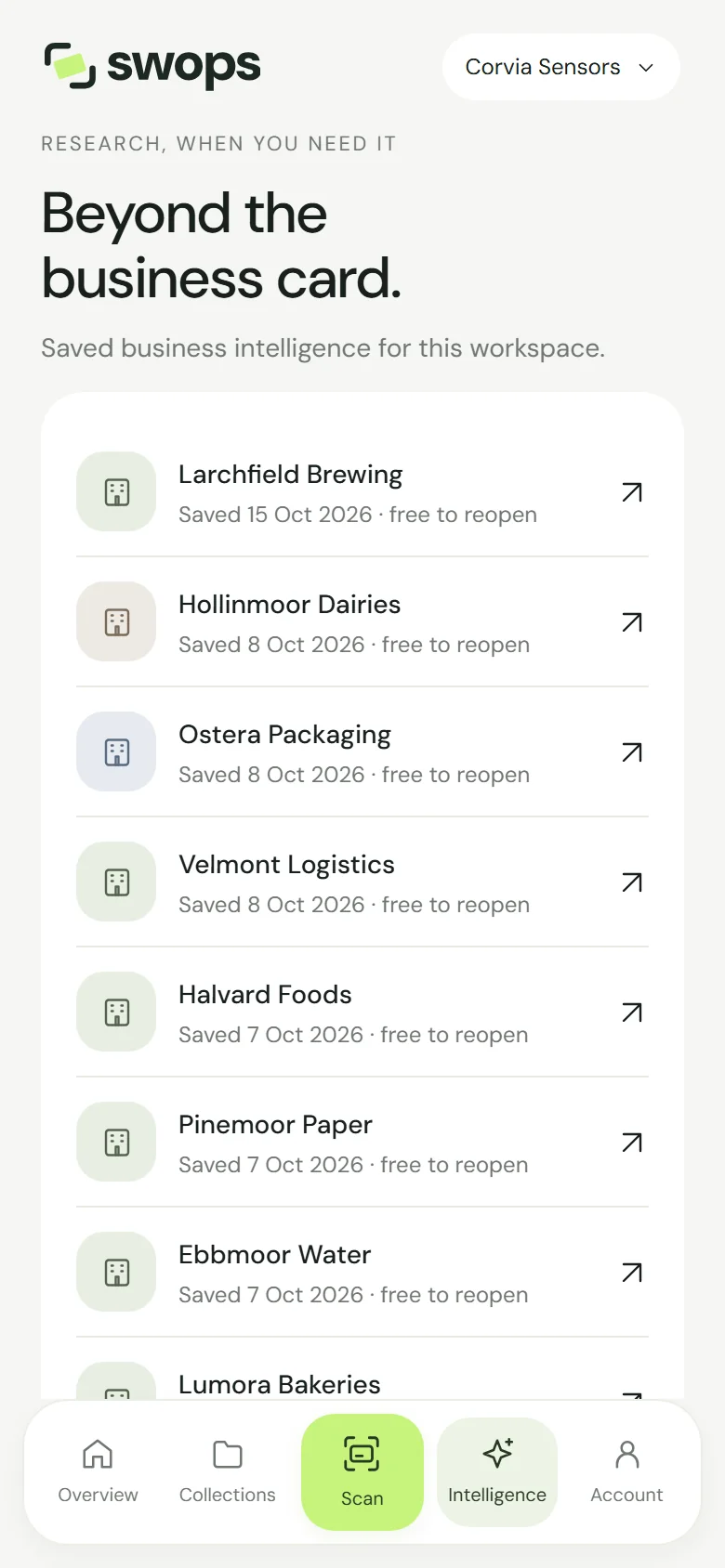
Reopening costs nothing, as often as you like. It also works in read-only collections and after paid access ends, during the 30 days to export.
One brief per business, shared
Swops keeps one saved brief per business in each workspace:
- Shared by the team. Everyone in a company workspace sees the same brief. If a colleague analysed a business on Monday, you read their brief for free on Tuesday.
- Shared by every contact at that business. Meet a second person from Hollinmoor Dairies and their contact already has the brief, no analysis needed.
- Kept when a contact goes. The brief belongs to the business, not to the person. Delete the contact and the brief stays in Intelligence.
Briefs never cross workspaces: a brief in your personal space is not visible in a company workspace, or the other way round.
How Swops decides that two contacts belong to the same business: see Which business Swops researches.
Reading from Intelligence or from a contact
Intelligence is for reading. Fresh research always starts from a contact, so a brief opened from Intelligence shows the note “For fresh research, open a contact at this business and choose Research again.” Its age note, on briefs a month old or more, has no research link there. See Research a business again.
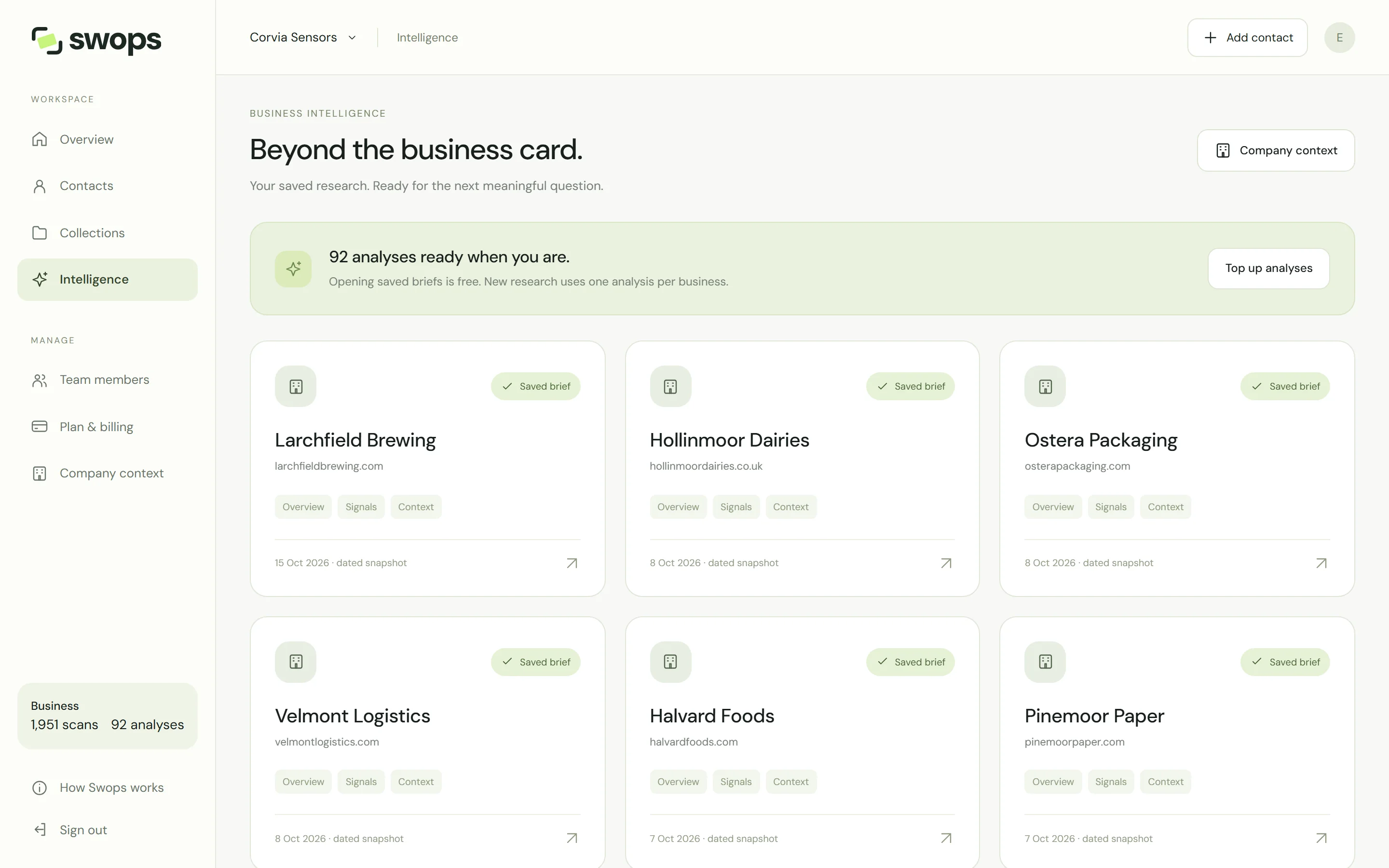
On the laptop, Intelligence shows the briefs as tiles, with how many analyses are left, a Top up analyses button and a shortcut to Company context.
Good to know
- In your export. Tick Include AI analysis when you export to CSV and each contact’s row gets the brief’s date, overview and In more depth. See Export contacts to a CSV file.
- Kept while the workspace is. Briefs are deleted with the rest of the workspace’s data when its retention period ends. See What happens when a plan ends.