
On the phone
Tap Collections in the bottom menu.
Tap the round + at the top right. You can also tap New collection at the bottom of Save to a collection, from Overview or the scan sheet.
Type a name under Collection name.
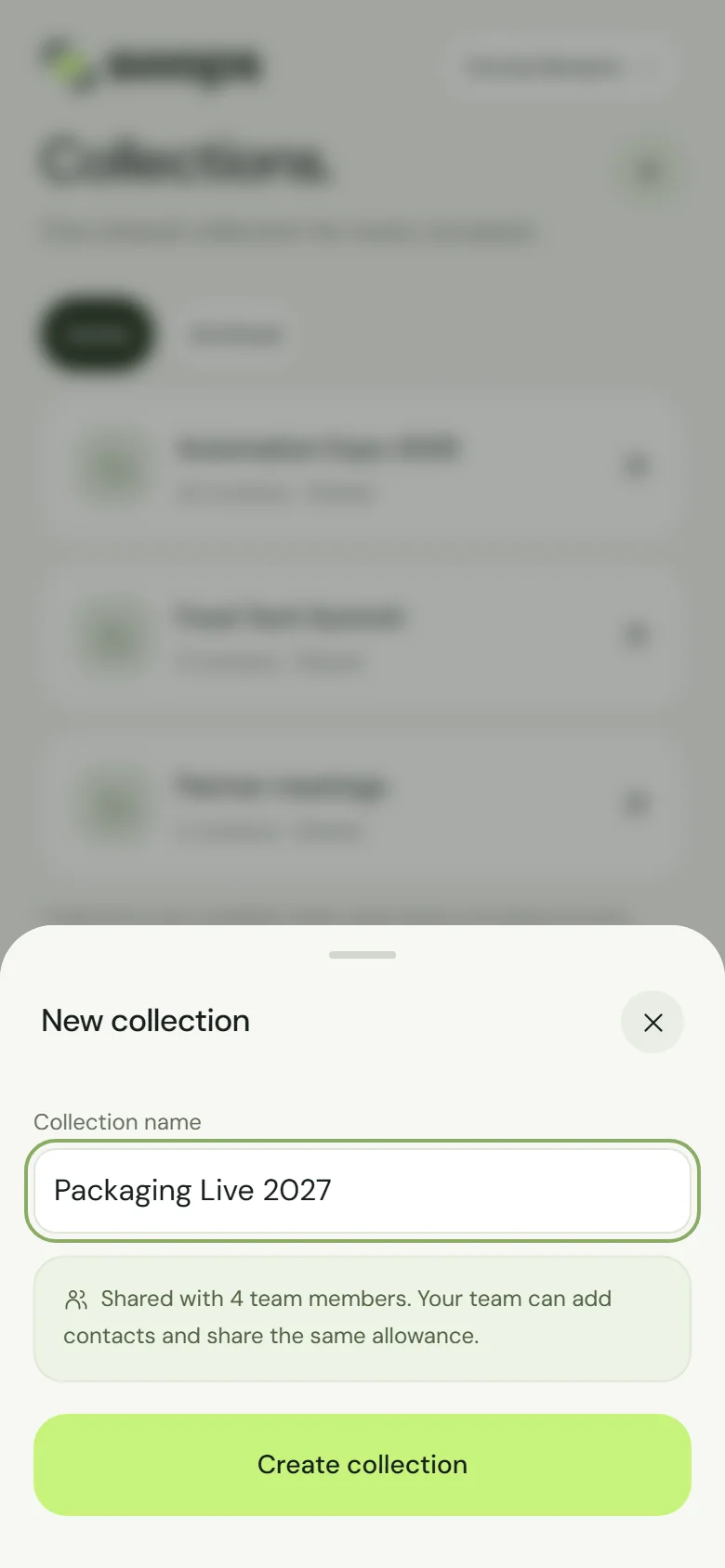
New collection. In a company workspace, the whole team can use it. Tap Create collection.
Swops shows Collection created. The new collection is now your current collection: the next card you scan, or contact you add by hand, goes straight into it. See Choose where new contacts go.
On the laptop
Choose Collections in the sidebar.
Click New collection at the top right, or the Create a collection tile (“Give your next event a home.”).
Type the name and click Create collection.
Private or shared
The sheet tells you who will see the collection before you create it:
- In your personal space: Private · only you. Only you can access this collection.
- In a company workspace: Shared with 4 team members. Your team can add contacts and share the same allowance.
In the wrong workspace? Close the sheet, tap the workspace name at the top of the screen to switch, and start again. See Switch between workspaces.
Any member of a company workspace can create collections, not only the owner.
Naming tips
- Event and year: “Automation Expo 2026”, “Packaging Live 2027”. Next year’s show gets its own collection, and you can compare.
- For ongoing work, name the group: “Partner meetings”, “Key accounts North”.
- Keep it short. The name appears at the top of the scan sheet, and your CSV export is named after it.
You can rename a collection at any time: see Rename, archive and restore a collection.
Every workspace starts with a collection: My contacts in your personal space, My first event in a company workspace. On the free trial and on a Team Pass, rename it for your event instead of creating another: the trial allows one active collection, and on a Team Pass the first one already counts as one of your three.
When you cannot create one
- Collection limit reached. Your plan has no free slot. The sheet says what to do next: archive a finished collection, renew the Team Pass or choose another plan. See How many collections you can have.
- The plans open instead. A company workspace without a plan cannot hold collections yet: choose Team Pass or Business first. The same happens after paid access ends, while the workspace is read-only. See Choose a plan and pay.
- Add a collection name. The name was empty.