
Where to find it
- Phone: open Account. My card sits at the top, right under the workspace name: Your details as a QR code · My card. It is there in every workspace.
- Laptop: open Plan & billing in the sidebar (or click your initial at the top right), then My card under Your account.
- Android home screen: long-press the Swops icon and choose My card. This needs Swops on your home screen: see Add Swops to your home screen.
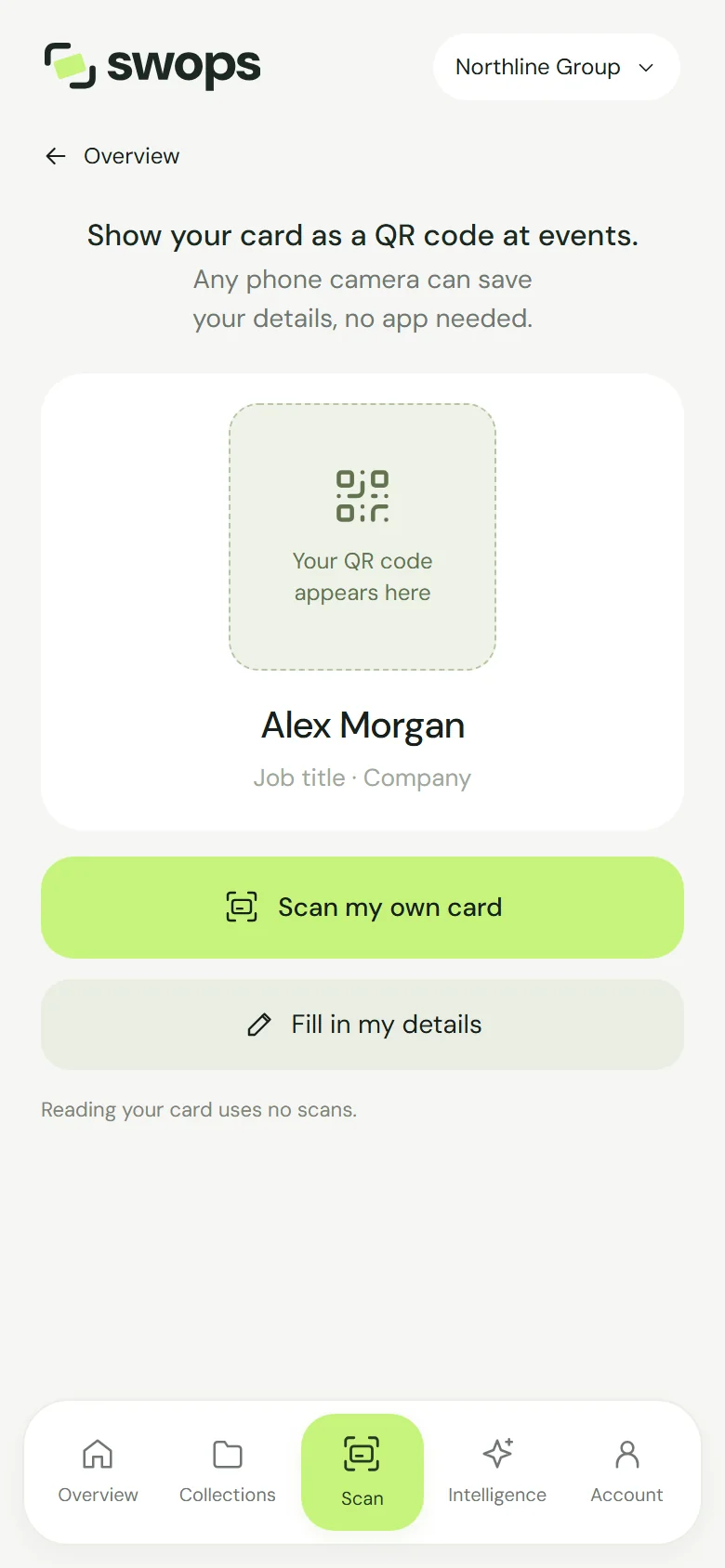
Read your printed card (phone)
The quickest way. Have one of your own business cards to hand.
Tap Scan my own card. Your camera opens. Lay the card flat in good light and take the photo.
Swops shows Reading your card… and fills in the fields from the card. Then it says Read from your card. Check each detail, then save.
Check every field. Anything that was hard to read is marked Check this detail · it was hard to read on the card. Add what your card does not show, such as your LinkedIn.
Tap Save my card. You will see Card saved and your QR code.
Reading your own card is free: it uses no scans, and the photo of your card is not stored. Inside the editor you can also tap Upload a photo to use a picture you already have, or Scan again for a better read.
Type your details
Tap Fill in my details. The sheet Your card details opens with your name and sign-in email already filled in from your account.
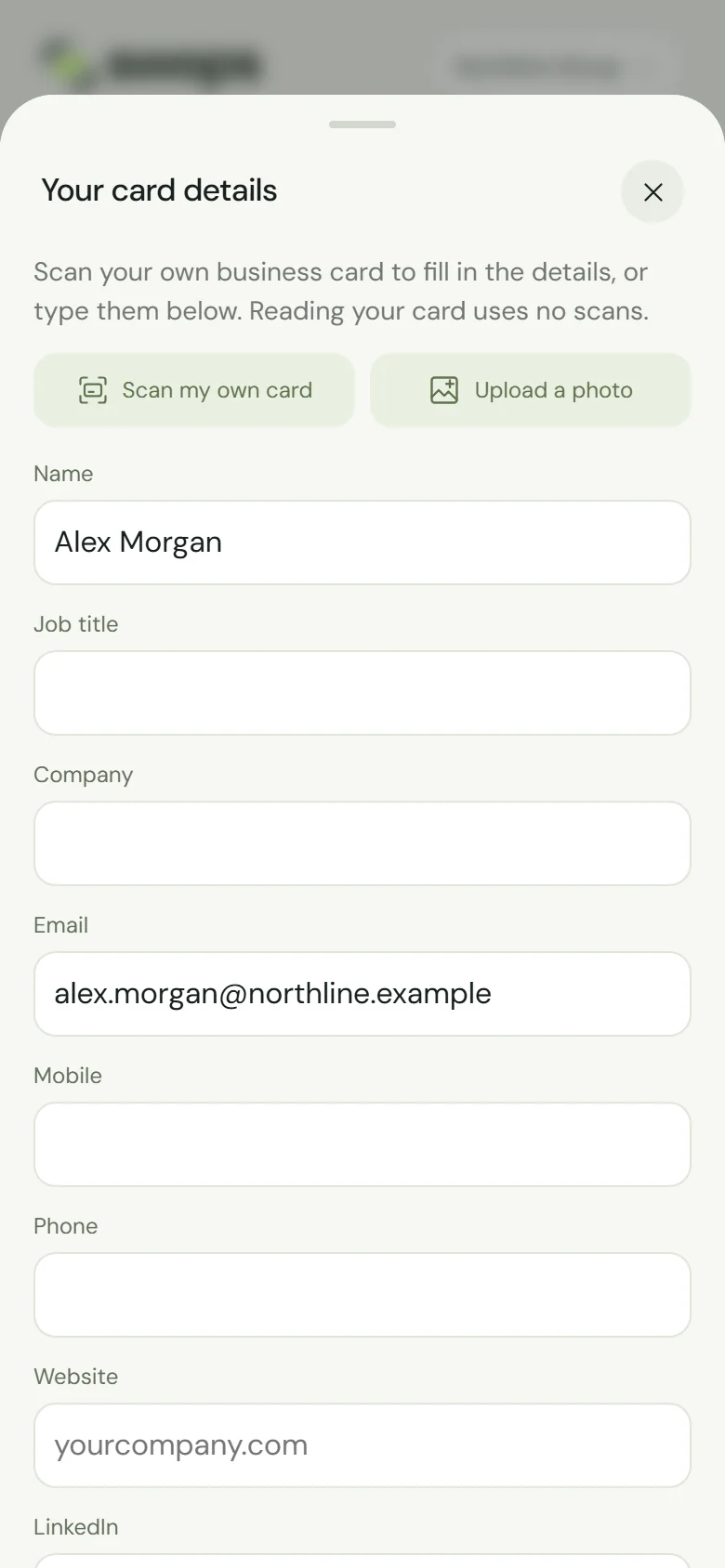
A new card starts with your name and sign-in email. Add the rest and correct anything that should look different on your card.
Tap Save my card.
On the laptop, Fill in my details is the way in: reading a card needs the phone’s camera.
The fields
| Field | Good to know |
|---|---|
| Name | The only required field. |
| Job title | Shown under your name, with the company. |
| Company | Your company or organisation. |
| Must be a valid address. The follow-up email needs it. | |
| Mobile | Saved as a mobile number in the other person’s contacts. |
| Phone | Your office or landline number. |
| Website | Like yourcompany.com. No need for https://. |
| Like linkedin.com/in/yourname. Your profile name on its own works too. | |
| Address | Optional. It goes into the contact file you share. The QR code leaves it out to stay easy to scan. |
Your card, not the company’s
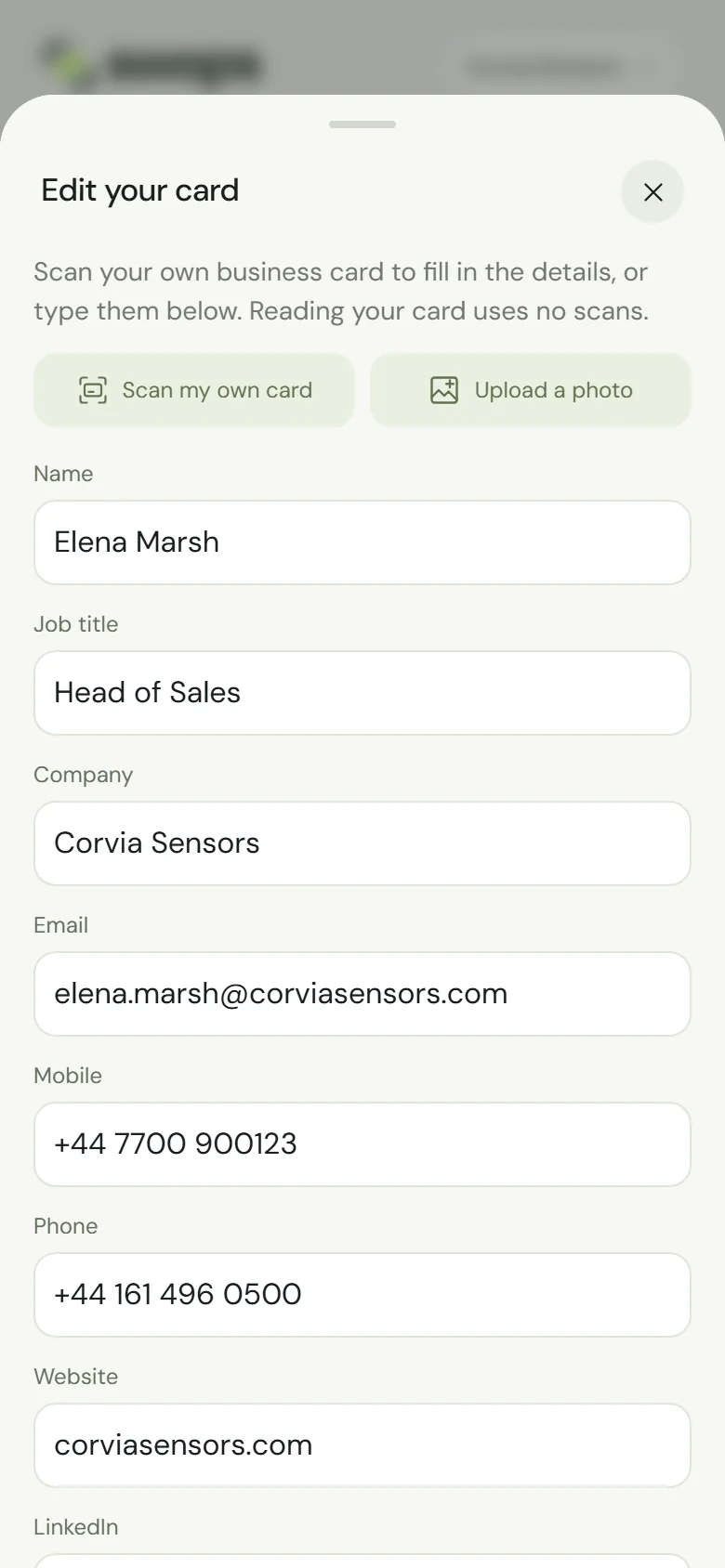
The editor says it plainly: Your card belongs to you, not to a workspace. Only what you save here is shared. You have one card, the same in your personal space and in every company workspace you belong to. Switching workspace does not change it.
If something goes wrong
- That photo does not look like a business card. Retake it closer, with the card filling most of the photo, or fill in your details yourself.
- You can read your card up to 10 times a day. Type your details instead, or try again later.
- Add your name. The name cannot be empty.
- Enter a web address, like yourcompany.com. or Enter your LinkedIn address, like linkedin.com/in/yourname. Check for a typo or a stray space.
Closing the sheet with unsaved changes asks Discard your changes? Tap Keep editing to go back to your details.
Show your QR code at the stand: Share My card with a QR code. Working in a Team Pass or Business workspace? Let Swops email your details to everyone whose card you scan: The instant follow-up email.