
Out of cards? Show your phone.
Open Account and tap My card at the top.
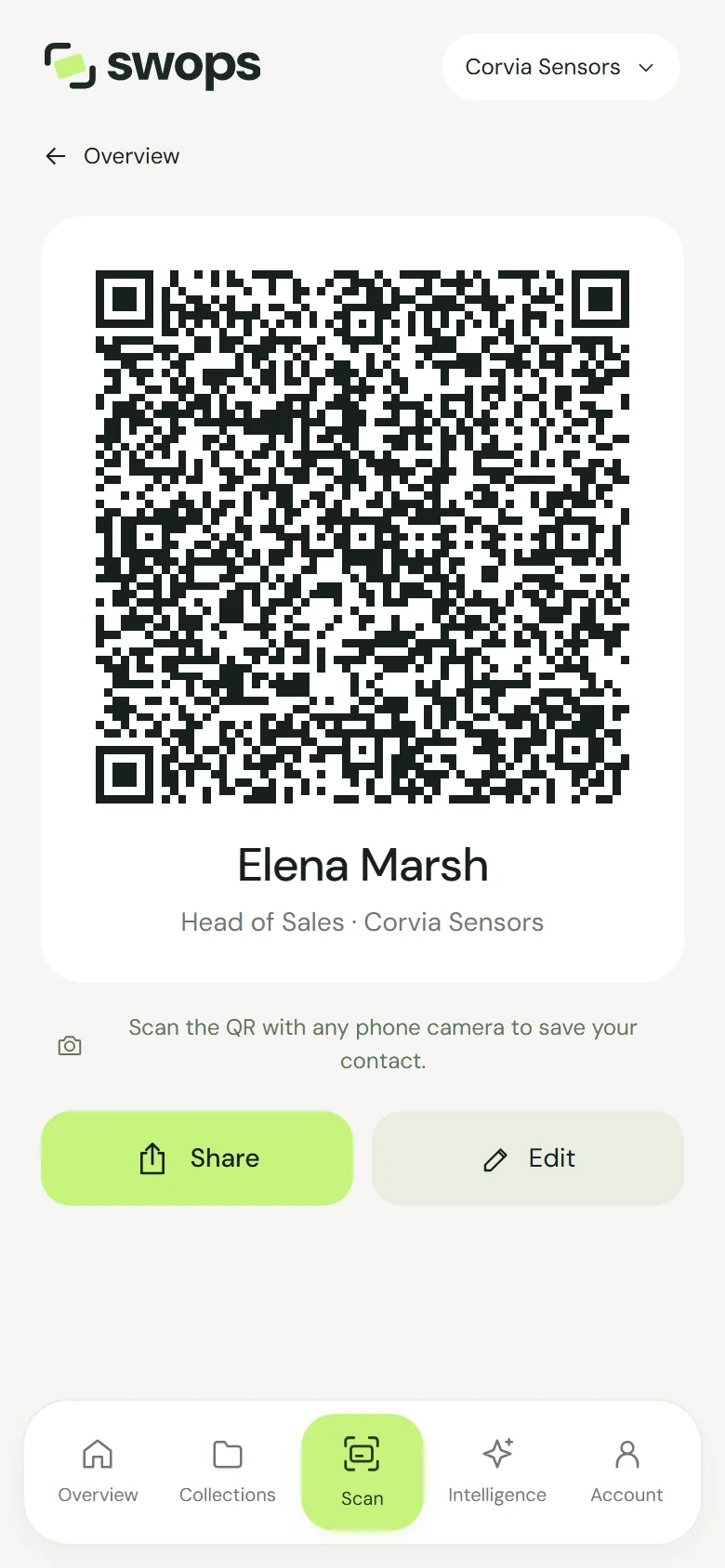
Hold up your phone. Your QR code fills the screen, with the line Scan the QR with any phone camera to save your contact.
The other person points their phone’s camera at the code and taps to add you to their contacts. That is all.
Not set up yet? It takes a minute: Set up My card.
Why it works with any phone
The QR code holds your contact details themselves, not a link to a web page. So the person scanning needs no app, no account and no internet connection: their phone’s own camera reads the code and offers to save you as a contact.
Your address is left out of the code. It goes into the contact file instead (below).
While the code is on screen, Swops keeps your phone’s screen from dimming, where your browser allows it. Battery saver can stop that, so the screen may still dim as usual.
Send it as a contact file
Tap Share. Swops makes a contact file named after you and opens your phone’s share menu: WhatsApp, AirDrop, email, messages, whatever your phone offers. The file holds everything on your card, including your address.
Where the browser cannot share files, Swops saves the file to your device instead and shows Card saved as a contact file. Attach it to a message or email yourself.
One move from the home screen (Android)
Long-press the Swops icon on your home screen and choose My card. Your QR code opens straight away, ready to show. This needs Swops on your home screen: Add Swops to your home screen.
On iPhone, open Swops and go to Account, then My card.
On the laptop
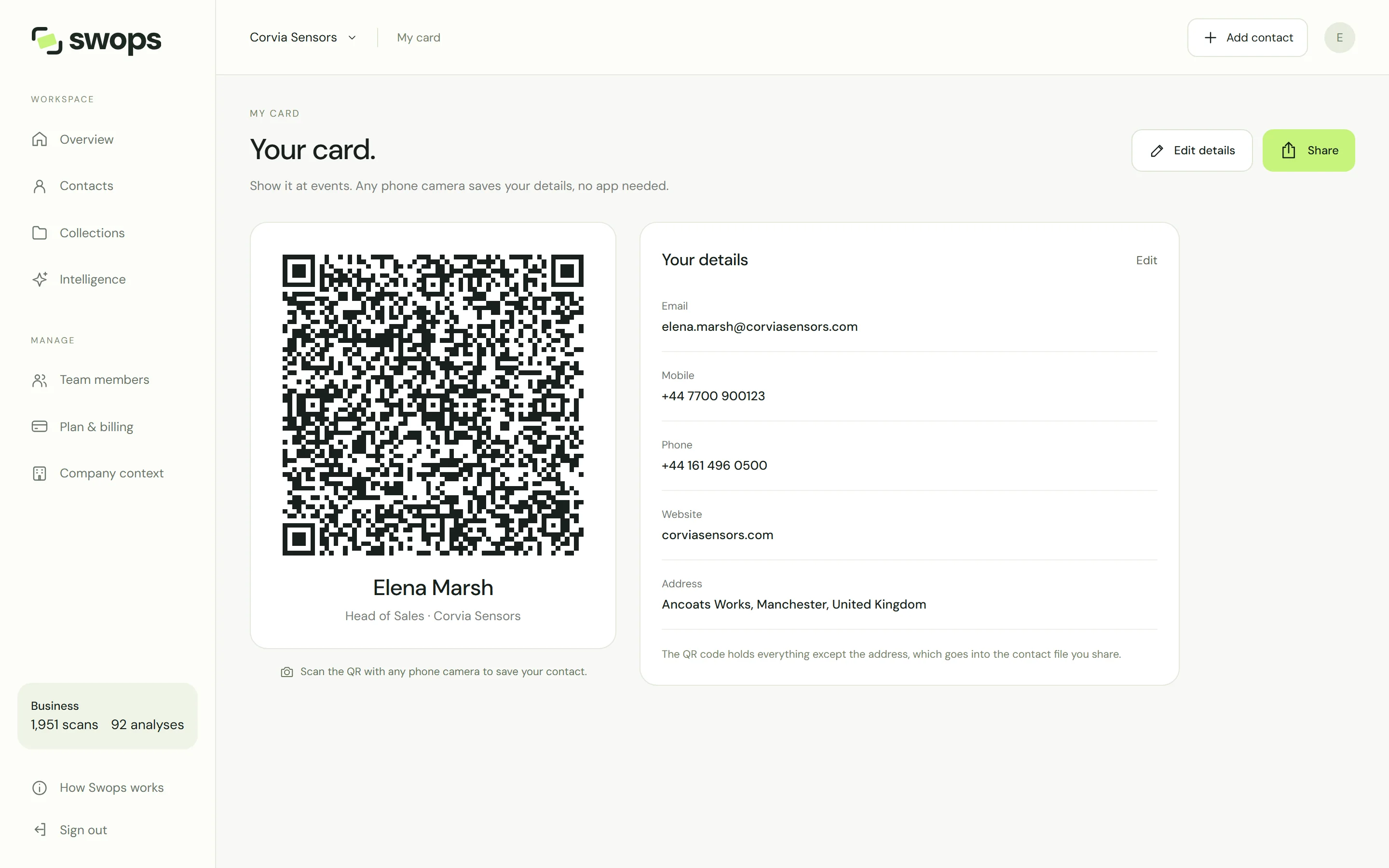
Open Plan & billing, then My card under Your account. You see the card with its QR code next to a Your details panel, with Edit details and Share. Someone can scan the code from your screen too. Share sends or saves the contact file, depending on what your browser can do.
Tips at the stand
- Turn the brightness up. A bright, steady screen scans fastest under exhibition lights.
- Hold still and let them scan. Keep your phone steady at chest height and let the other person bring their camera to it. Tilt it a little if a spotlight glares on the screen.
- Open it while you have a signal. Swops needs a connection to open My card. The person scanning does not.
- Get their details too. Scan their card with Swops. With the follow-up email switched on, they also get your details by email straight away: The instant follow-up email.
People who already saved your details keep the version they saved. Update My card and share it again: Edit or delete My card.