
Change your details
Open My card: Account, then My card at the top. On the laptop: Plan & billing, then My card under Your account.
Tap Edit (laptop: Edit details). The sheet Edit your card opens.
Change what you need. On the phone you can also tap Scan my own card to read a new printed card: what the card shows replaces those fields, and fields it does not show stay as they were.
Tap Save my card. You will see Card saved.
Your QR code and contact file show the new details at once. The follow-up email uses them too, from your next scan on.
People who saved your old details keep the version they saved. Swops cannot change contacts on other people’s phones. If something important changed, share your card again: Share My card with a QR code.
Delete your card
Open My card and tap Edit.
Scroll to the bottom of the sheet and tap Delete my card.
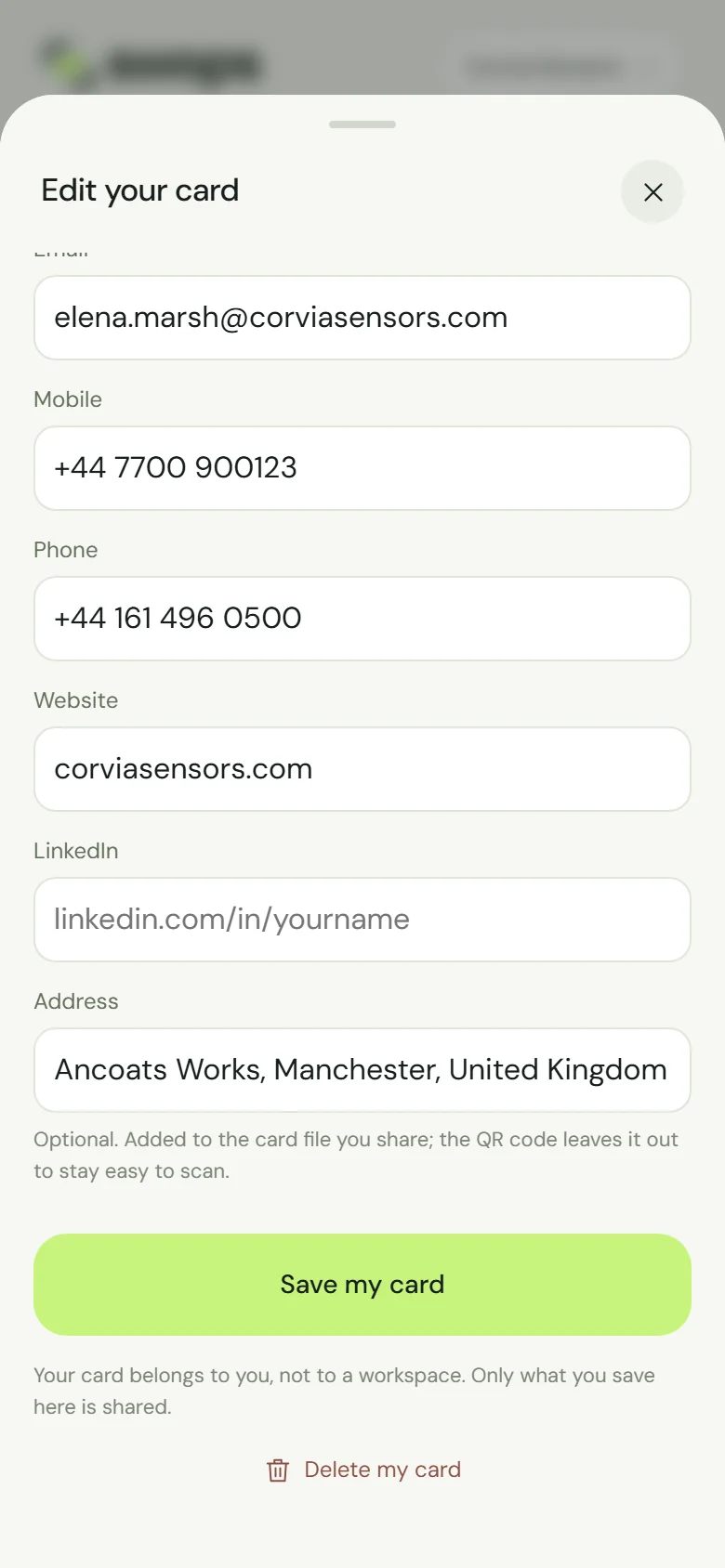
Delete my card sits below Save my card. Swops asks Delete your card? and explains: "Your details and QR code are removed from Swops. People who already saved your details keep them. You can set up your card again at any time."
Tap Delete my card to confirm, or Keep my card to change your mind. You will see Card deleted.
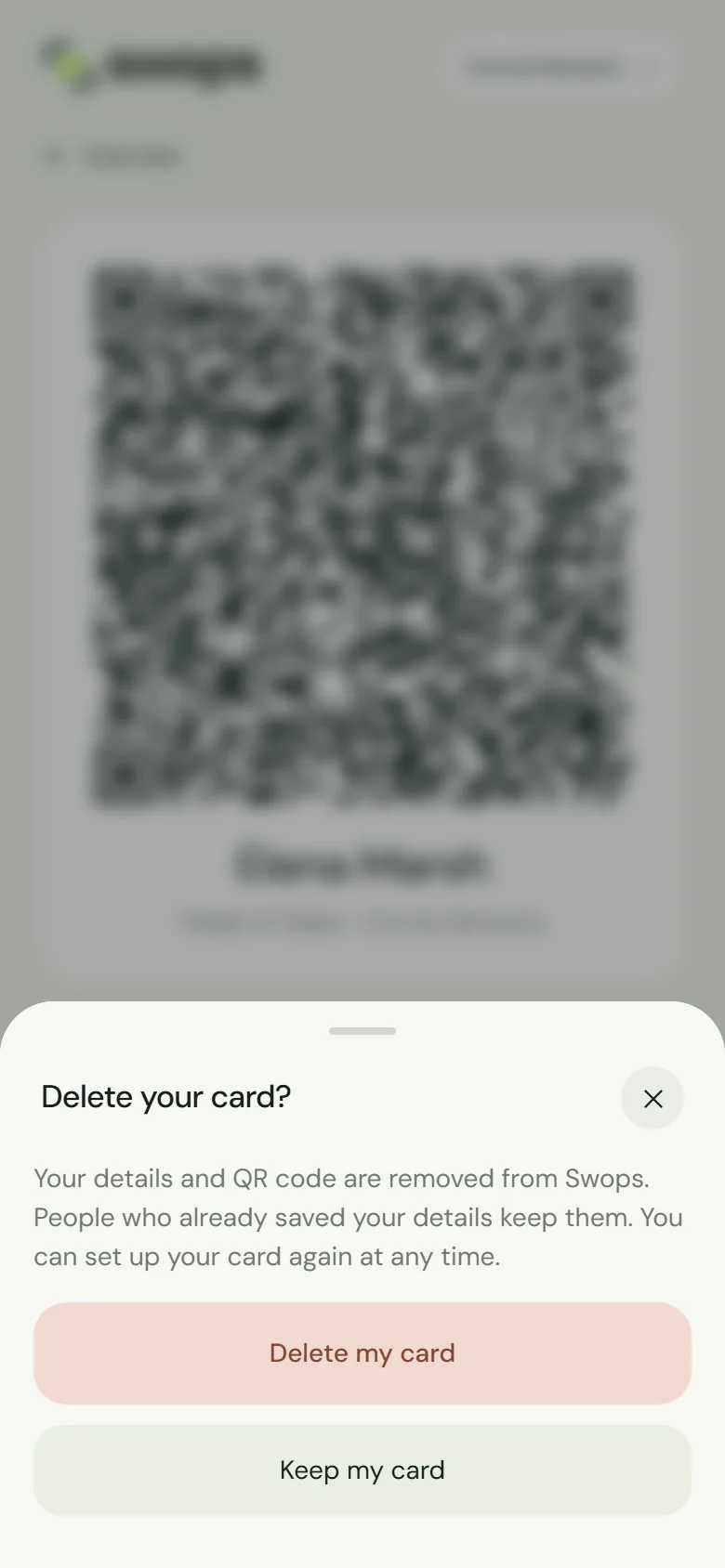
One more tap to confirm. Keep my card cancels.
My card then shows the setup screen again, ready for whenever you want a card. Setting it up again works exactly like the first time: Set up My card.
The follow-up email sends your details from My card. Without a saved card with your name and email address, no follow-up emails go out, and Account shows Follow-up email · Off. Your setting and message are kept: save My card again and the follow-up email works as before. The same happens if you remove the email address from your card.
Deleting your account
Deleting your Swops account also deletes My card and your follow-up email settings. See Delete your account.